Guild Crafting is a guild-based feature for crafting target items.
If the Guild Leader or Vice Guild Leader registers a recipe, all members may contribute materials for crafting.
Crafted items can be distributed by the Guild Leader or Vice Guild Leader to all or select members.
■ Contents
1. Crafting Registration
2. Add Materials & Start Crafting
3. Crafting Complete & Distribution
1. Crafting Registration
- Go to the Guild menu, then tap [Guild Crafting] at the top to enter the Guild Crafting screen.
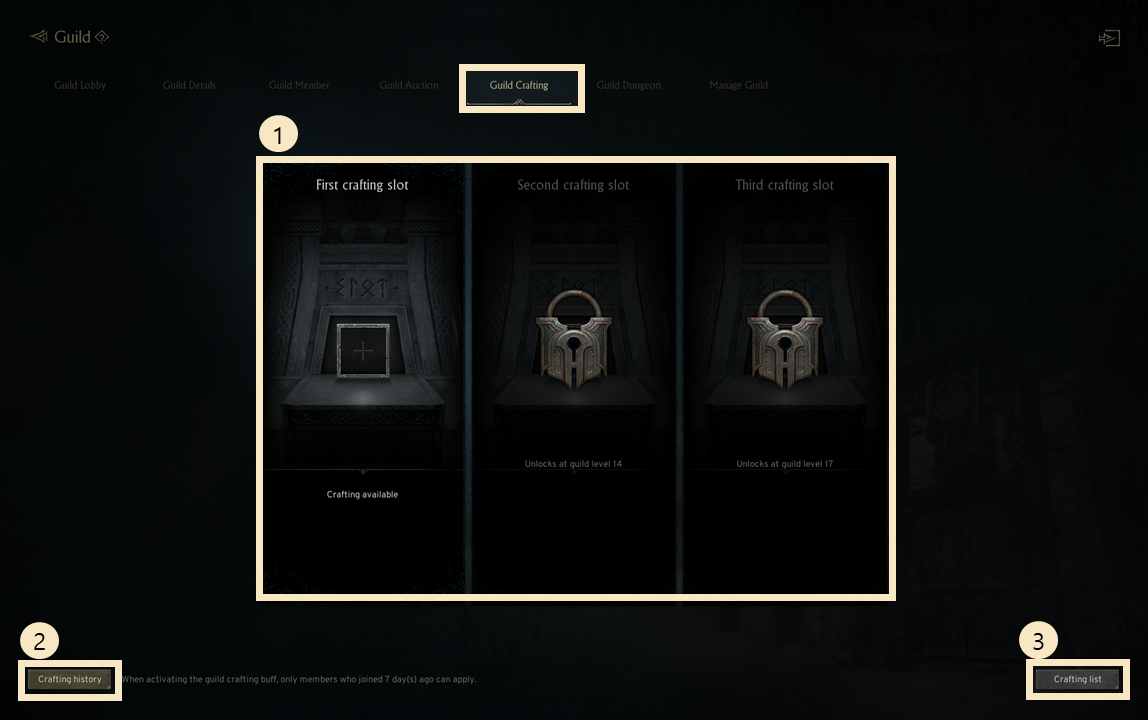
! Guild Crafting is available starting from Guild Level 8.
! Only the Guild Leader and Vice Guild Leader can register craftings.
① Slot: Tap an empty slot to display craftable items; up to 3 slots can craft simultaneously.
Slot 2 unlocks at Guild Level 14, and Slot 3 unlocks at Guild Level 17.
② Crafting History: Displays up to 200 records for registration, completion, and distribution, saved for 30 days.
③ Craftable List: Displays items available for Guild Crafting.
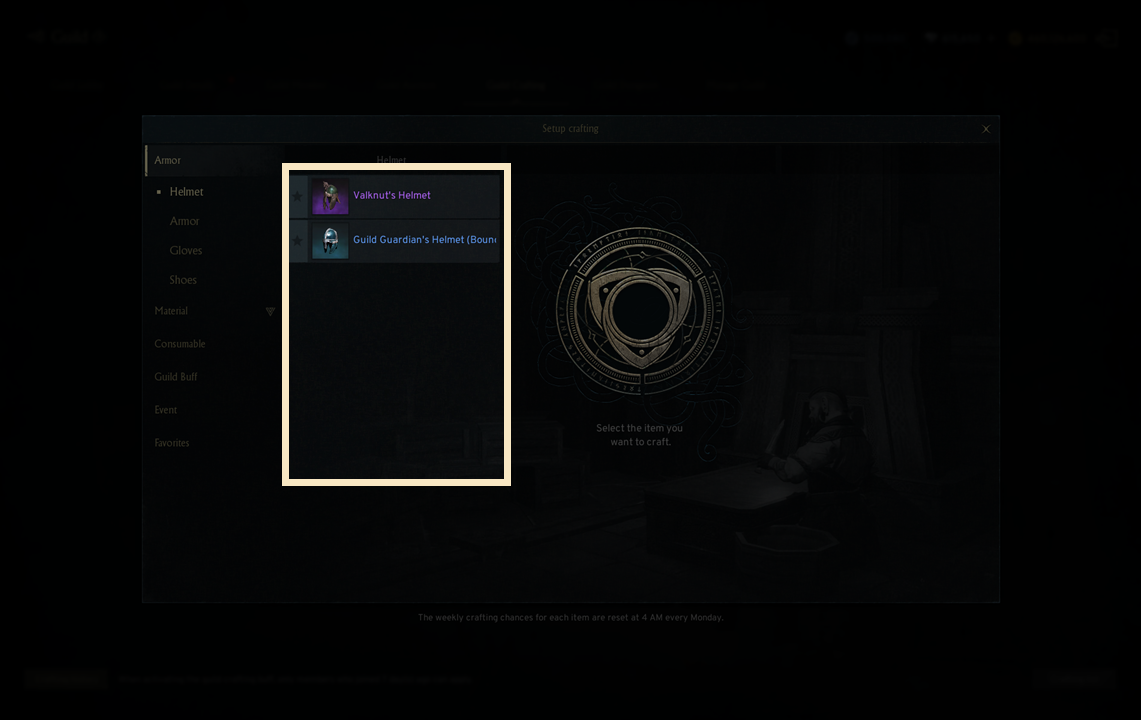
- If you pick an empty slot, the craftable item list will appear.
- Click the star icon to add to favorites, and you can manage them in the Favorites tab at the bottom.
! Some items require conditions like Guild Level, Siege Guild, Defense Guild, or Successful Defense to be crafted.
- Tap any item to check item info, necessary materials, craft limit until next siege war, and time needed.
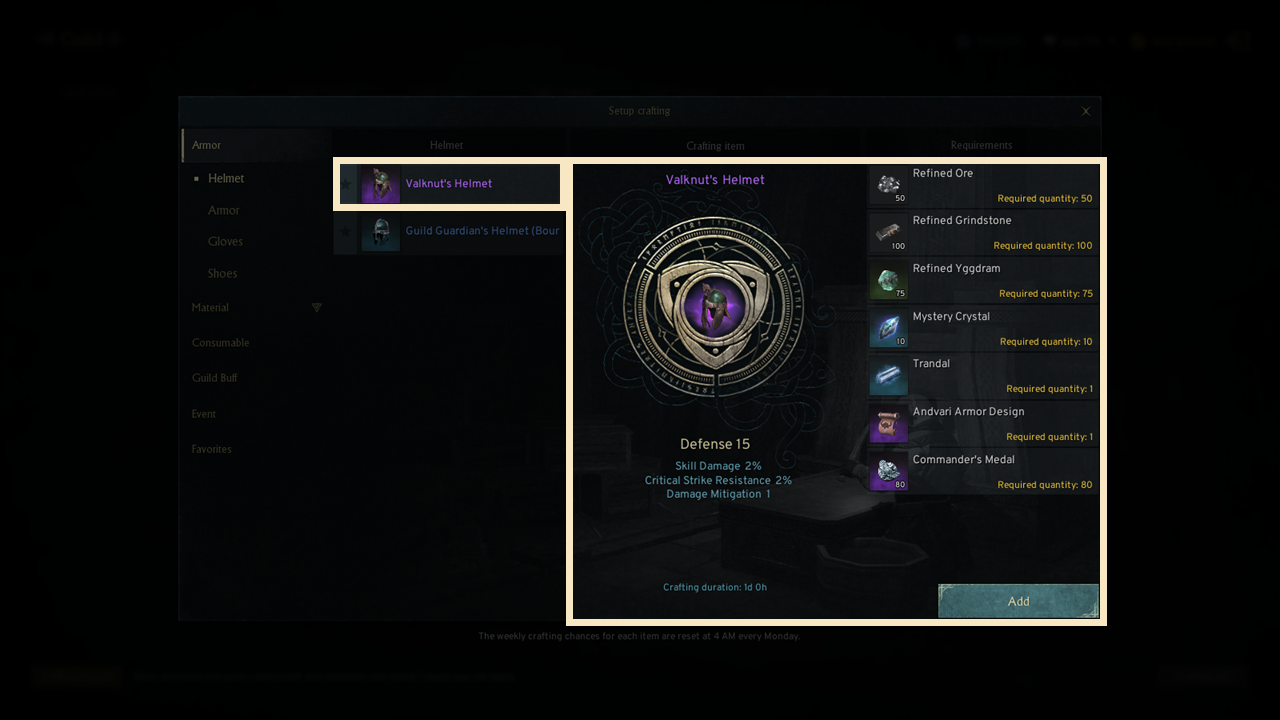
- Tap the [Register] button to place the item into the slot.
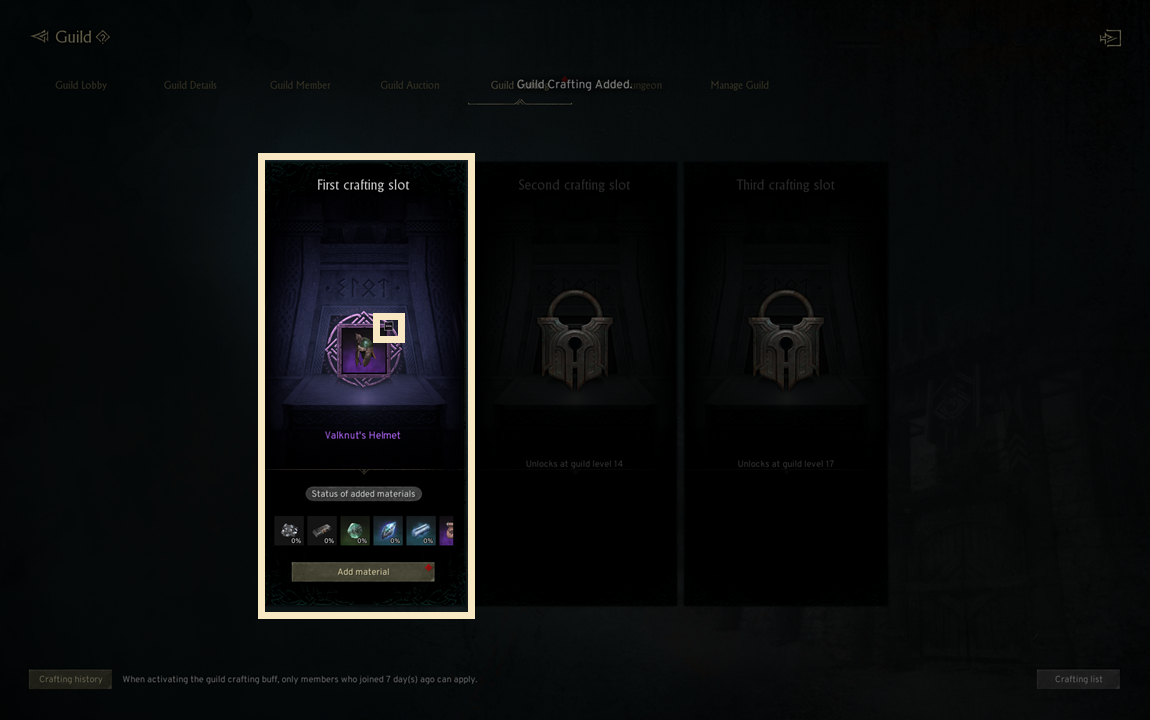
! If you tap the '-' button, the crafting is canceled and all spent materials disappear.
2. Add Materials & Start Crafting
- You can add the required materials by pressing the insert button.
- Select an item name, choose the quantity, and tap Confirm to submit materials.
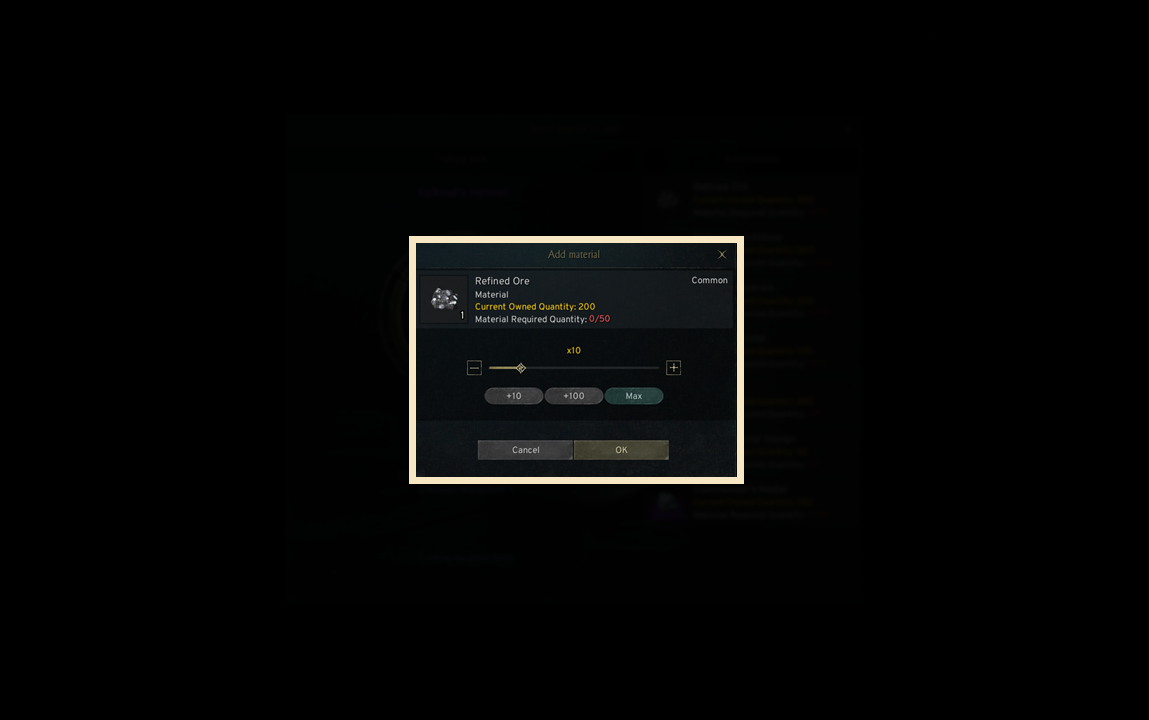
- Once added, you can check the status of deposited materials.
- Fully added materials display 'Complete', while partial inputs show percentages.
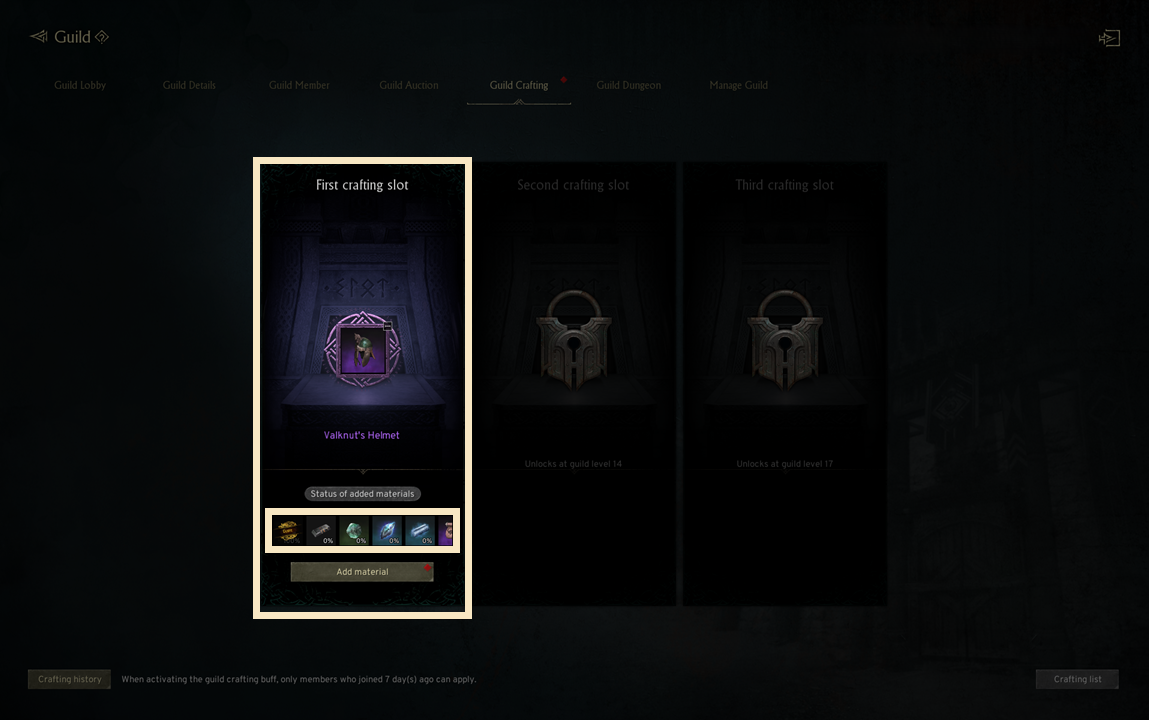
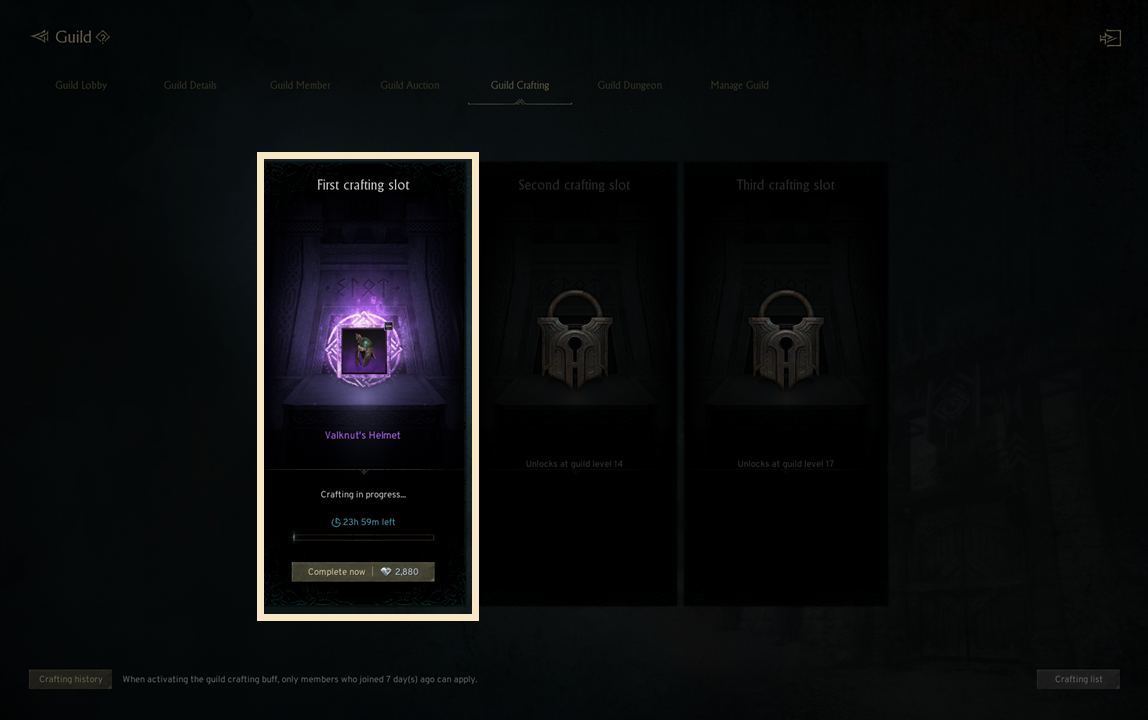
- Crafting begins automatically once all materials are added, taking a set duration.
! Crafting time may vary depending on the item's grade and type.
! You can use Diamonds to complete crafting instantly.
3. Crafting Complete & Distribution
- You will see a popup announcing finished crafting when entering the tab.
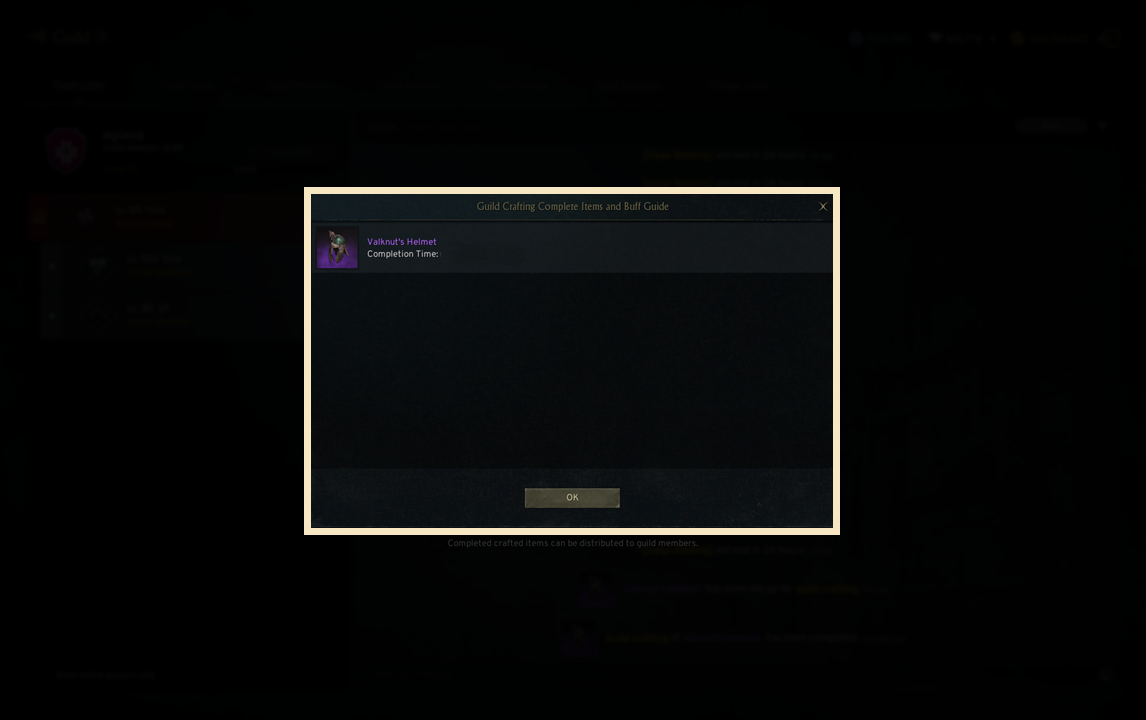
- Once you press Confirm, the slot updates and the distribute option activates.
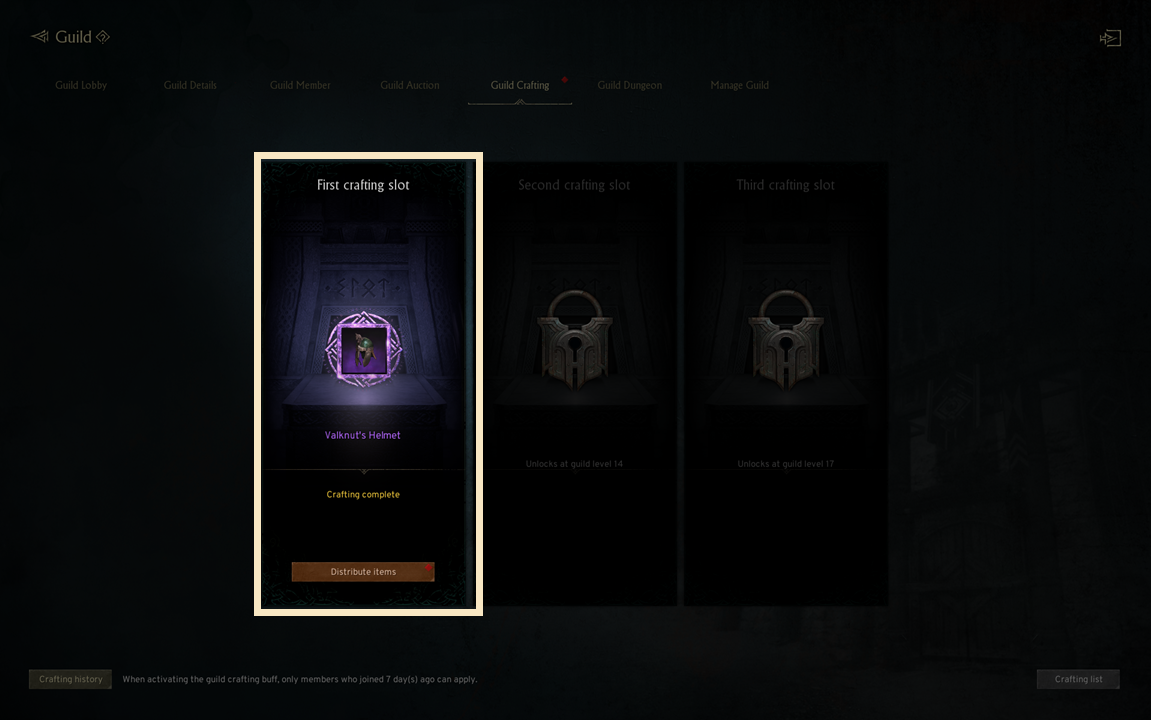
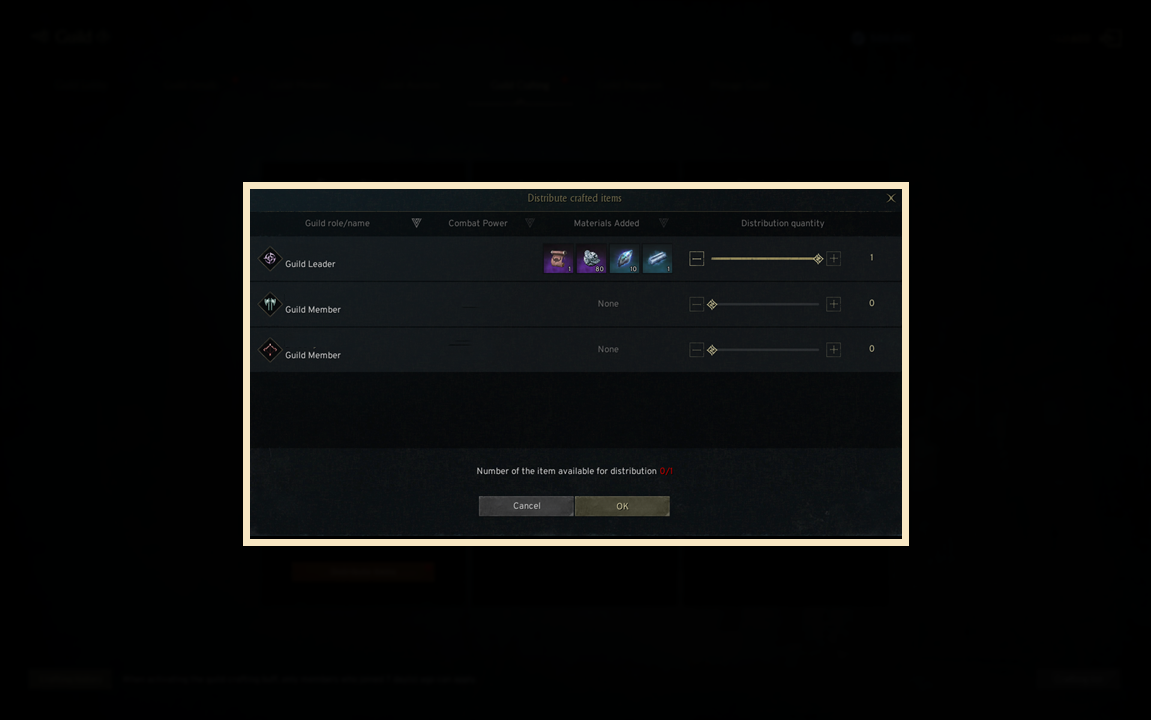
- Click Distribute to see material contributors and adjust payout quantities.
- Upon pressing Confirm, items are sent to member inbox based on settings.
! Once distribution is complete, the slot becomes empty.
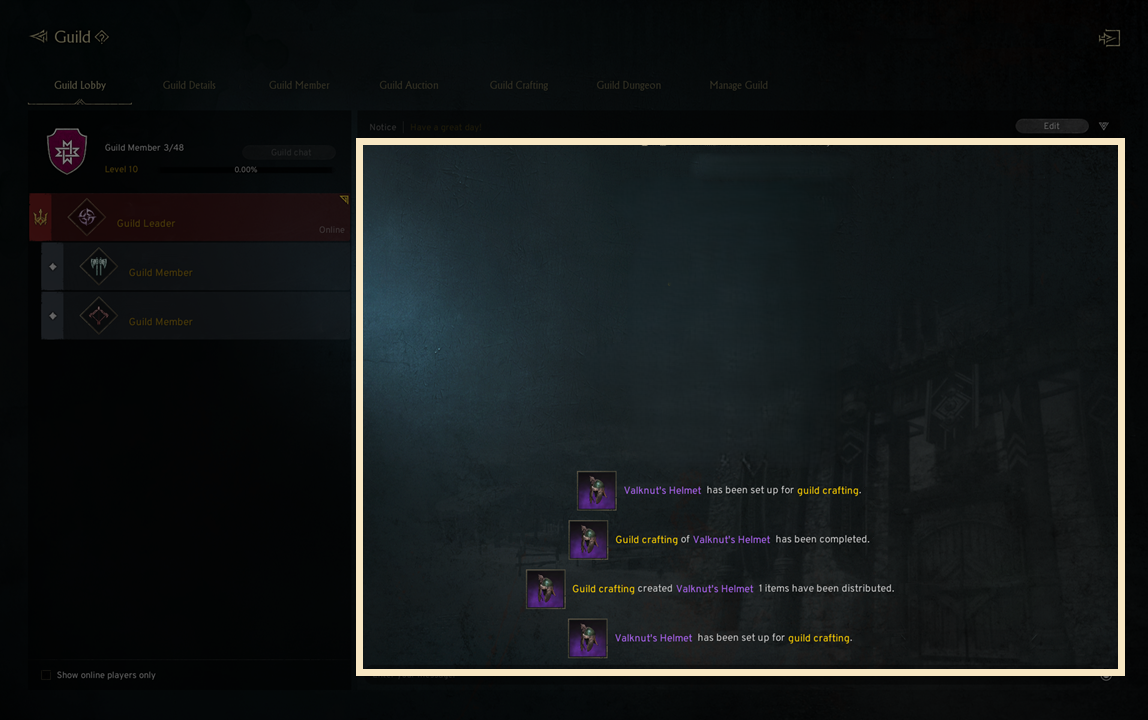
- You can check crafting progress, completion, and distribution from the guild lobby.