You can grow your character even stronger using Providence Stones condensed with the power of Yggdrasil's divine beasts.
Unleash the true potential of Providence Stones by strategically mounting them on six Providence Boards symbolizing each sacred beast.
■ Contents
1. How to enter Providence
2. How to equip Providence Stones
3. How to fuse Providence Stones
4. How to alter Providence Stones
5. Symbol point
1. How to enter Providence
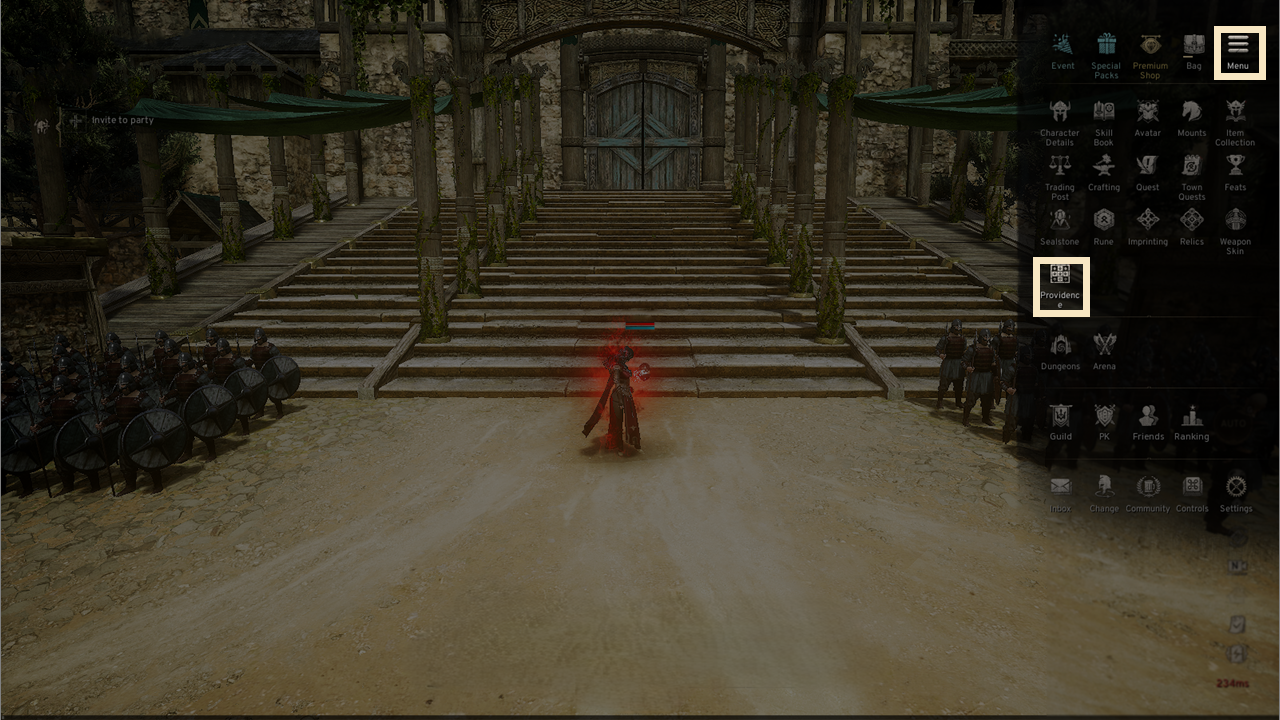
- Select the upper-right [Menu(≡)] - [Providence] to enter Providence.
2. How to equip Providence Stones
◈ Types of Providence Boards
- There are 6 Providence Boards in total, and extra Providence Boards will open when reaching target levels after opening Dainn's Providence.
◈ Equip Providence Stones
- Select a Providence Stone from the top tab, drag it, and equip it in an empty slot.
- There are 18 shapes of 'Normal' Providence Stones.
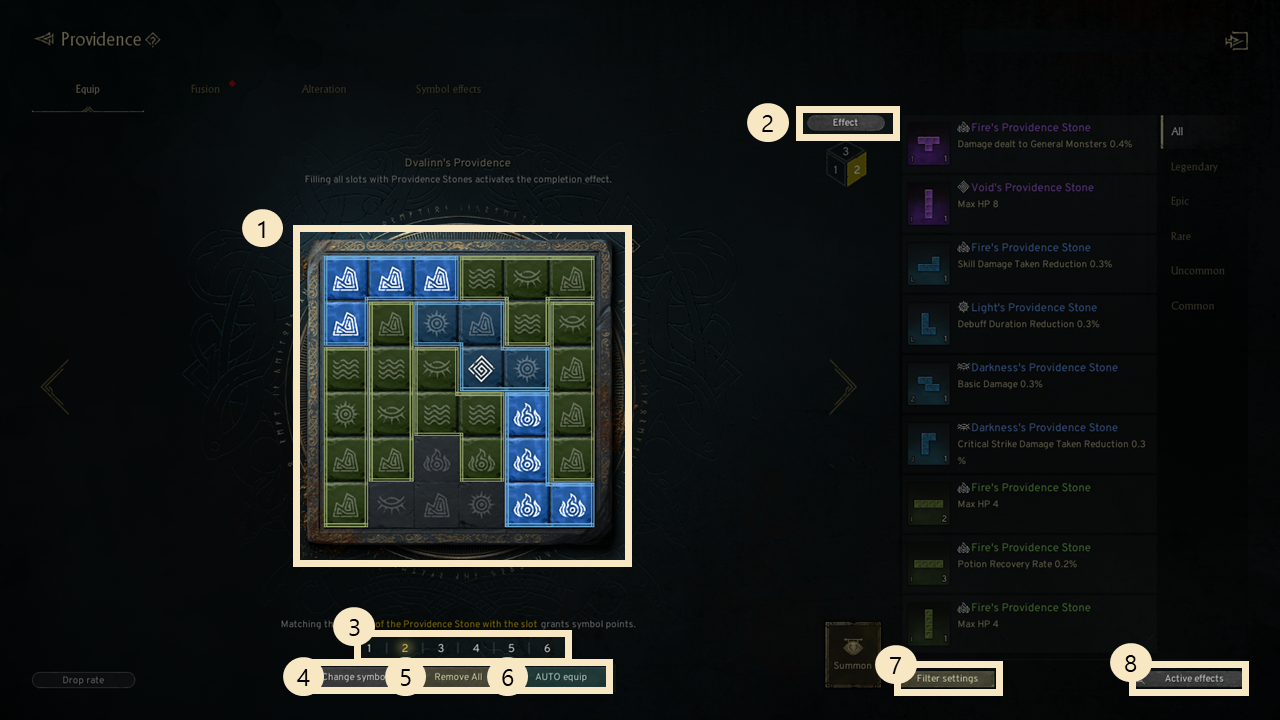
① Providence Board: Each square board has 36 slots randomly assigned Fire, Water, Earth, Light, Dark, or Void symbols upon unlocking.
② Completion Effect: You can check completion effects for both board equipping and slot enhancement.
③ Switch Providence Board: You can change boards by selecting numbers (1-6) at the bottom or tapping the side arrows.
④ Change Symbol: You can change the symbols assigned to the board's slots.
⑤ Equip Providence Stones: You can equip your owned Providence Stones directly.
⑥ Auto Equip: You can automatically equip your Providence Stones based on preset conditions.
⑦ Filter Settings: You can set filters to display Providence Stones, symbols, and options meeting your criteria.
⑧ View Active Effects: Check all currently applied Providence Stones effects.
(You can check board and slot effects.)
◈ Auto-Equip Providence Stones
- You can auto-equip owned Providence Stones onto the Providence Board based on your configured settings.
- Tap the 'Auto-Equip' button to open the filter setup menu for Providence Stones.
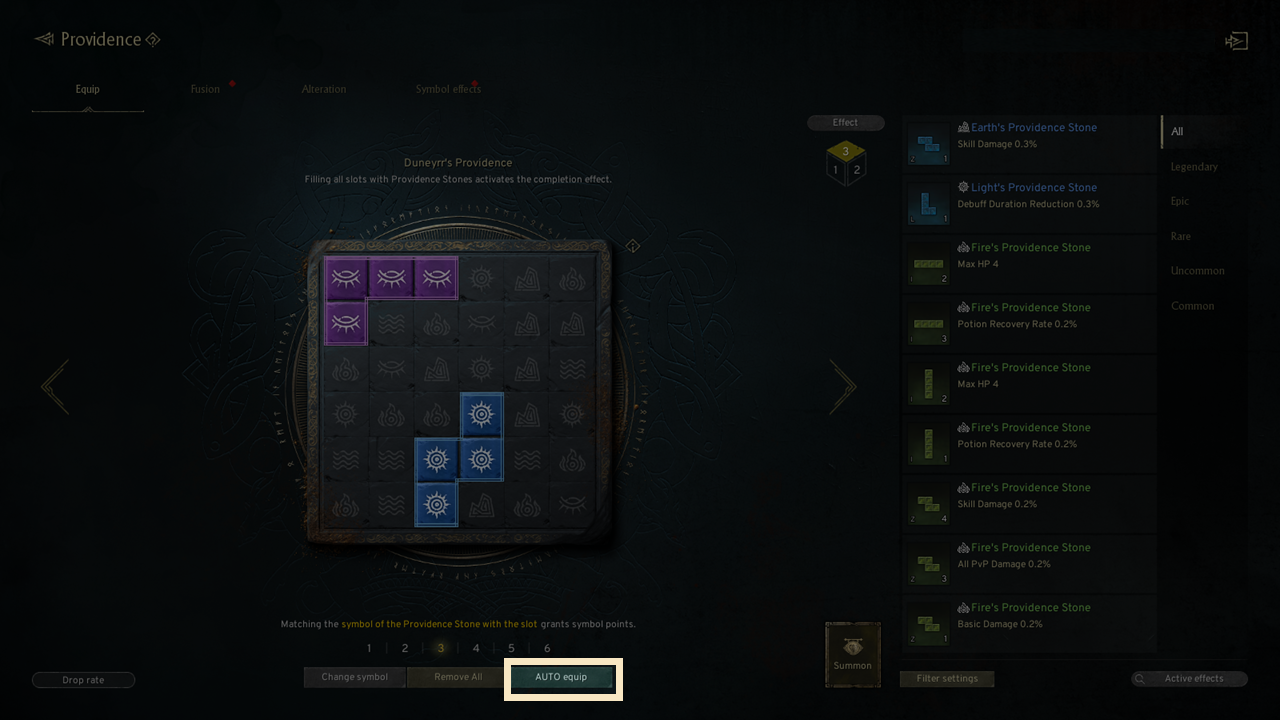
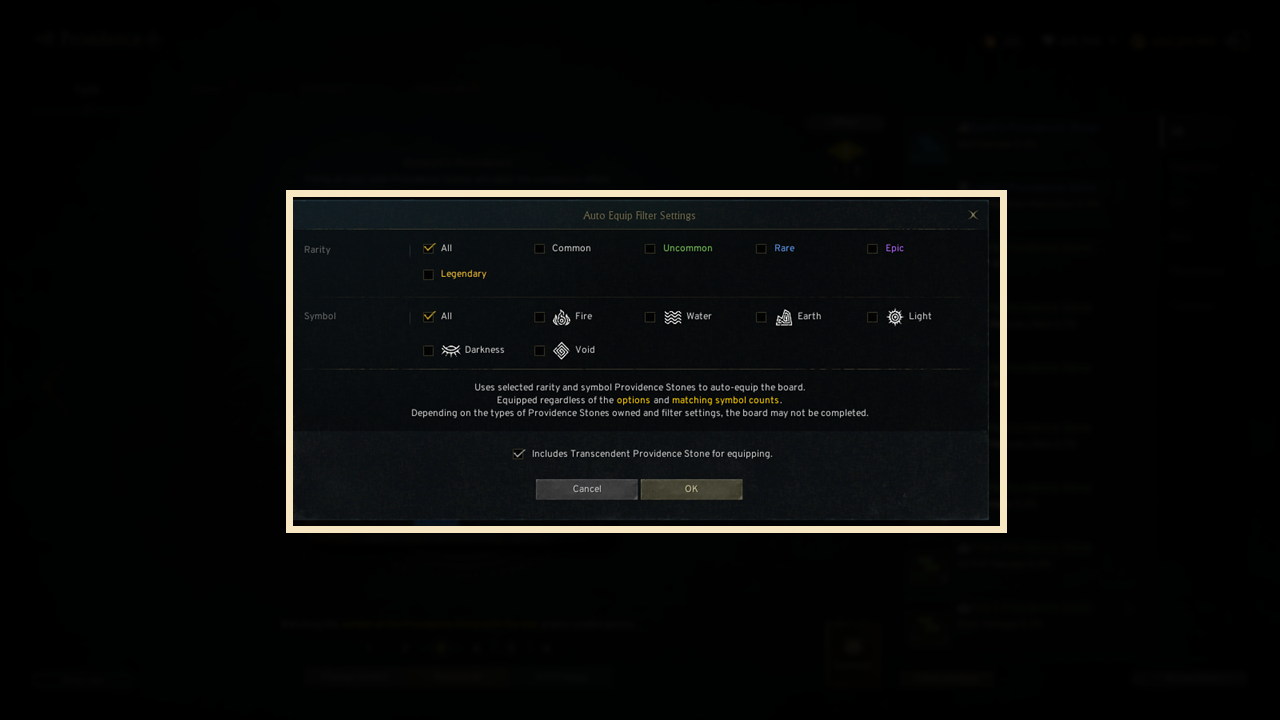
- In auto-equip filter settings, you can choose the grade and symbol type.
· Auto-equipping does not consider Providence Stones stats or matched symbol counts upon placement.
· The board might not be fully completed based on your available Providence Stones and filters.
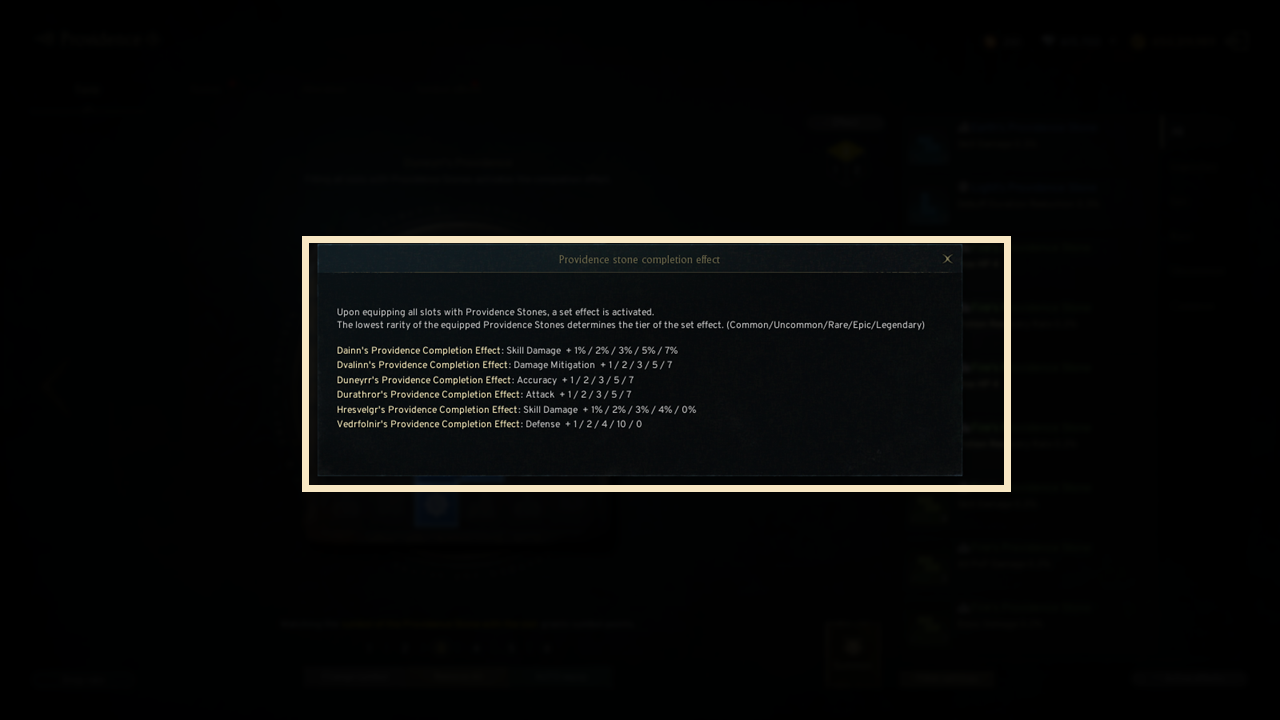
◈ Providence Stones completion effect
- The completion effect becomes active once all board slots are filled with Providence Stones.
- The completion effect depends on the lowest grade among the equipped Providence Stones.
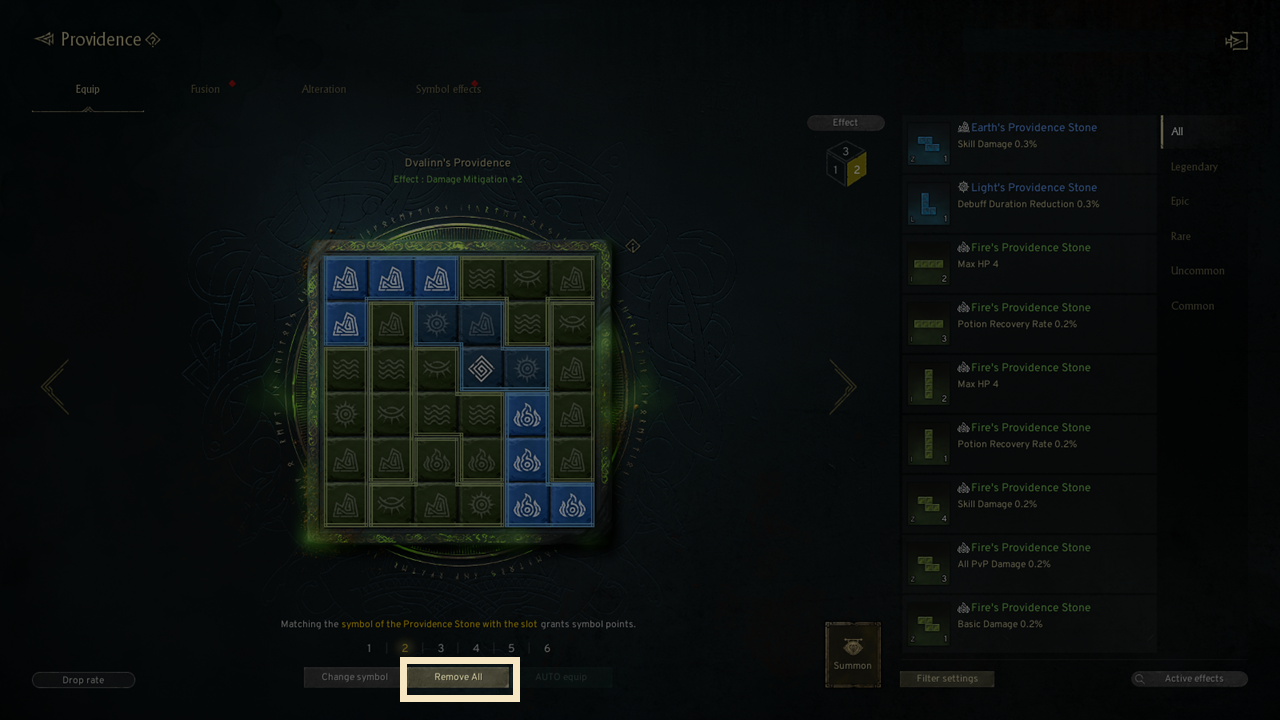
◈ Remove all Providence Stones
- You can unequip all Providence Stones from the board via the [Remove All] button.
- No currency is needed when removing all Providence Stones.
◈ Providence Stones lock setting
- When a Providence Stone is locked, its slot becomes locked as well.
- Symbols cannot be changed in locked slots; unlock them to proceed.
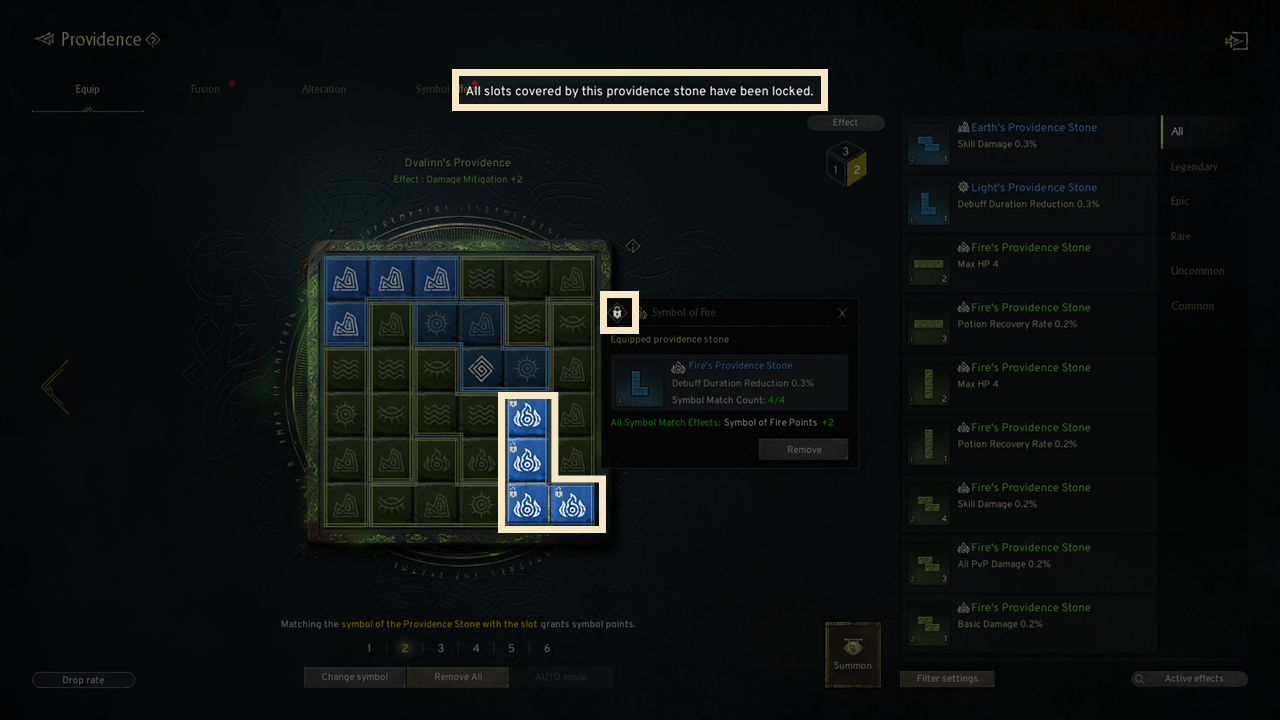
◈ All Symbols Matching Effect
- When symbols on 4 equipped slots completely match their Providence Stones, the effect activates.
- The effect applies only to uncommon-grade or higher Providence Stones.
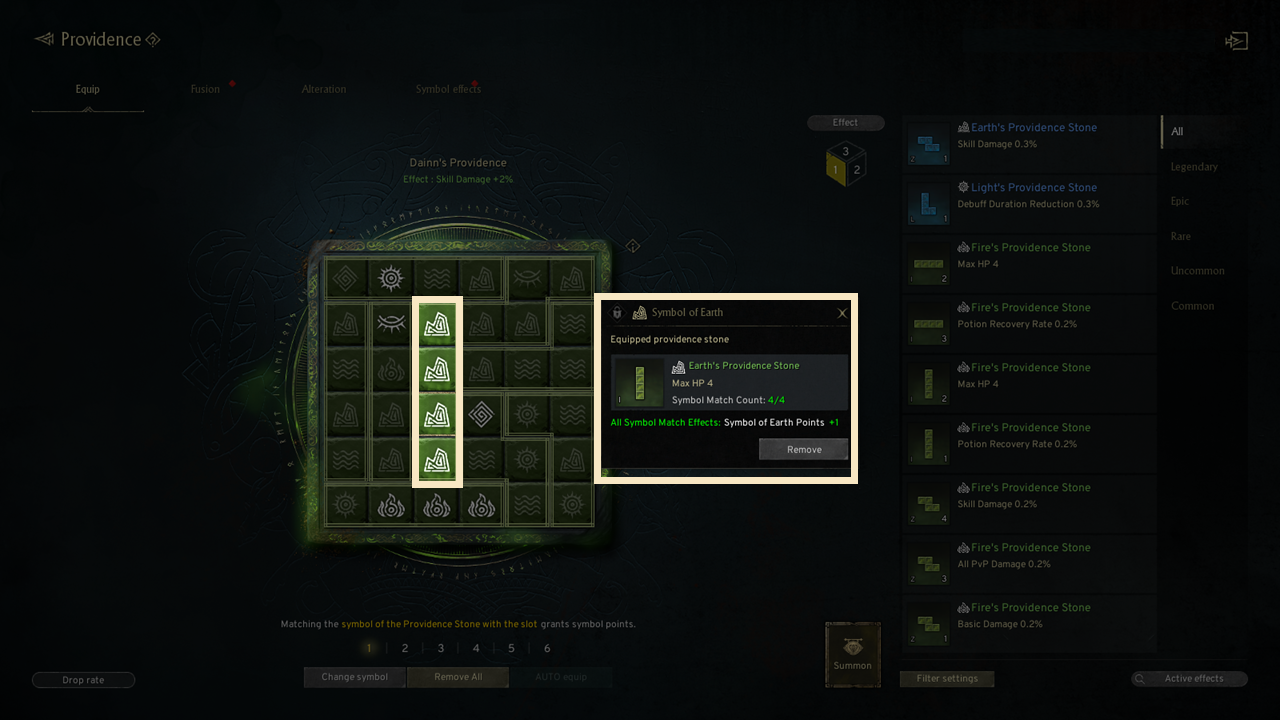
! Common-grade Providence Stones do not support symbol-matching effects.
◈ Change Board Symbols
- You can change board symbols by spending Echo of the Gods items.
- Click [Change Symbol], then select the row or column icon at the top/left
- All slot symbols in the selected row or column will change based on chance.
- You cannot change symbols if the chosen row or column contains a locked slot.
- Pinned slots also will not be changed.
- You can select target symbols and auto-change your chosen slots via the [Auto Change] button.
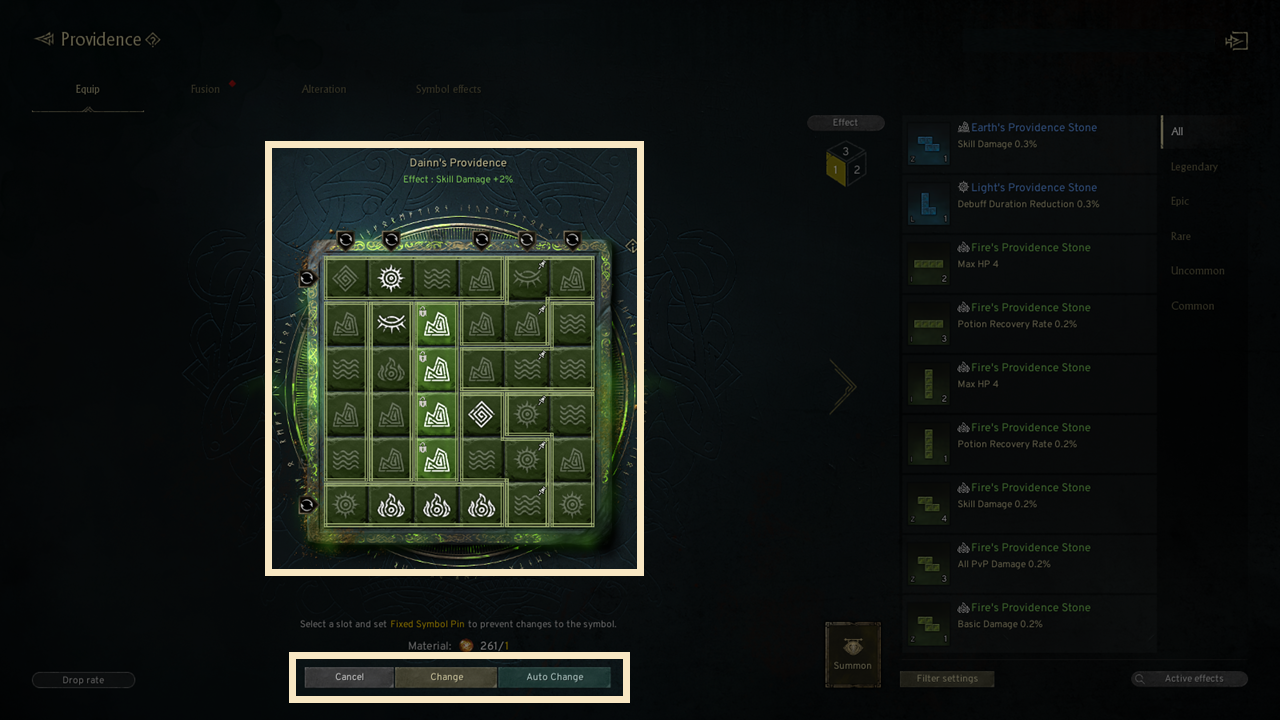
◈ Symbol Auto-Change
- Auto-change runs continuously until the target slot gets your desired symbol.
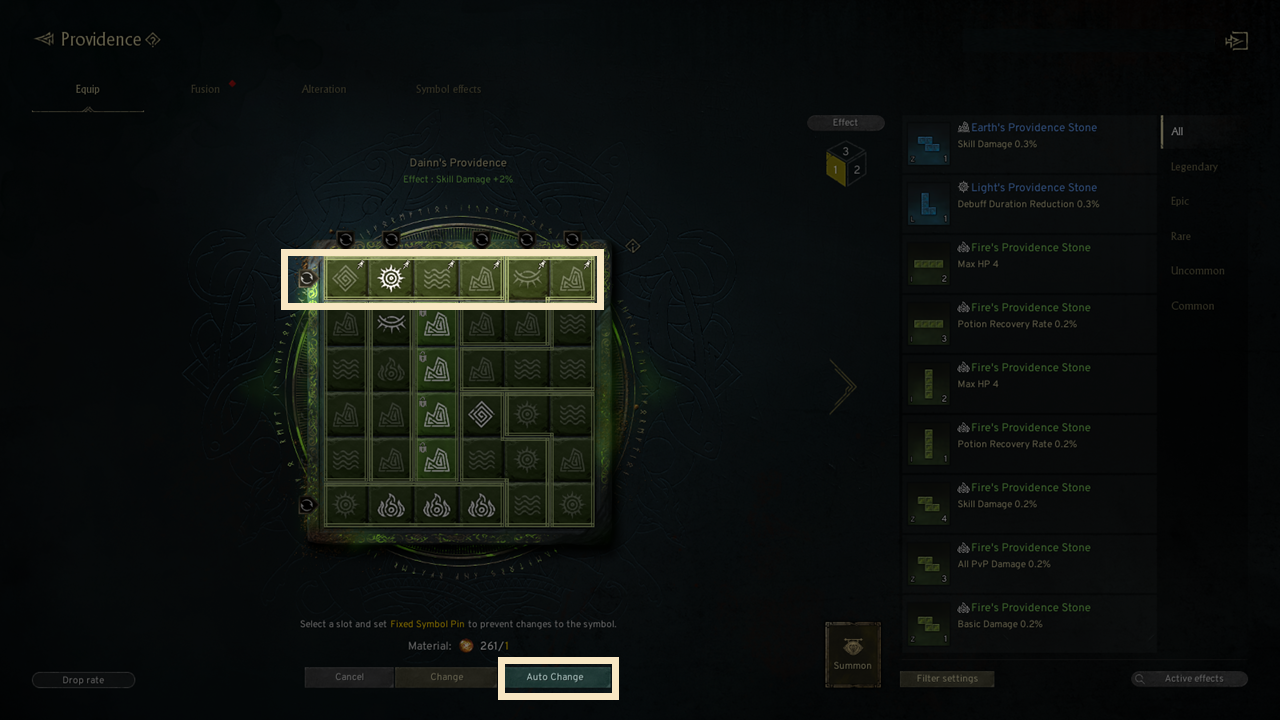
- To set auto-change, go to [Providence Stones Equip] - [Change Symbol], pick a line, and click [Auto Change].
- You can select a target symbol for each slot from Slot 1 to Slot 6.
- Slot layouts are oriented horizontally for rows and vertically for columns.
- Auto-change stops if at least one slot (1-6) draws a selected symbol when checked in [Stop on Any Match].
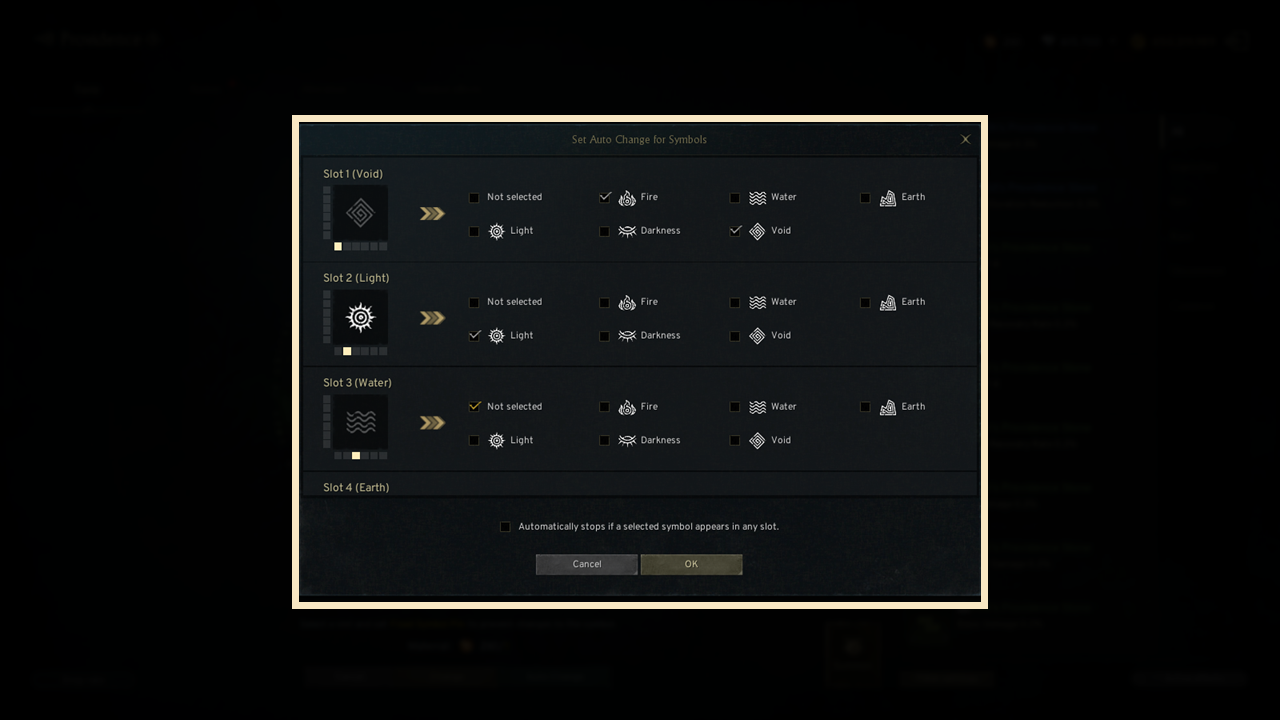
! Auto-change may stop early if required or extra materials run out.
! Auto-change is unavailable if the selected row/column contains locked slots.
◈ Providence Stones symbol pin
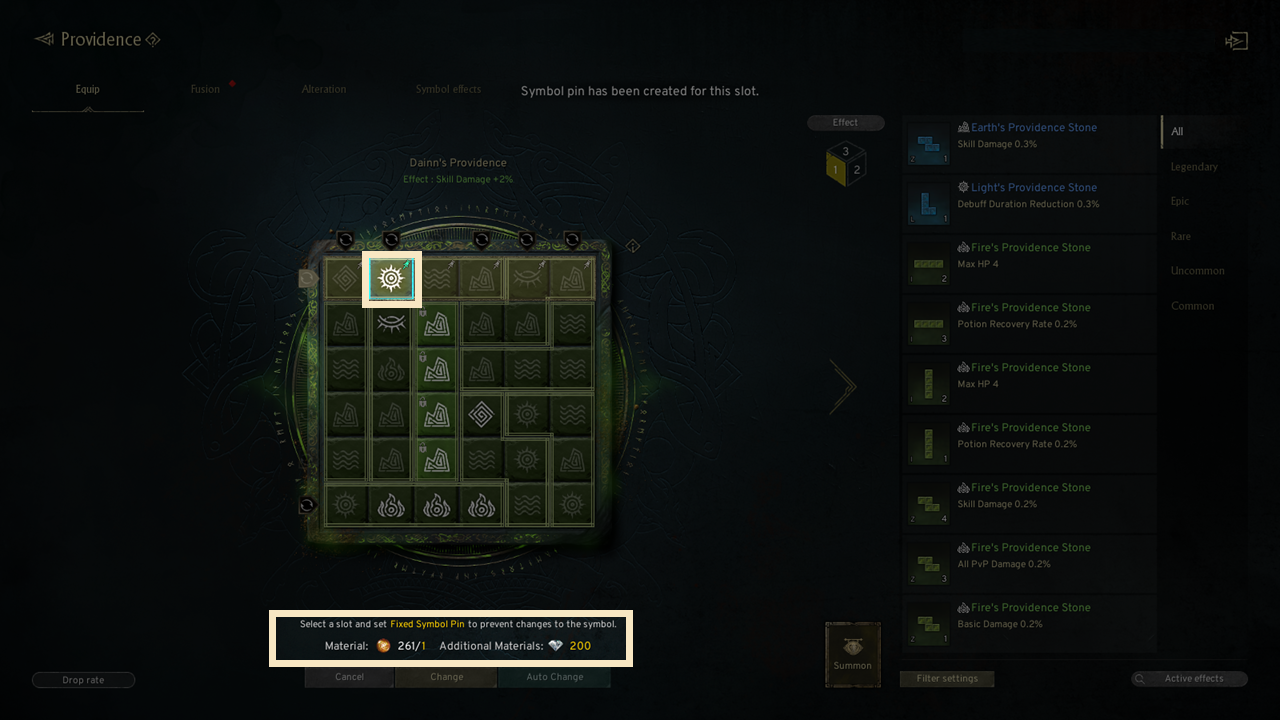
- Use symbol pins on chosen slots to keep their symbols fixed.
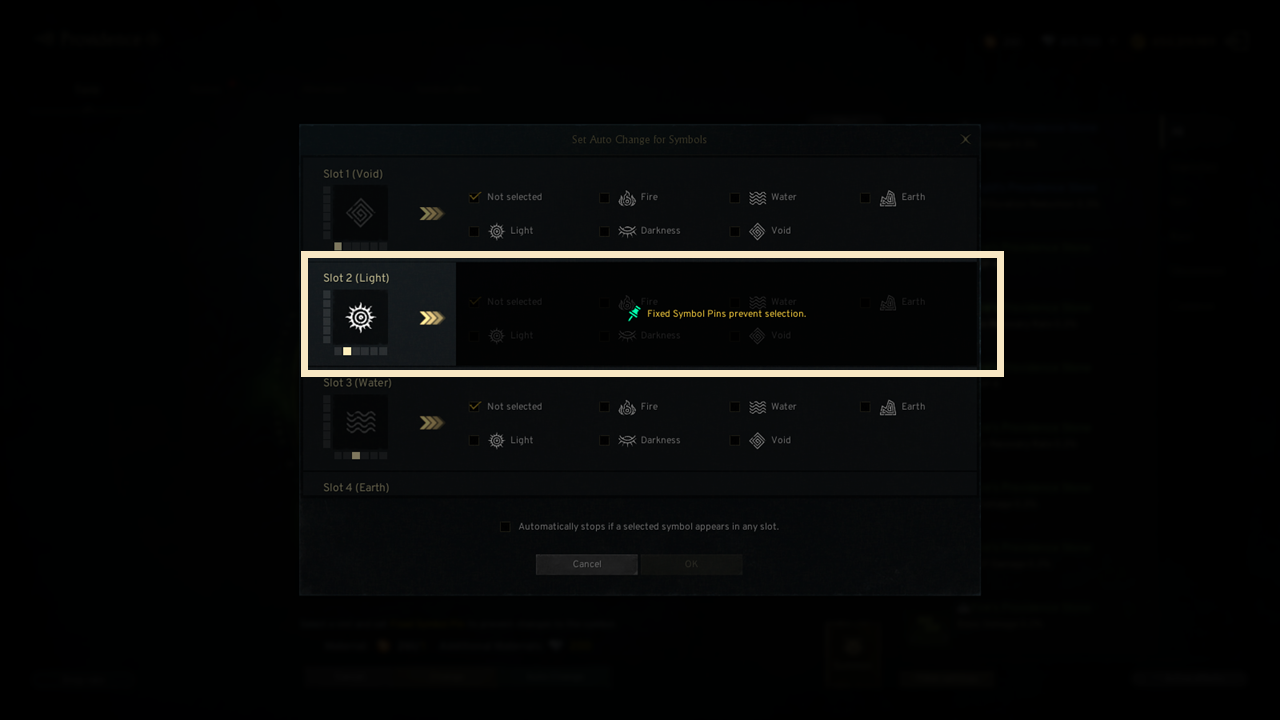
- Pinned symbols require extra resources when using auto-change.
! You can set up to 2 symbol pins maximum.
3. How to fuse Providence Stones
◈ How to fuse and obtain
- You can fuse Providence Stones to obtain a new Providence Stone.
- Upon fusion, the symbol, shape, rotation type, and options reset, and the grade may increase with a low probability.
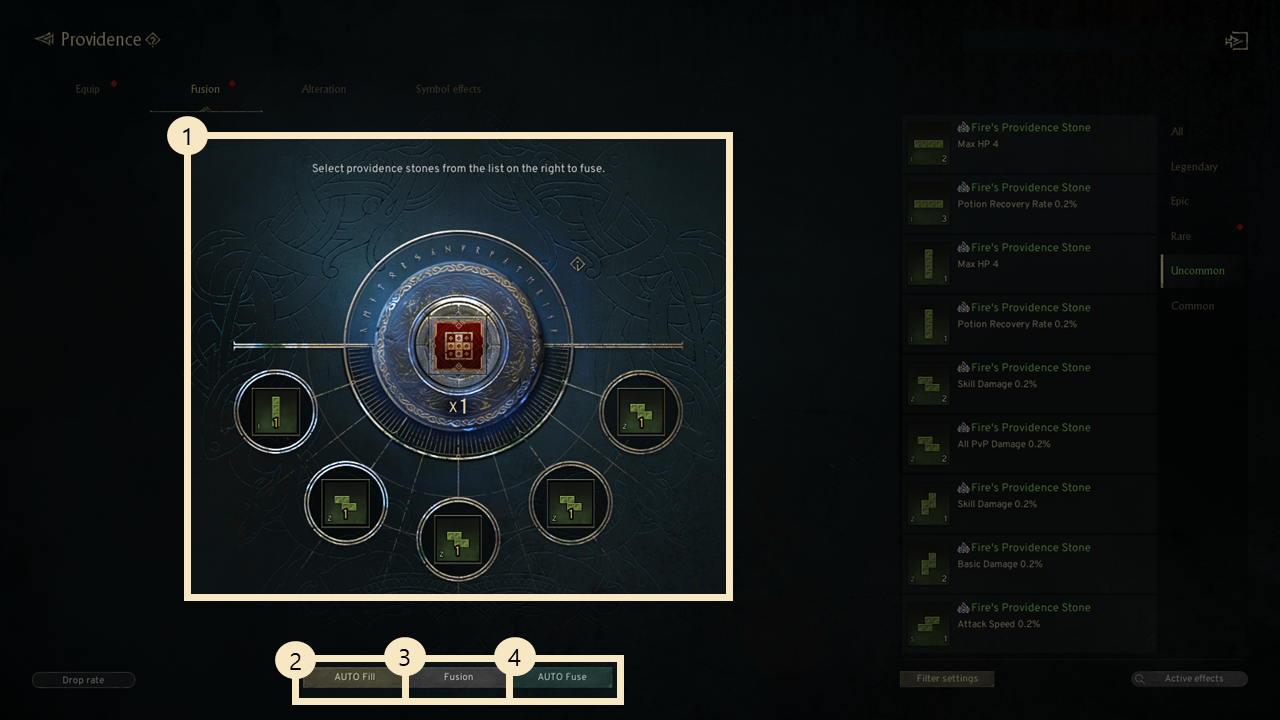
① Fusion Slot: You can fuse 5 Providence Stones of the same grade as ingredients.
② Auto Register: Same-grade stones are automatically selected and registered.
③ Fusion: Click the [Fuse] button when all ingredients are placed to start fusion.
④ Auto Fusion: Automatically fuses all Common ~ Uncommon grade Providence Stones.
4. How to alter Providence Stones
◈ How to alter Providence Stones
- When altered, rotation type and stats reset, but shape, symbol, and grade remain intact.
- Based on stone shape, alteration can fail, and if it fails, the stone will be destroyed.
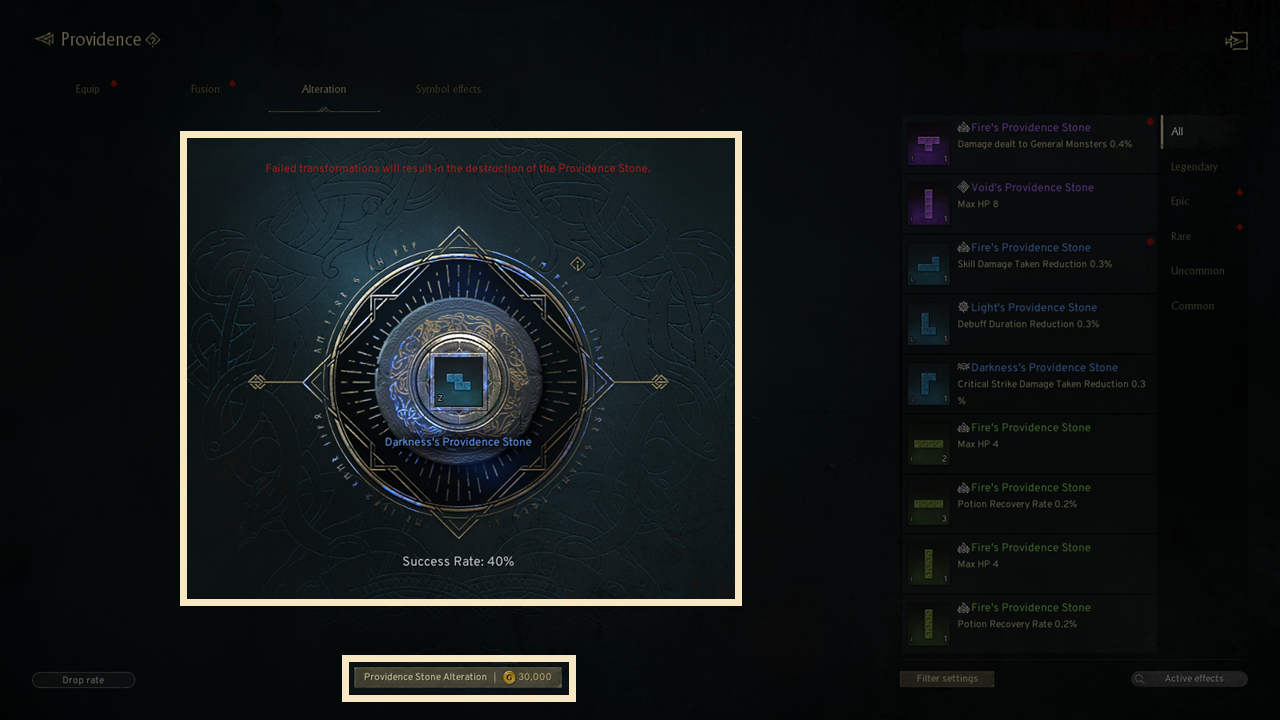
5. Symbol point
◈ Symbol point and option
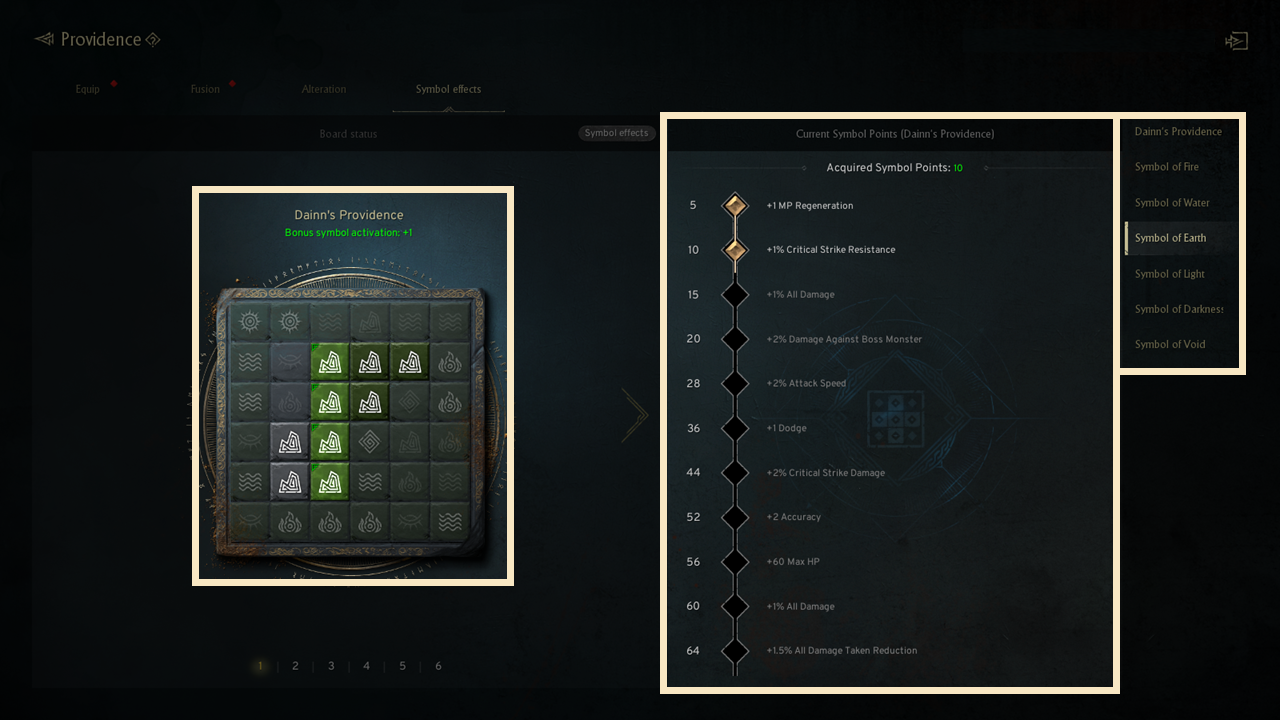
- You gain symbol points equal to the number of matching symbols on the slot and the equipped Providence Stones.
- Symbol points are applied separately for each board.
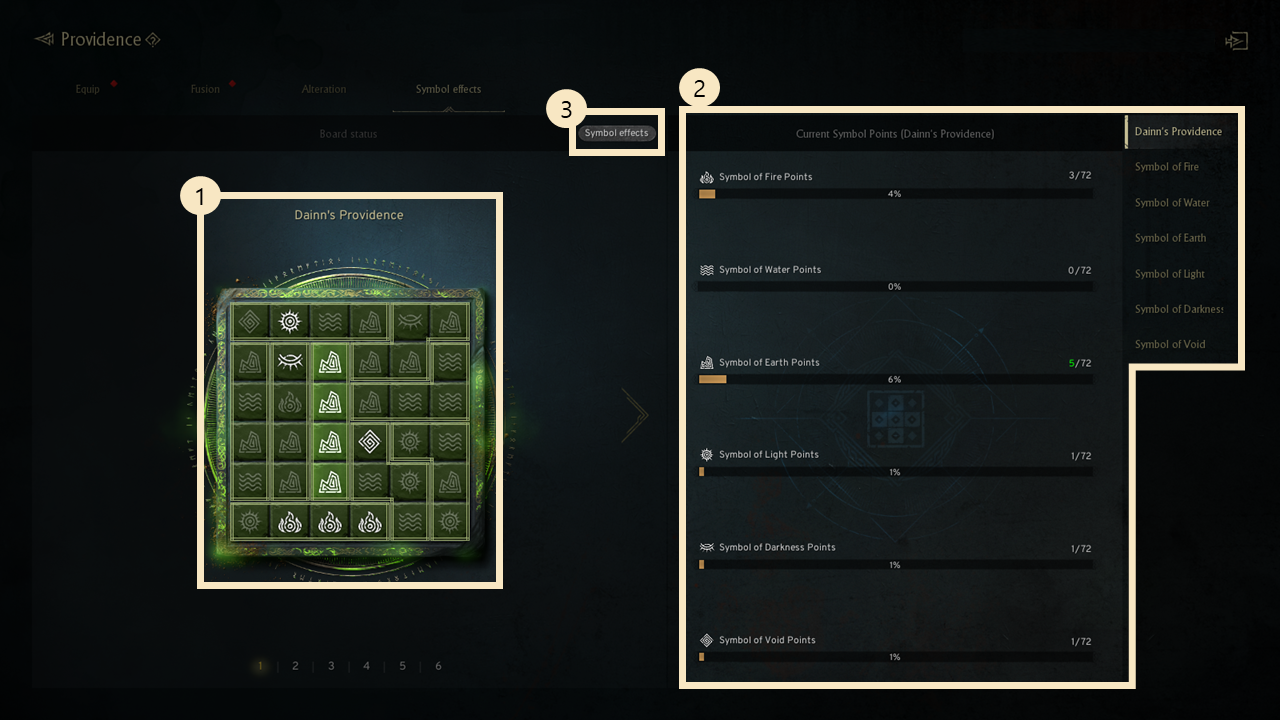
① Board Status: You can check the equipped Providence Stones and symbol matching status for each board.
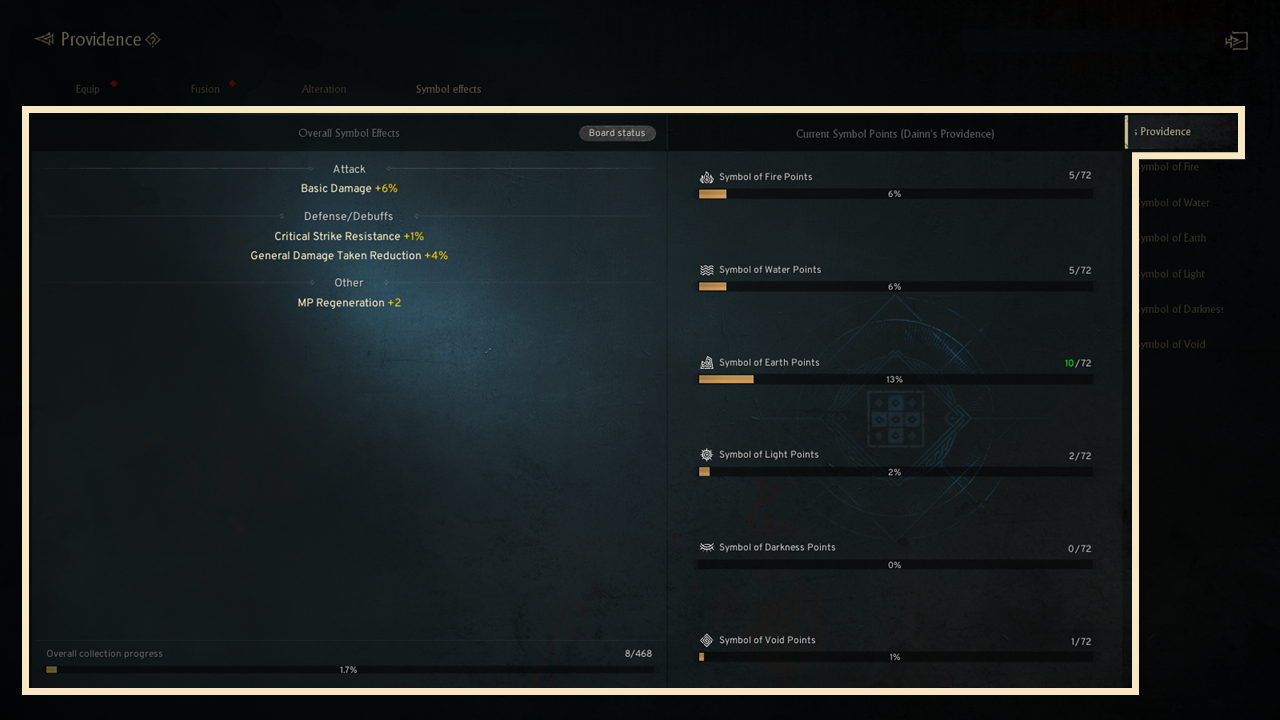
② Symbol Point Status: You can check symbol points acquired per symbol on each board, and select a symbol list or the right tab to view its options.
③ View Symbol Effects: You can check all active symbol point options combined across all boards.
◈ Symbol point option
- There are 6 symbol point options per board.
- Symbol options vary by board and are activated based on the symbol points earned.
- If all symbols match when equipping Uncommon+ Providence Stones, the all symbols matching effect activates alongside additional symbol points.
(Bonus symbol points by Providence Stones grade: Uncommon +1/ Rare +2 / Epic +3 / Legendary +4)