Server transfer means that all character information on your current server — including character names, levels, experience, combat power, and other character data — as well as account information such as owned currency, avatars, mounts, and weapon skins is moved to a different server.
To perform a server transfer, you must satisfy certain conditions, and transfers are only possible during specified periods.
Below, you will find detailed information about the conditions required for server transfer, how to transfer, and what information will be transferred.
■ Contents
1. What Is Server Transfer?
2. Server Transfer Conditions
3. How to Transfer Servers
4. Server Transfer Items
5. Temporarily Enabled Features During Transfer
1. What Is Server Transfer?
- All character information on your current server — such as character names, levels, experience, stats, and skills — along with all account information you possess (items, avatars, mounts, sealed stones, runes, item collection progress, etc.) will be transferred to another server.
- However, certain information such as friend lists or guild membership does not transfer, and the transfer moves information at the account level, not the individual character level.
Ex.) If you have 5 characters on server A01 and transfer to server A04, all 5 character profiles will be moved together.
- Server transfer can be performed to any eligible destination server.
! Server Transfer is available within the same region, and you cannot transfer to servers in other regions.
2. Server Transfer Conditions
◈ Basic Conditions
- You must have a Server Transfer Ticket for the character you want to transfer.
• Server transfer can only be performed from the server where the character with the Server Transfer Ticket is located.
- During the server transfer period, a Server Transfer Ticket can be purchased only once per server.
• Tickets can be purchased for each server.
• After transferring to a new server, you cannot purchase another Server Transfer Ticket on that server.
• Server Transfer Tickets can only be purchased for characters level 40 or above.
◈ Conditions Where Server Transfer Is Not Possible (For all characters in the account)
- If the character is currently a member of a guild.
- If there are items listed for sale, items pending retrieval, or items pending settlement in the trading post.
- If there are unclaimed items in the Premium Shop mailbox.
- If there is mail with unclaimed rewards.
- If the character has un-restored experience due to death.
- If the character is currently in combat.
- If the character is located inside an elite dungeon, world elite dungeon, or world dungeon.
- If equipment is equipped in the second or third equipment preset.
3. How to Transfer Servers
◈ Purchasing and Applying a Server Transfer Ticket
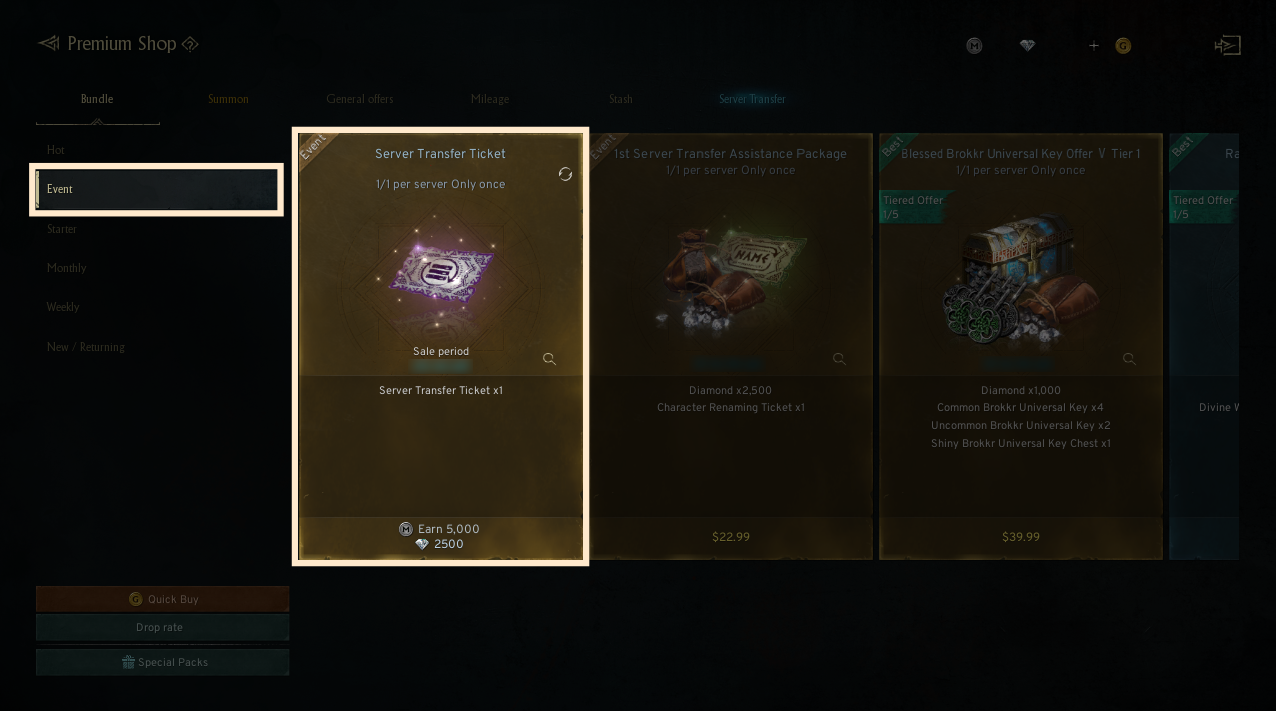
- Purchase the [ Server Transfer Ticket ] from the Premium Shop.
• Server Transfer Tickets can be purchased with diamonds during the specified period, and quantities are limited.
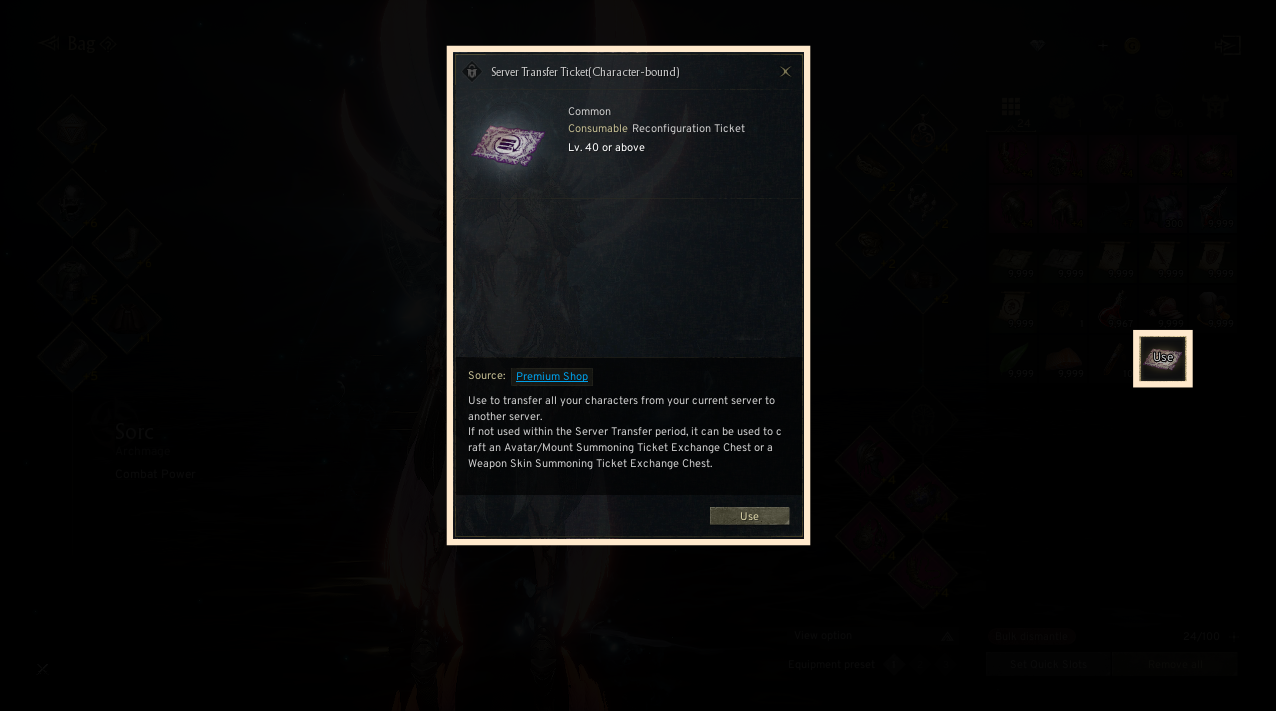
- When you select the Server Transfer Ticket in your inventory and press Use, you are taken directly to the [Server Transfer] tab within the Premium Shop.
◈ Checking Completion of Server Transfer Conditions
- In the [Server Transfer] tab of the Premium Shop, you can check the conditions required for server transfer and proceed with the transfer.
- Conditions that are met are displayed in GREEN, and those that are not met are shown in RED.
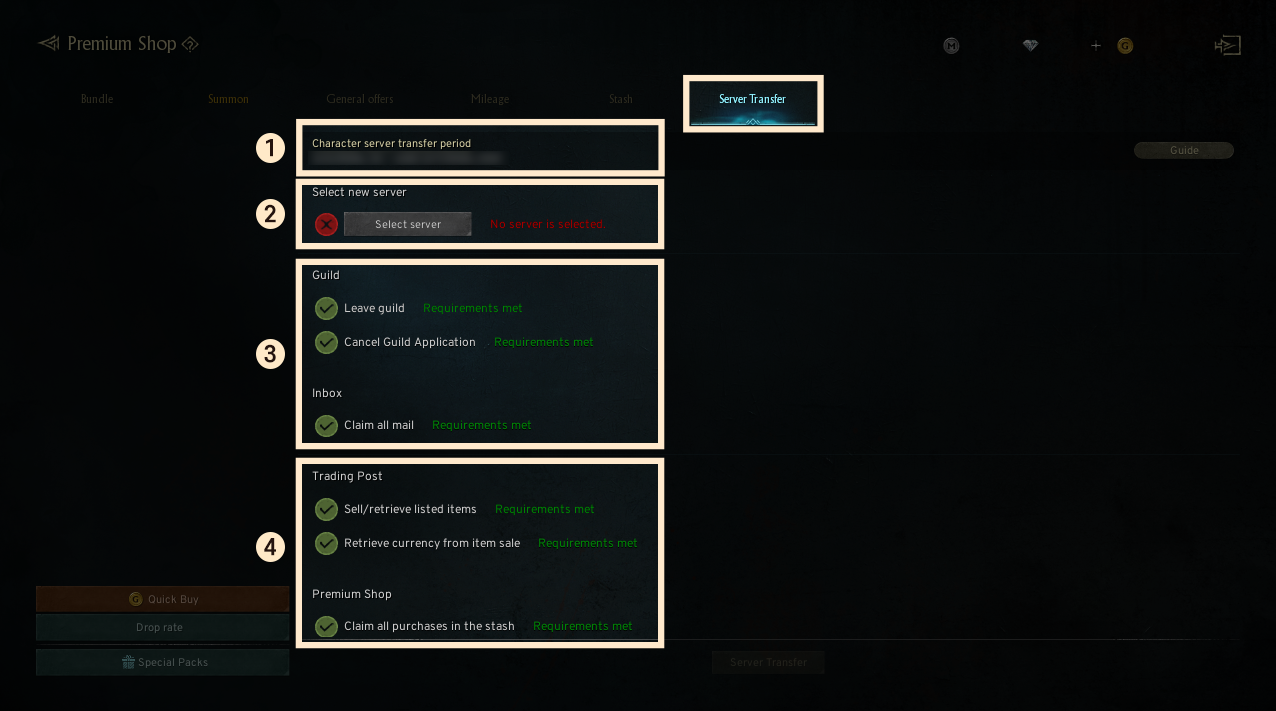
① Server Transfer Period: Displays the period during which server transfer is available.
② Server Selection: Select the server to which you want to transfer your account.
③ Incomplete Conditions: Conditions not yet met are shown in RED, along with the character name(s) that need attention.
④ Completed Conditions: Conditions that have been met are shown in GREEN.
◈ Selecting the Destination Server
- Press the [Select Server] button to display a list of eligible servers for transfer.
• You can submit a transfer request only for servers listed as eligible.
• Servers with very high population are marked “Imminent” and those that are full are marked “Closed.”
• The server transfer function is not affected by character creation restrictions. Even servers with character creation limits can be transferred into if server transfer is not closed.
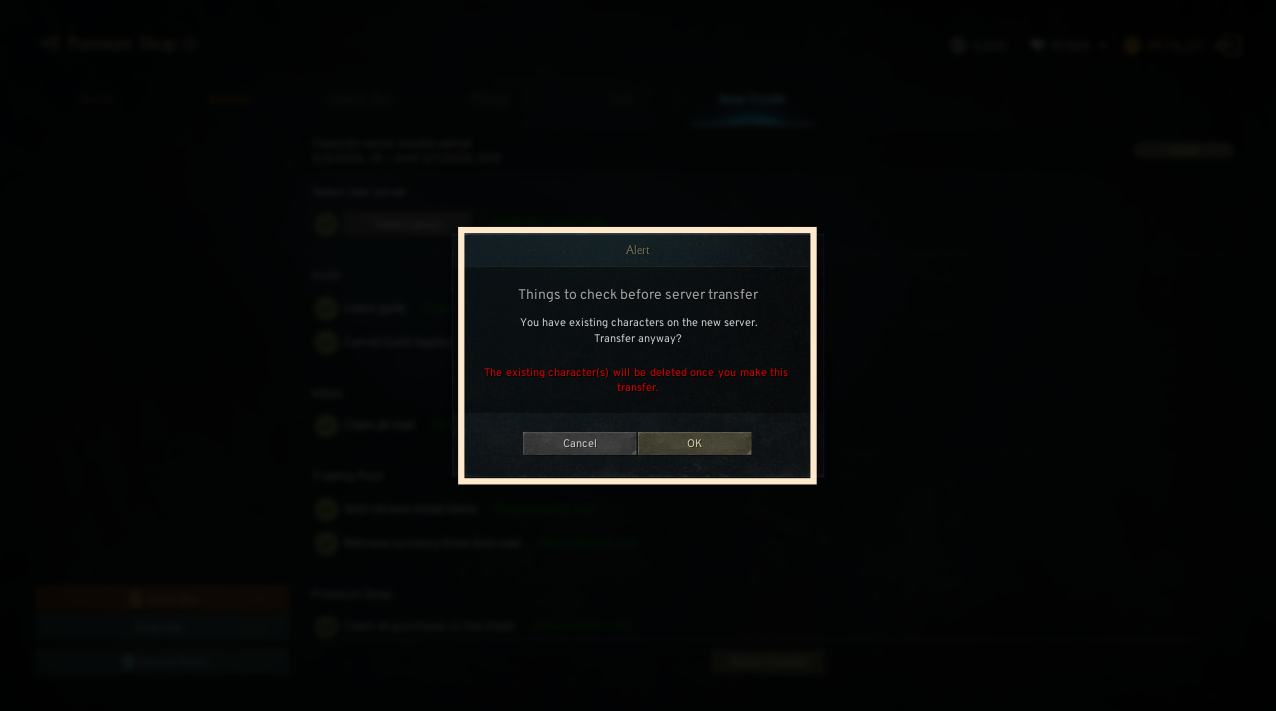
! If there is existing character data on the destination server, it will be immediately deleted before the transfer proceeds.
- Each server has a limit on the number of incoming players; if that limit is reached, transfer into that server will be disabled.
◈ Starting the Server Transfer
- After selecting the server and completing all transfer conditions, the [Server Transfer] button becomes active.
• If any condition is not complete, the button will not activate.
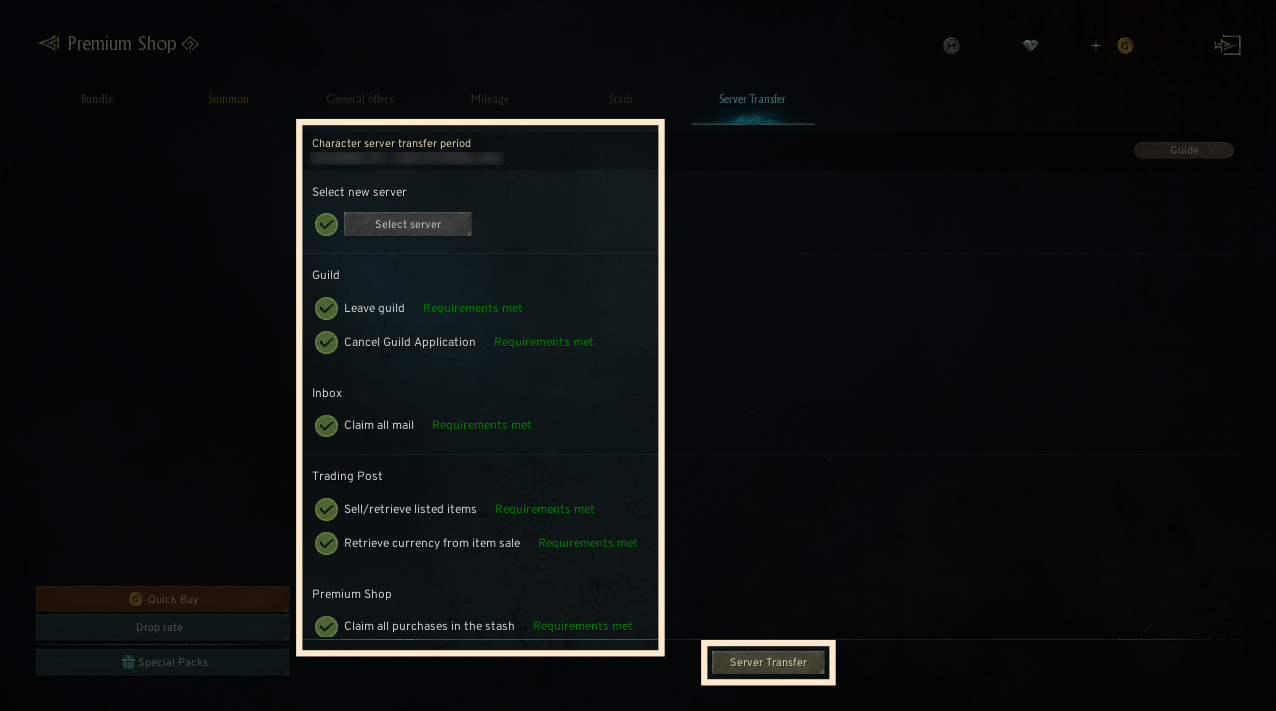
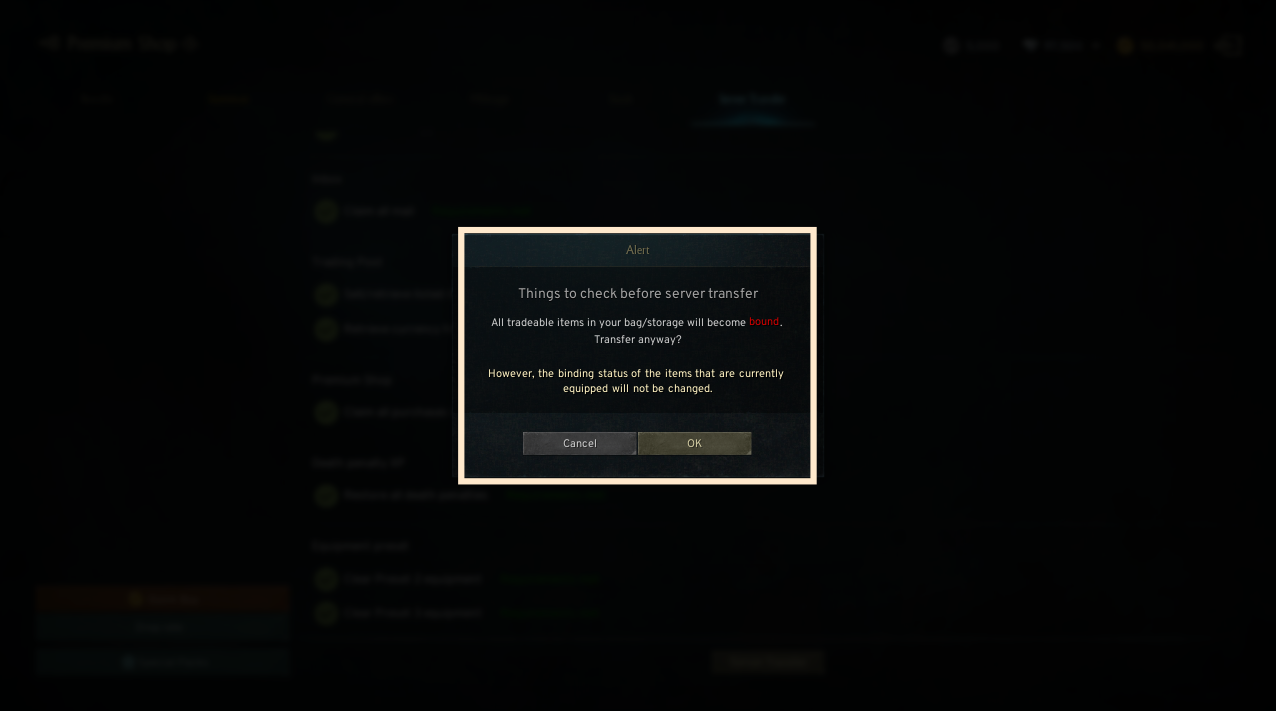
- When you click the [Server Transfer] button, a Server Transfer Confirmation popup appears; press [Confirm] to proceed.
- If characters already exist on the destination server, a popup warns that the existing character data will be deleted if you continue.
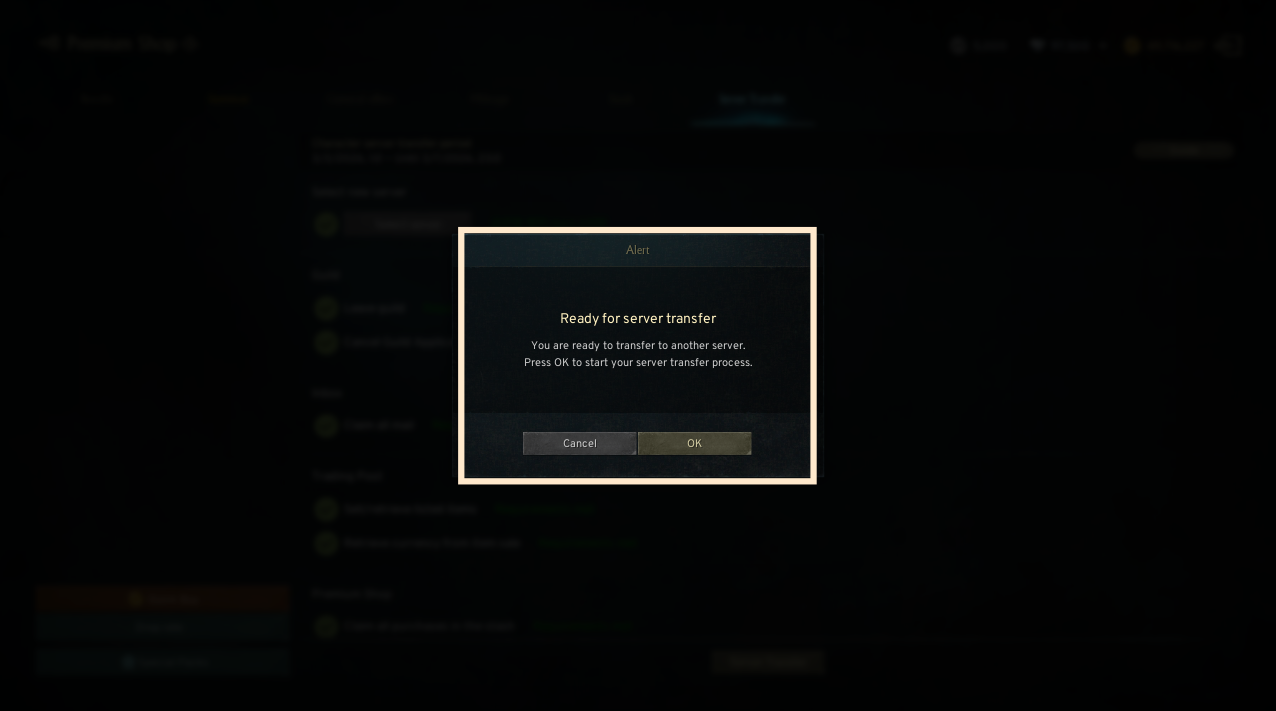
- After confirming at the Transfer Ready popup, the Server Transfer Ticket is used immediately, the transfer begins, and you are automatically moved to the title screen.
- If you click the title screen before the transfer completes, a popup appears indicating that the transfer is in progress.
• You cannot play the game while the transfer is underway.
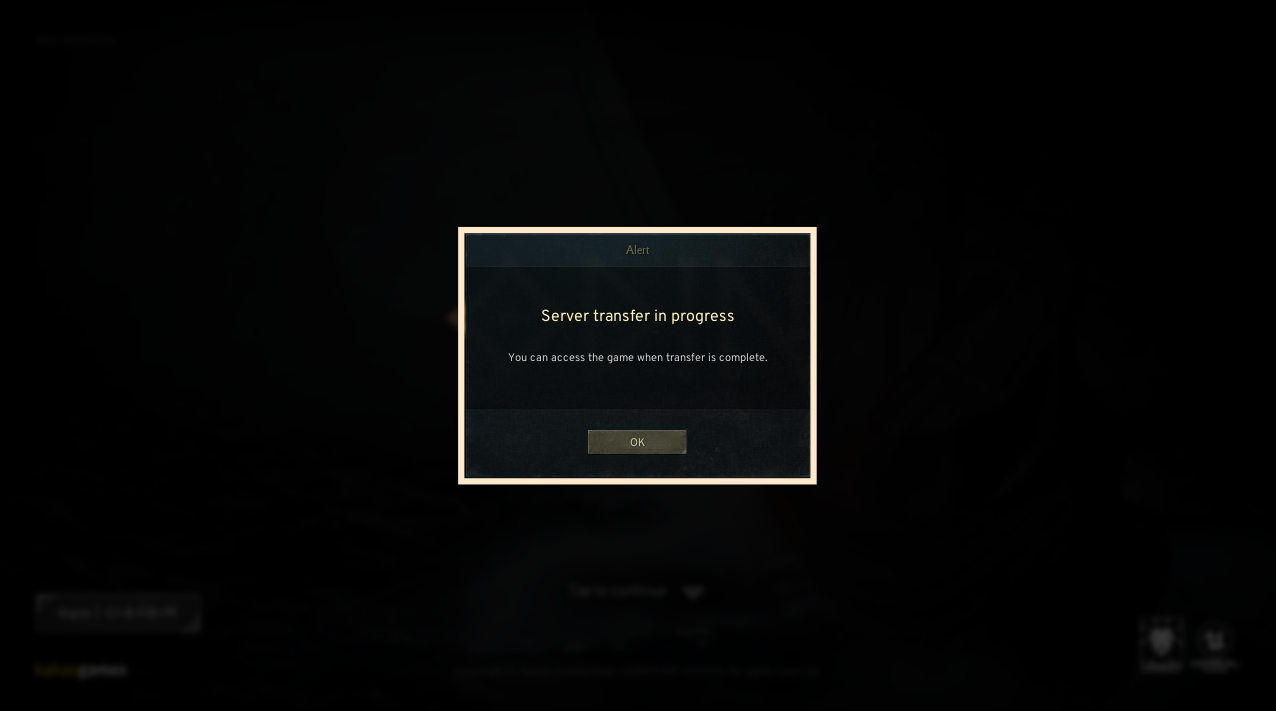
! Server transfers are processed in the order requests are received, so the time required may vary.
◈ After Server Transfer Completes
- When the transfer is complete and you log in for the first time, the transferred server is automatically selected and you can start playing immediately.
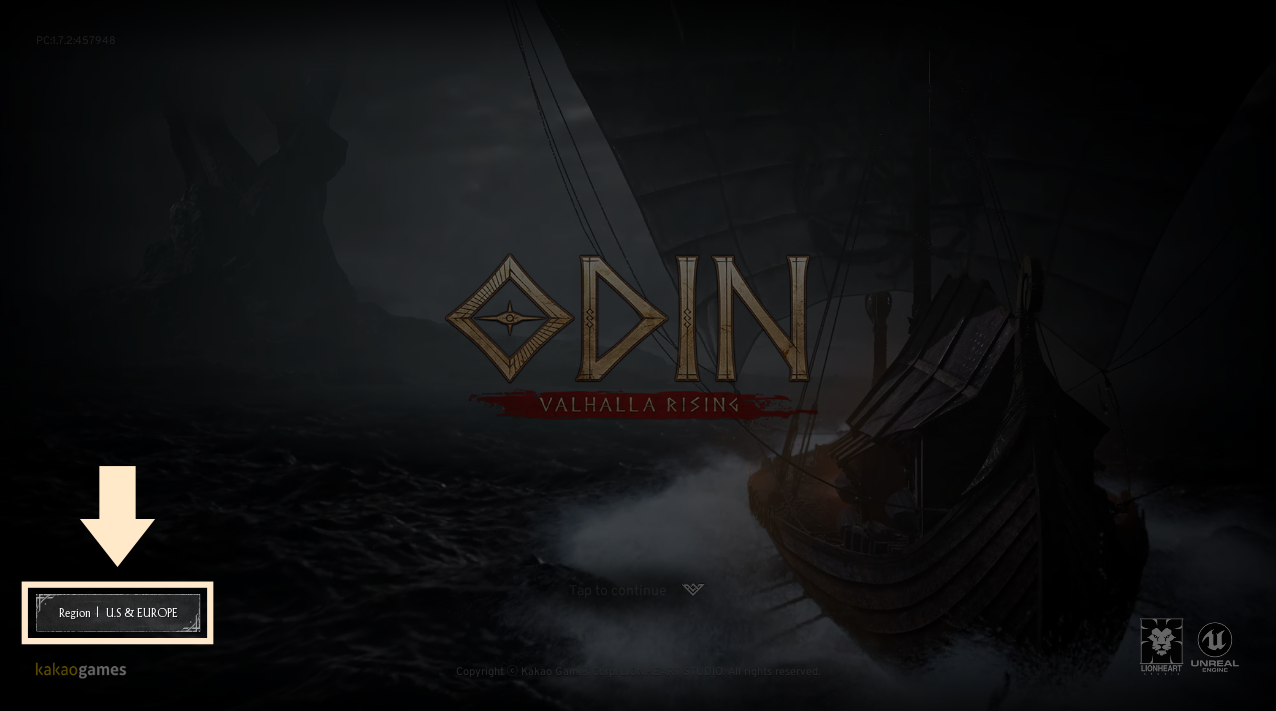
◈ Server Transfer Limitations
- If there is character data remaining on the destination server, that data is deleted before the transfer proceeds.
- If the destination server has reached its transfer capacity and is closed for transfers, you will not be able to transfer into that server.
• You can transfer to other servers that are not closed.
4. Server Transfer Items (What Gets Transferred)
① The character’s name is transferred and cannot be changed during server transfer.
② Expanded inventory slots and storage slots are maintained after transfer, and items in your inventory and storage are transferred as is.
! All equipment and consumable/other items that are tradeable — except the equipment equipped in the first preset — will be converted to Bound status upon server transfer.
③ If a character has un-restored experience due to death, server transfer cannot proceed.
④ Friends lists, party/guild relationships, and PK status are not transferred. Some settings (such as UI preferences) may be reset.
⑤ The purchase count for server-limited items in the Premium Shop is maintained after transfer.
⑥ After server transfer, all account information from the original server is initialized.
- Unconfirmed avatars and mounts will transfer together with the account.
⑦ The list of personal mails in your mailbox is deleted upon server transfer.
- Locked mails are also deleted, and the mail list and mail blocking list are reset.
⑧ Dungeon usage history:
- Party dungeon and elite dungeon usage history and accumulated time charging information are maintained after transfer.
⑨ Item collection progress:
- Current item collection achievement rates and your favorite list are transferred without change.
⑩ Odin Pass activation status, completed or ongoing mission progress, and reward exchange status for events are transferred.
- However, these may be applied according to the progress status of the events on the destination server.
⑪ Shadow Fortress Ranks (Shadow Points) will be maintained.
※ However, the Ranks of characters that did not log in until next Monday after the Server Transfer will be downgraded to the Defender Rank.
◈ Server Transfer Items Summary Table
5. Temporary Activation Features During Server Transfer
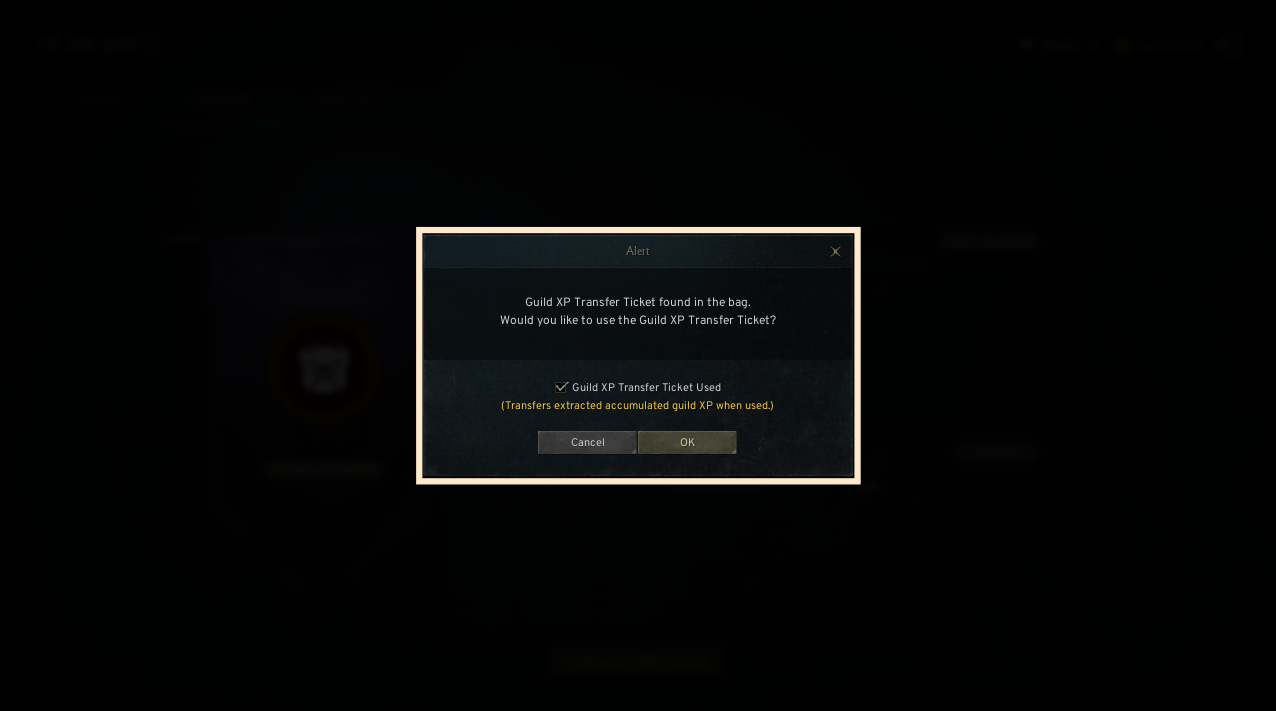
◈ Guild Experience Extraction / Use of Guild Experience Transfer Ticket
① Guild Experience Extraction
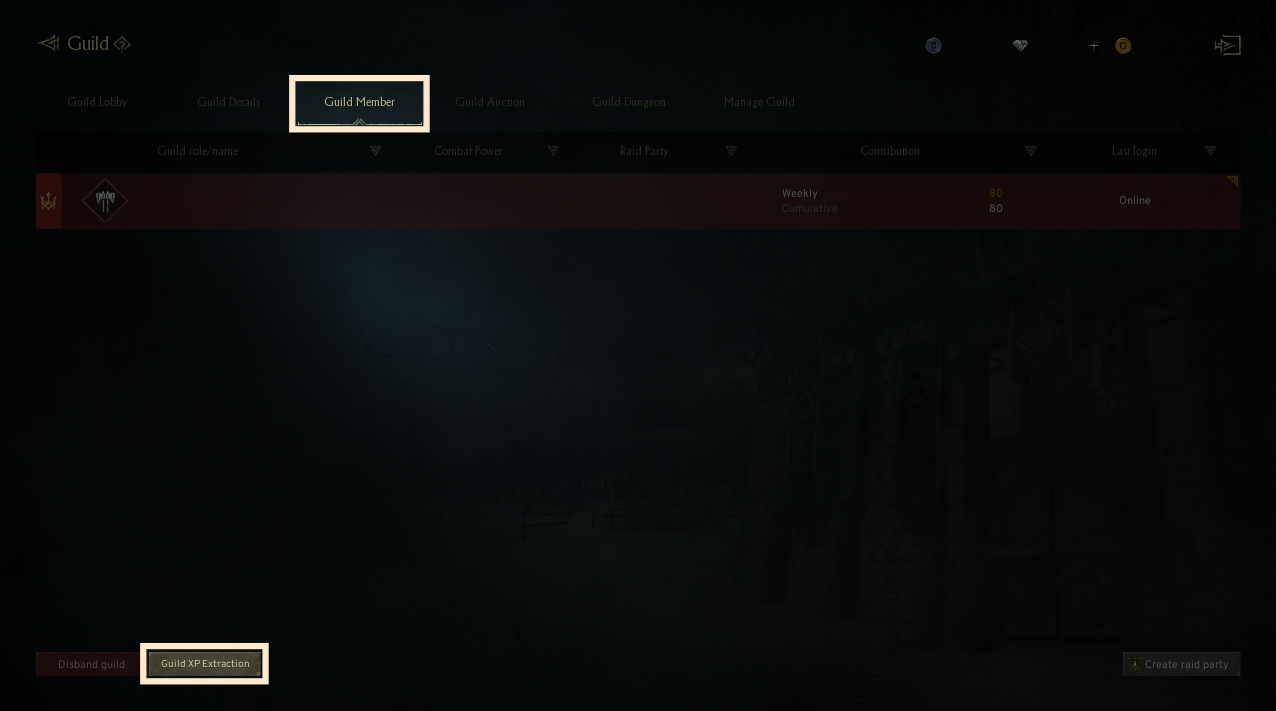
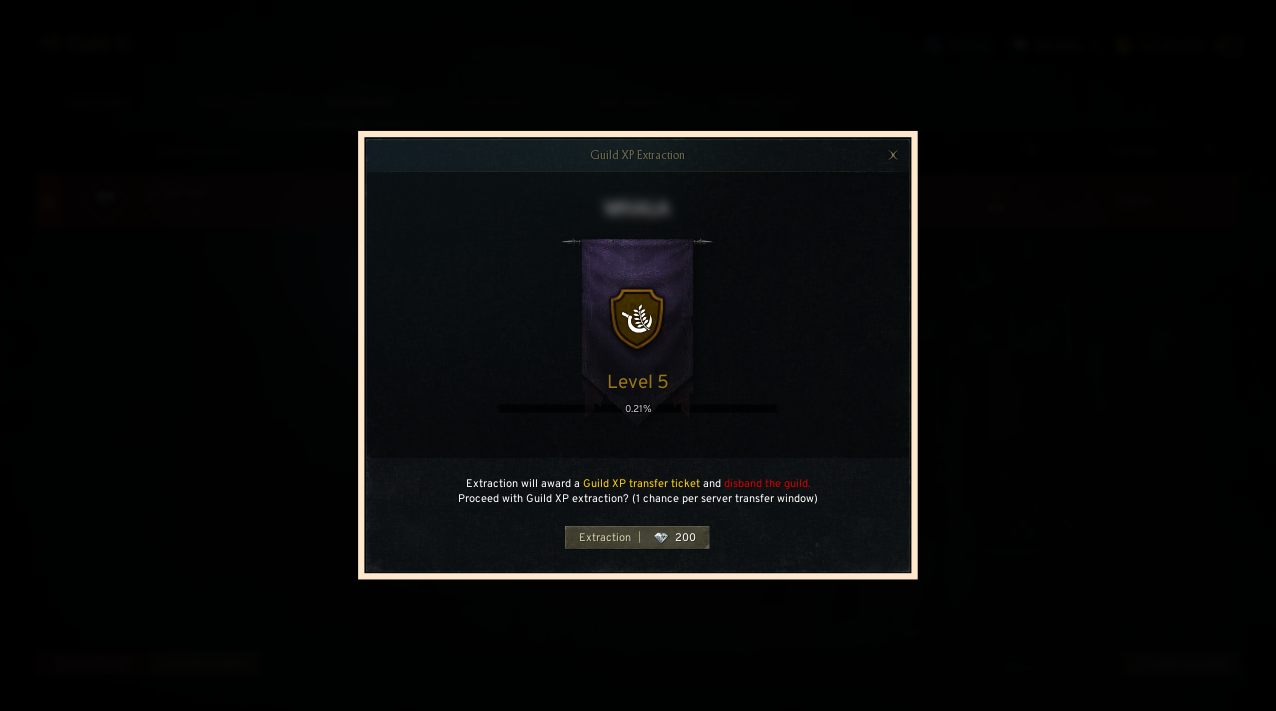
- During the server transfer period, the Guild Master can extract the guild’s experience from the [Guild] - [Members] tab.
- When guild experience extraction is completed, the existing guild is disbanded, and a Guild Experience Transfer Ticket is granted to the Guild Master as a character-bound item.
• The guild experience extraction function is activated only during the server transfer period.
• The guild experience extraction function is available only for guilds level 4 or higher.
• Only Guild Masters whose membership in the guild has lasted more than 30 days can extract guild experience.
• During the server transfer period, guild experience can be extracted only once per server.
! If there is no free inventory space, guild experience extraction cannot be performed.
! If guild experience extraction is performed and the guild is dissolved, the usual restriction preventing reforming or joining a guild within 24 hours still applies after extraction.
② Use of Guild Experience Transfer Ticket
- When creating a new guild, you can choose whether to use the Guild Experience Transfer Ticket.
- If you use the Guild Experience Transfer Ticket when founding a guild, the accumulated level and experience of the previous guild will be transferred to the new guild.
! If the period during which the Guild Experience Transfer Ticket can be used expires, both the Guild Experience Transfer Ticket and the extracted accumulated guild experience will be lost.
! Even if you use the Guild Experience Transfer Ticket to create a guild above a certain level, the restriction that prevents participation in guild content such as world dungeons and guild dungeons for one week still applies.
! After completing the Guild XP Extraction, the Guild Experience Transfer Ticket can be consumed before transferring to your target server. Please remember to use the ticket at the server where you intend to transfer.