Weapon Skins not only allow you to change the appearance of the character's weapon,
it grants you equipment stats and various buff effects useful in combat, just like Avatars and Mounts.
The appearance of a spectacular weapon skin can be used to intimidate an opponent,
but you can also apply the appearance of a lower-grade weapon skin as a strategic element to catch your opponents off guard.
■ Contents
1. Weapon Skin Details
2. How to Equip Weapon Skins
3. Fuse Weapon Skin
4. Weapon Skin Collection Effect
5. Finalize Weapon Skin & Swap
6. Skin Feature
1. Weapon Skin Details
◈ The details of Weapon Skins and how to obtain them
- You can obtain Weapon Skins through Summons, Fuse, and Achievement Rewards.
- There are 6 Weapon Skin grades: Common, Uncommon, Rare, Epic, Legendary, and Mythic; greater equipment stats/buff effects are applied for higher grades.
- You can only equip or apply the weapon skin if its class matches that of your currently equipped avatar.
2. How to Equip Weapon Skins
◈ Enter the Weapon Skin Tab
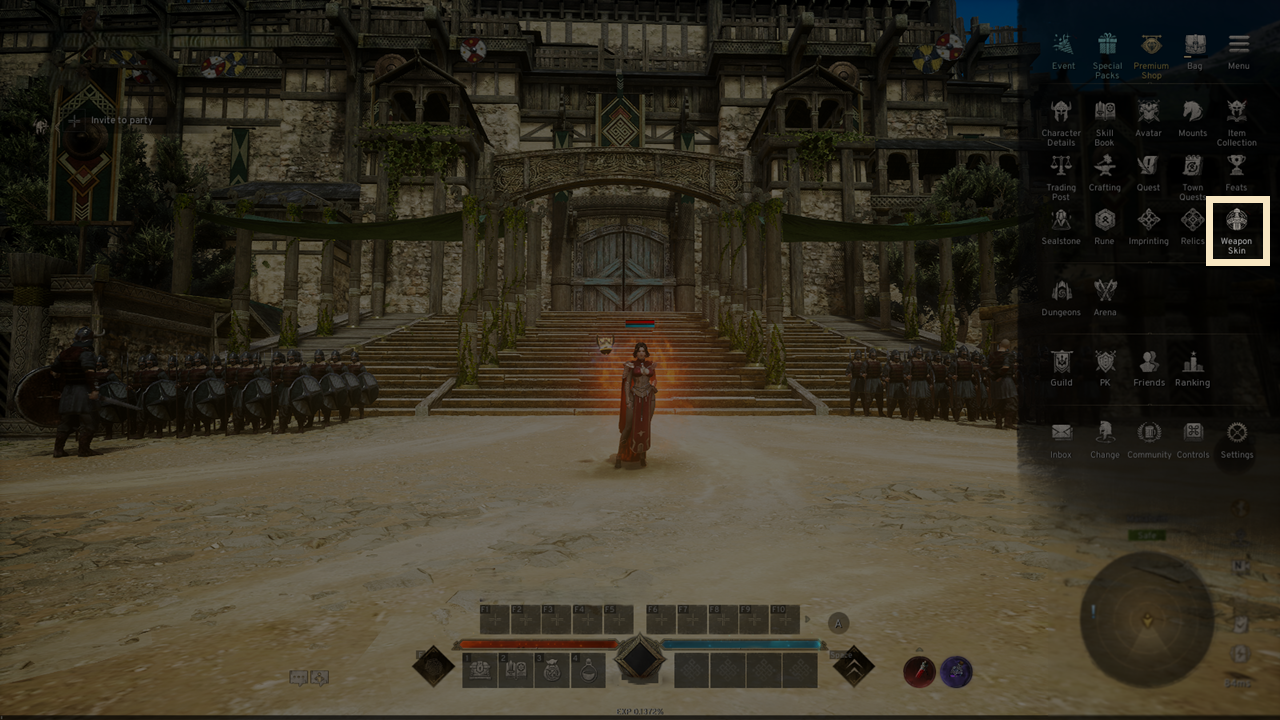
- You can enter the Weapon Skin Tab by tapping the menu (☰) in the top-right and selecting 'Weapon Skin' to access the tab.
◈ Weapon Skin Equip
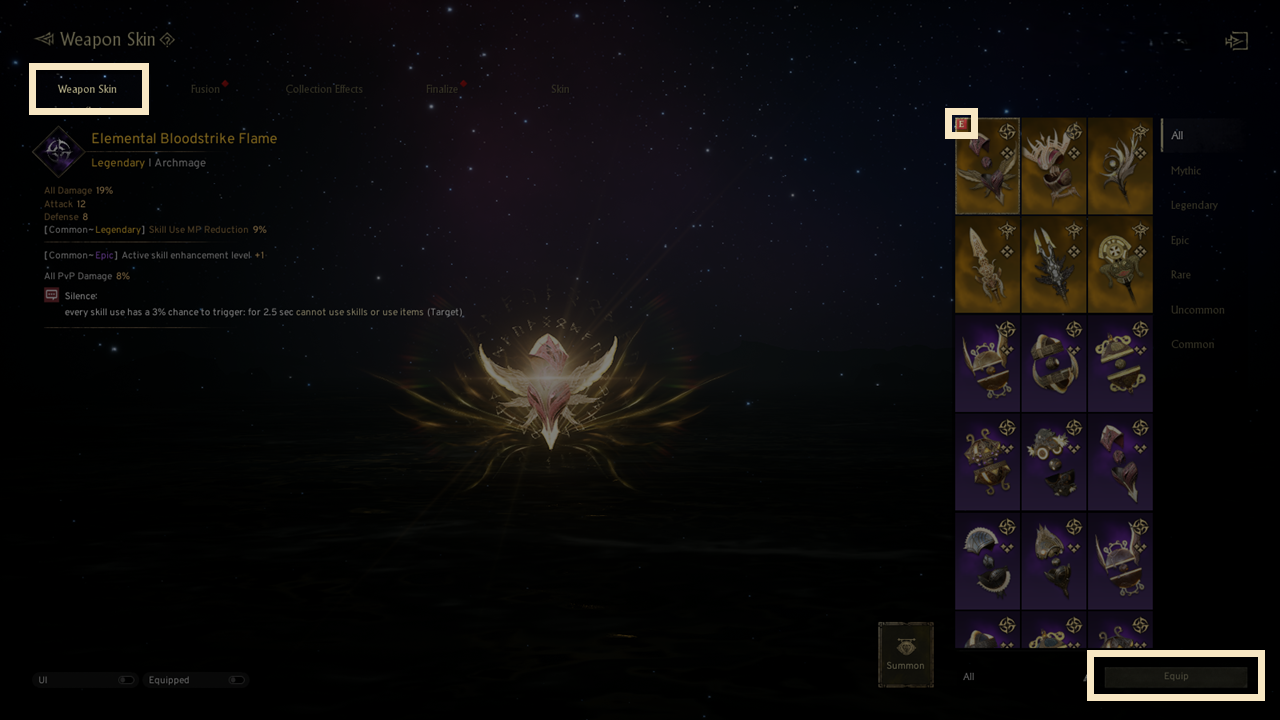
- To equip a Weapon Skin, select the desired one that matches your currently equipped avatar from the list on the right, then press the 'Equip' button.
- A red base [E] icon will be displayed at the top-left area of the Weapon Skin that is equipped,
applying the stats and buff effects of the Weapon Skin.
3. Fuse Weapon Skin
◈ How to fuse
- When you acquire a duplicate Weapon Skin, you can fuse it to create a new one.
- Only Weapon Skins of the same grade are eligible for fusion.
- The 'AUTO Populate' button lets you automatically add material Weapon Skins; click "Fuse" to proceed.
- The 'AUTO Fusion' feature automates the fusion process for all applicable Common to Uncommon-grade Weapon Skins until no further actions are possible.
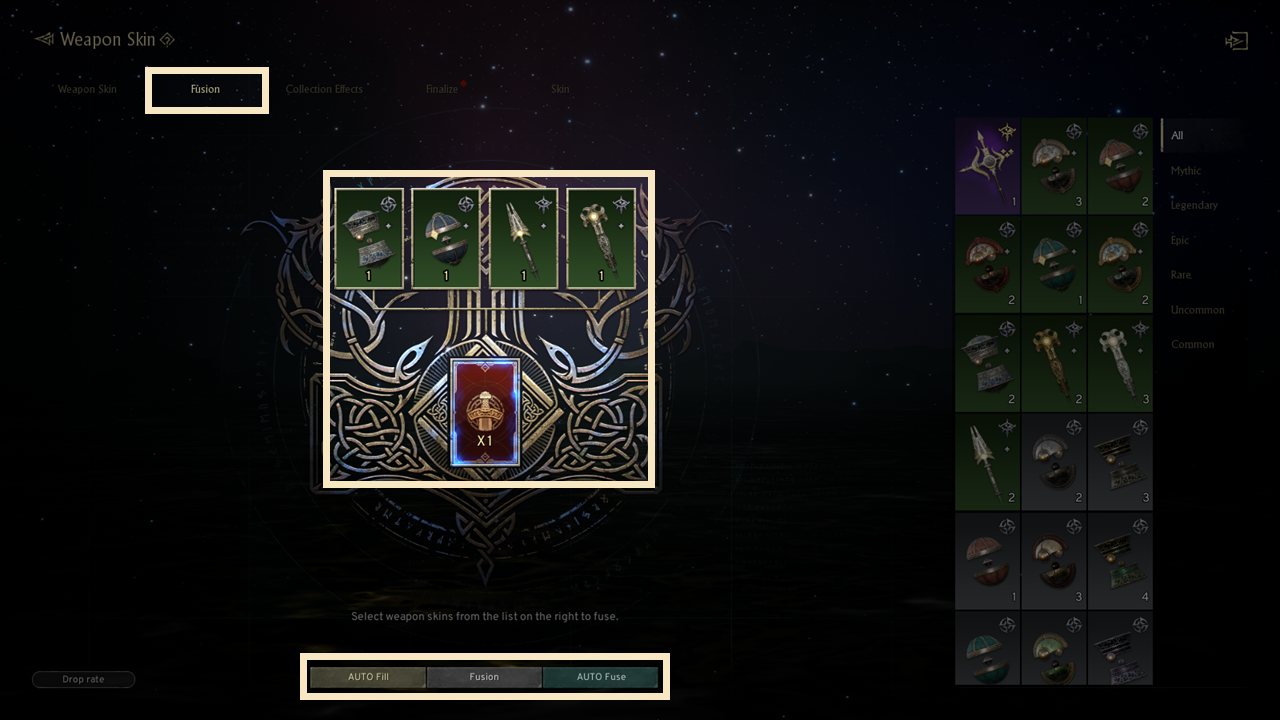
- By registering 4 lower-grade Weapon Skins, you can fuse them into a higher-grade Weapon Skin up to the Mythic grade.
4. Weapon Skin Collection Effect
◈ Details
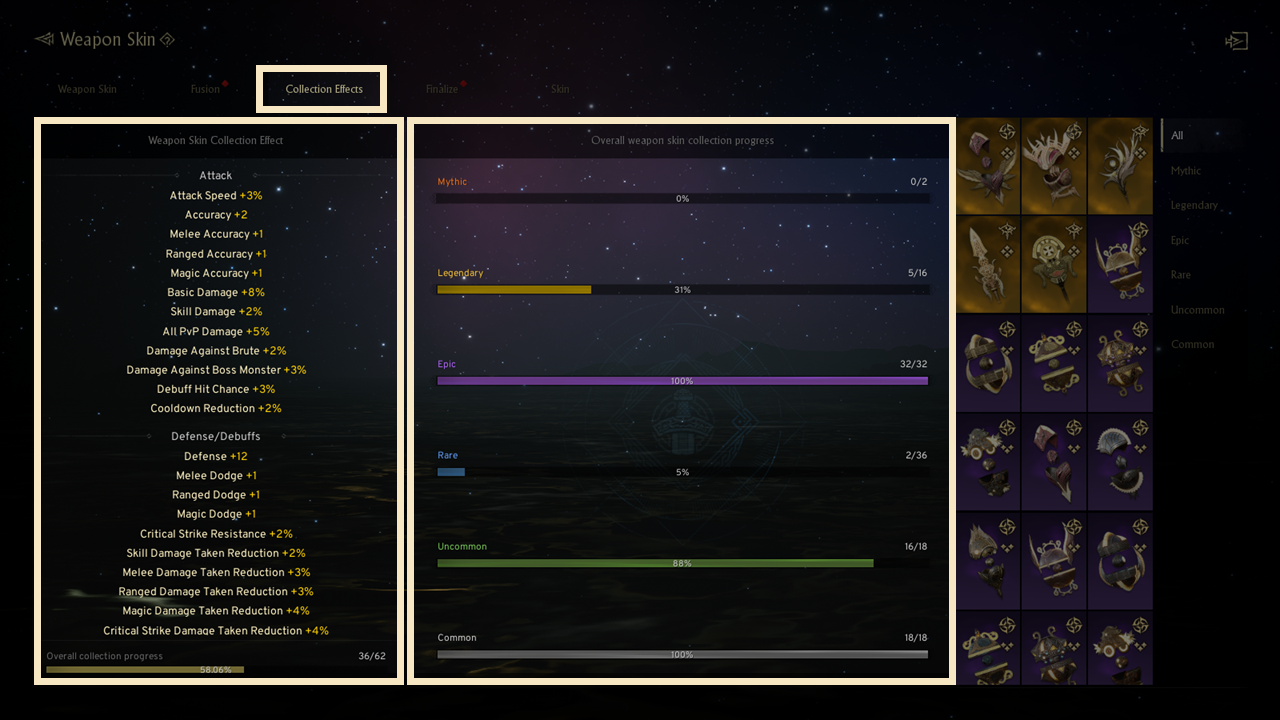
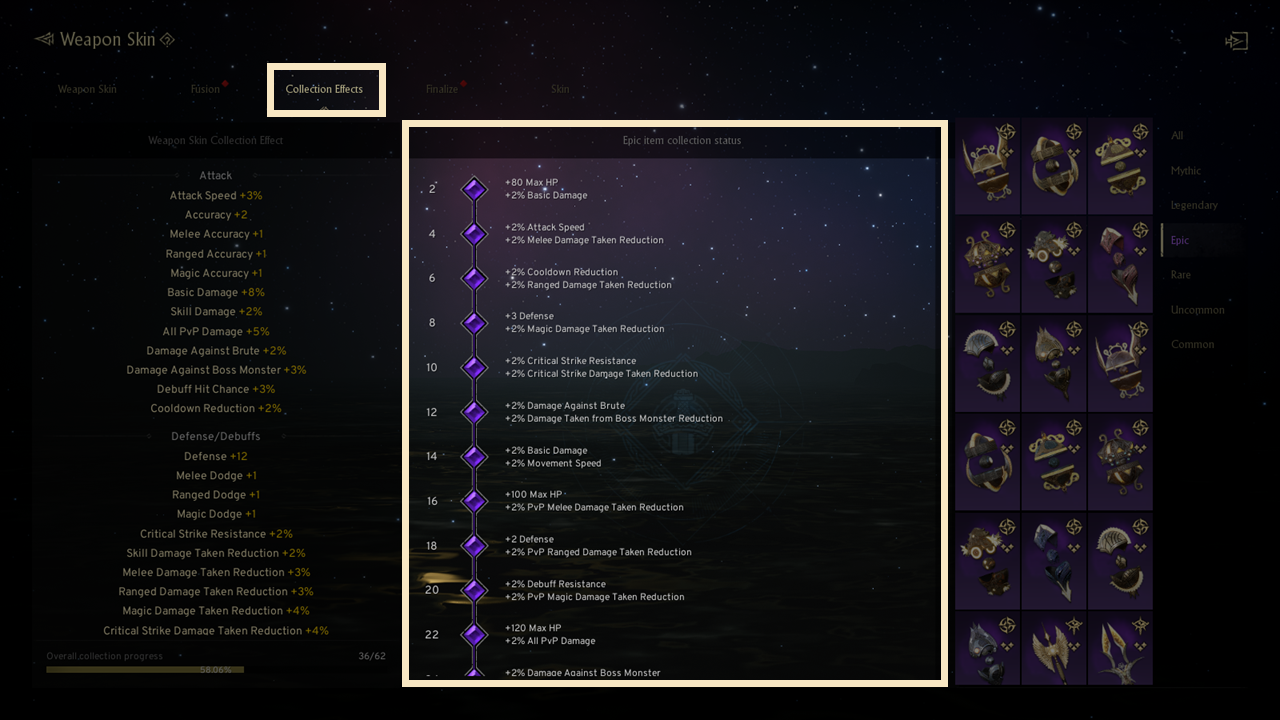
- The number of different Weapon Skins you own will determine the Weapon Skin collection effects you receive.
- You can check the detailed collection effects by clicking the grades tab of the owned list or the collection status(%) text.
5. Finalize Weapon Skin & Swap
◈ Weapon Skin Finalize Tab
- When acquiring an Epic or higher grade Weapon Skin, confirmation is required in the 'Finalize' tab.
- You can swap it with another Weapon Skin of the same grade before confirming.
- Weapon Skin swaps cost Diamonds.
· The Diamond cost for Epic/Legendary Weapon Skin swaps will increase depending on the current swap count.
(But the 5th and 6th swap costs will be the same.)
· The swap cost for mythic-grade Weapon Skins is fixed, regardless of the swap count.
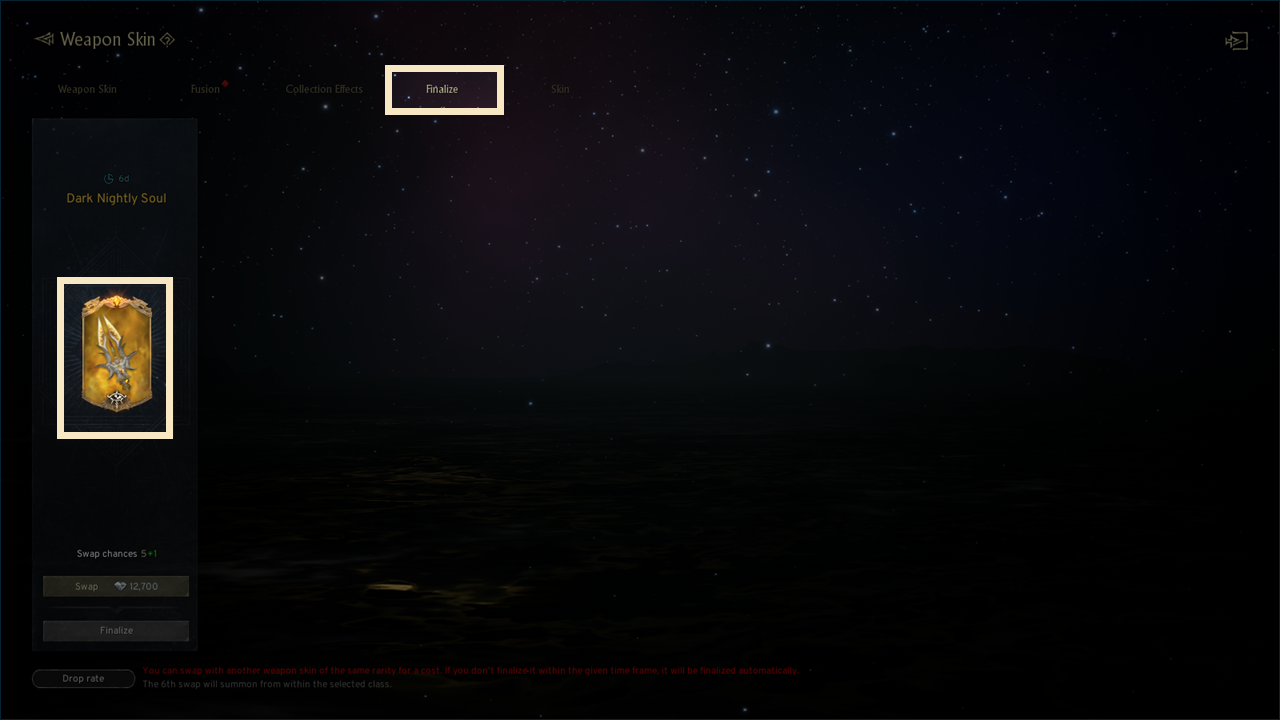
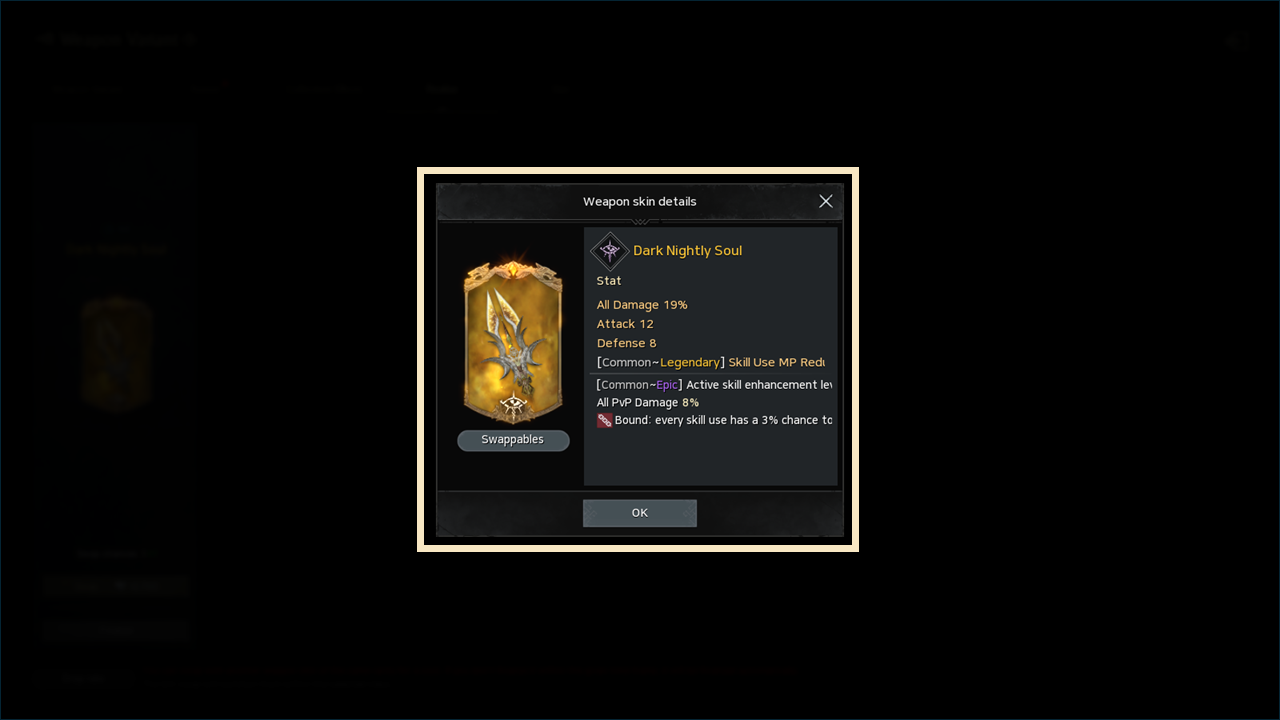
- On the confirmation screen, you can view detailed information about the Weapon Skin by clicking its portrait, and the 'Swappables' button will display other Weapon Skins available for swapping.
- Unconfirmed Weapon Skins do not provide collection effects, and if not confirmed within the remaining time, the Weapon Skin will be automatically confirmed.
◈ Weapon Skin Finalize
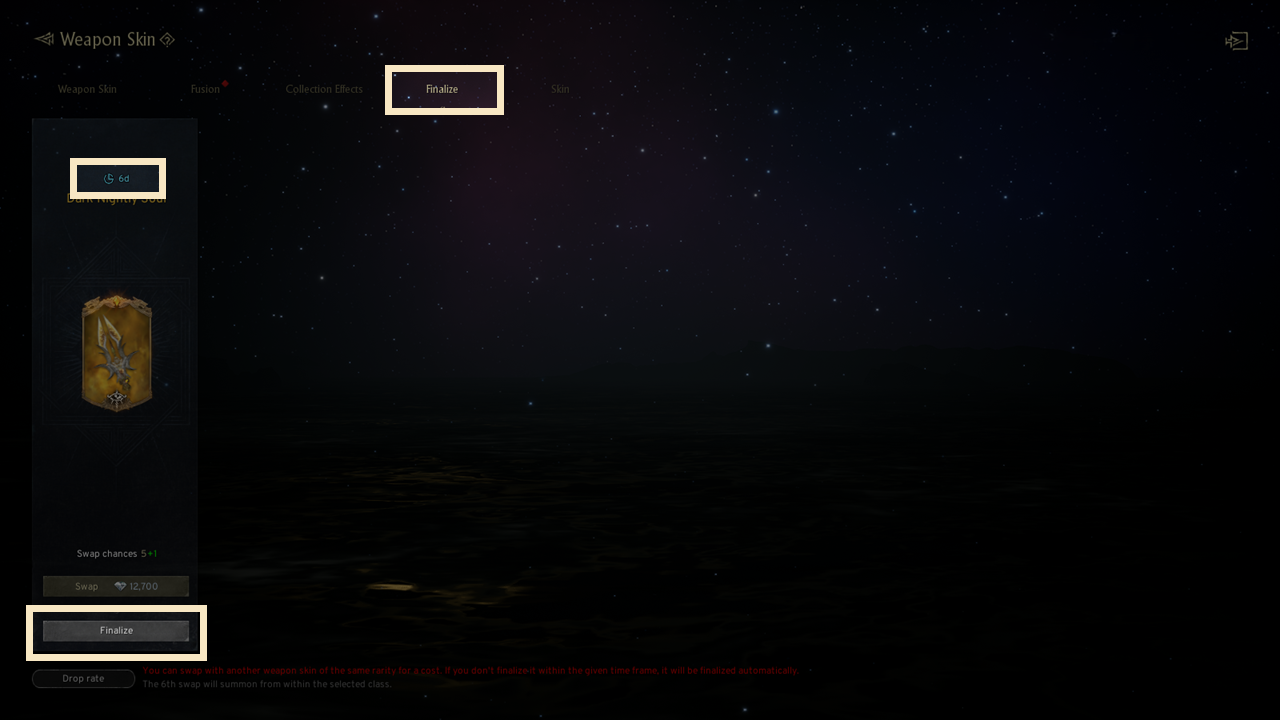
- You will acquire the Weapon Skin at the finalize tab, by pressing the Finalize button under the obtained Weapon Skins portrait.
- After acquiring a Weapon Skin, content such as Weapon Skin equipment, Collection effects, and Skin will be available.
- When you acquire a Weapon Skin you already own, you can fuse it to obtain a new Weapon Skin.
- If the Weapon Skin is not finalized within the stated period, it will automatically be finalized after the period ends.
◈ Weapon Skin Swap
- You can swap the Weapon Skin to another one of its same grade by consuming a certain cost(Diamonds) before Finalization.
- If you use all of your Swappable chances, it will be automatically finalized to the last swap.
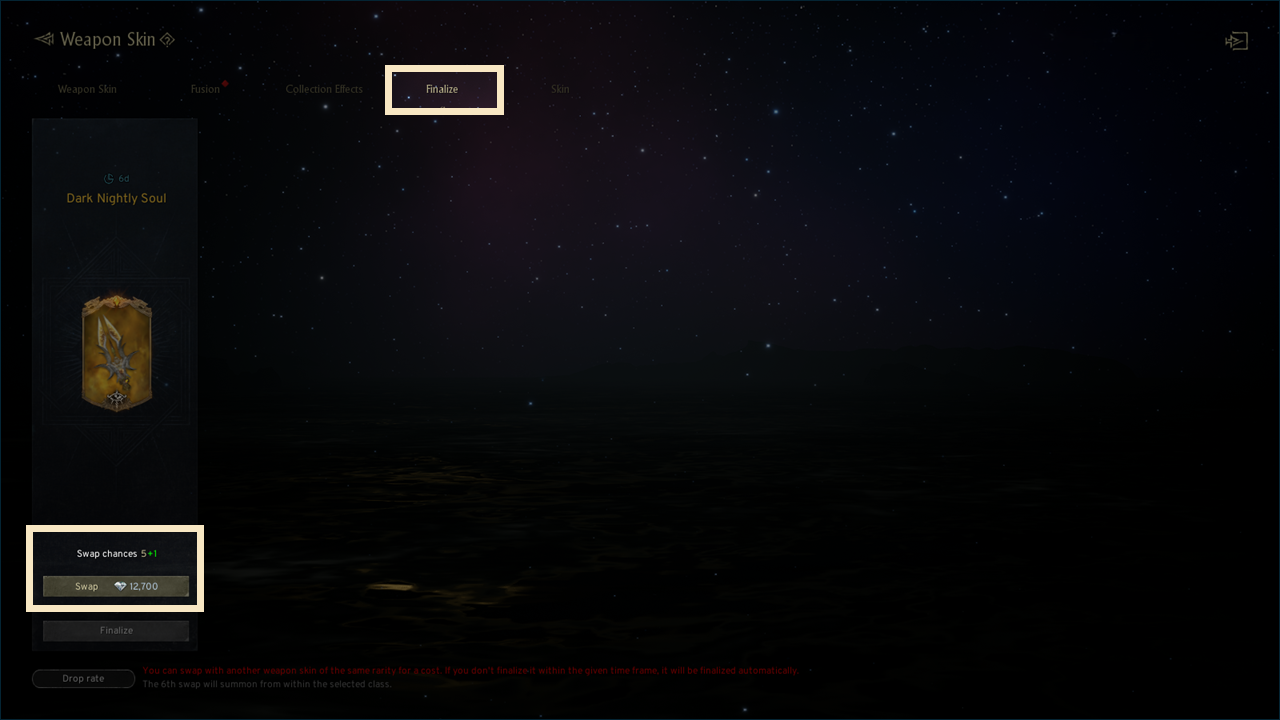
- If you swap a mythic-grade weapon skin, weapon skins other than the weapon skins you own and the weapon skin you have just summoned will appear.
- If you own all mythic-grade weapon skins, one of any of the mythic-grade weapon skins will appear.
- The swap cost for mythic-grade weapon skins is fixed, regardless of the swap count.
◈ Class Selection Swap
- You can select the class of the Weapon Skin swap result for your 6th chance.
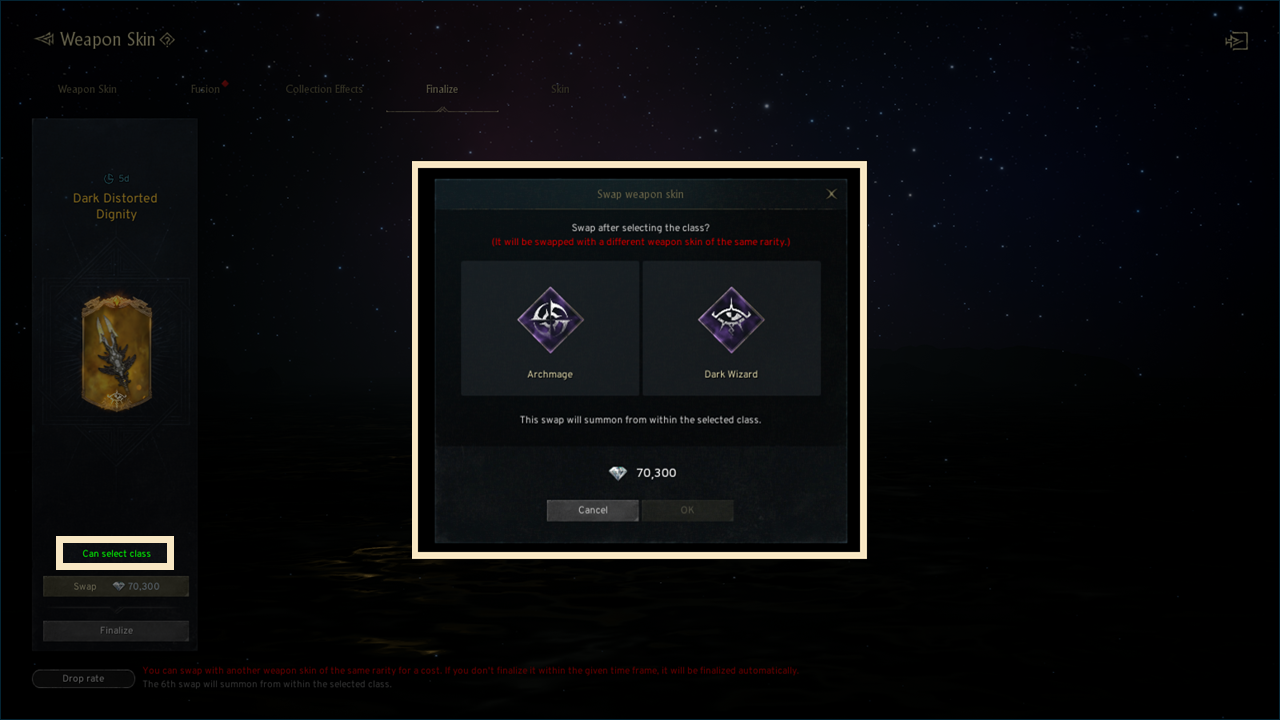
! The 6th Weapon Swap cost will be the same as the 5th Weapon Swap.
! The 6th Weapon Swap results will be summoned within the selected Class.
! Caution
- Diamonds are required for weapon skin swaps.
- Weapon skin swap chances are limited to 6 times.
- Unconfirmed weapon skins do not provide collection effects.
- If the summoned weapon skin is not confirmed within the remaining time, the weapon skin will be automatically confirmed.
6. Skin
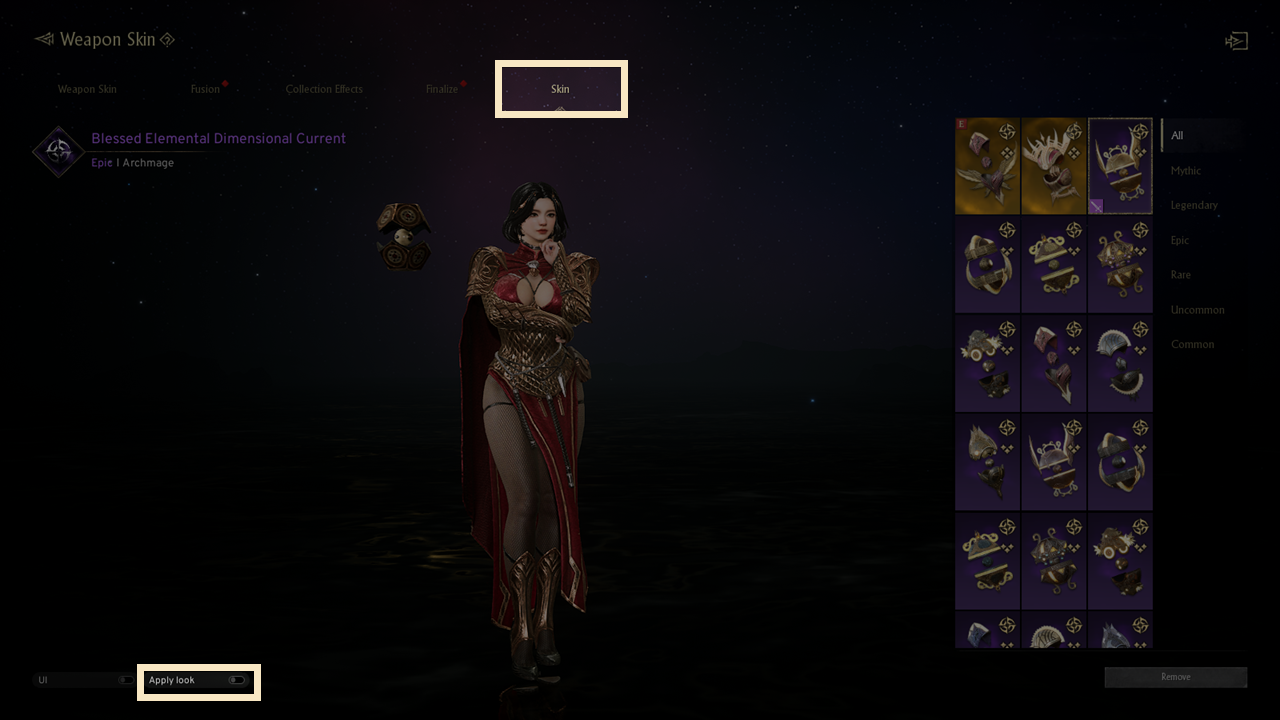
•Skin is a feature where you can set the equipped Weapon or Weapon Skin's appearance to the desired Skin.
◈ How to Apply Skin
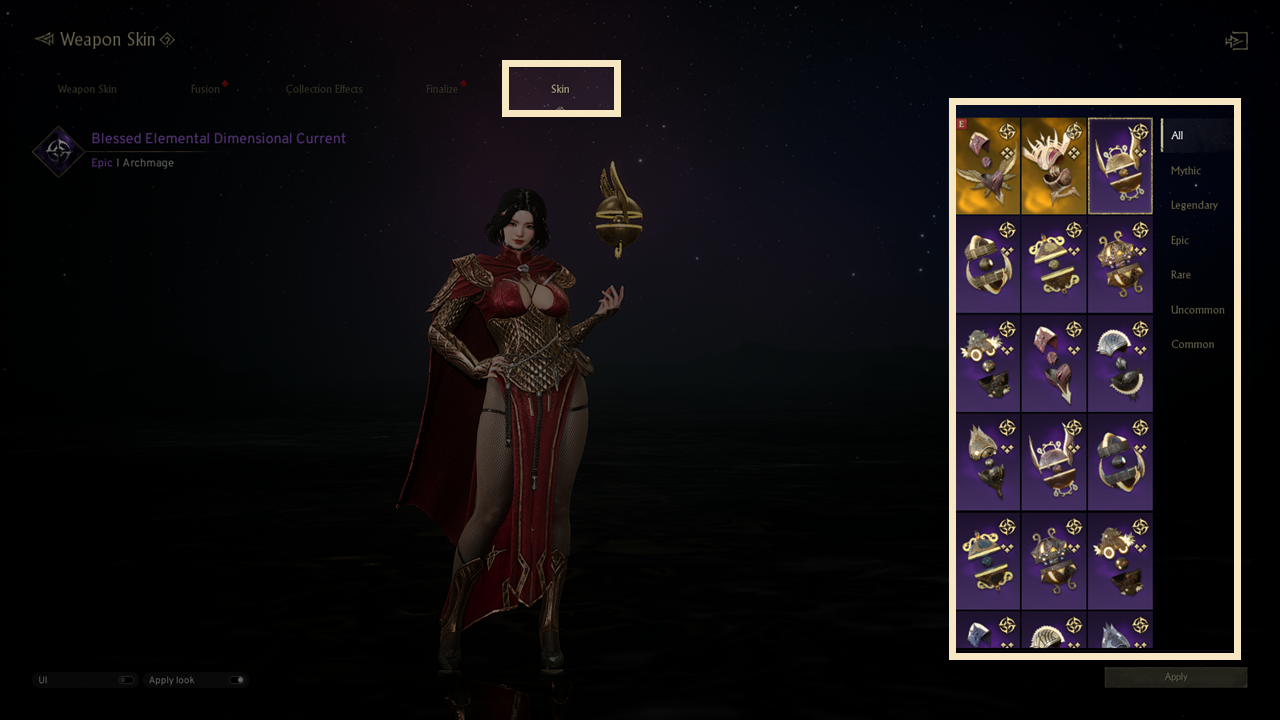
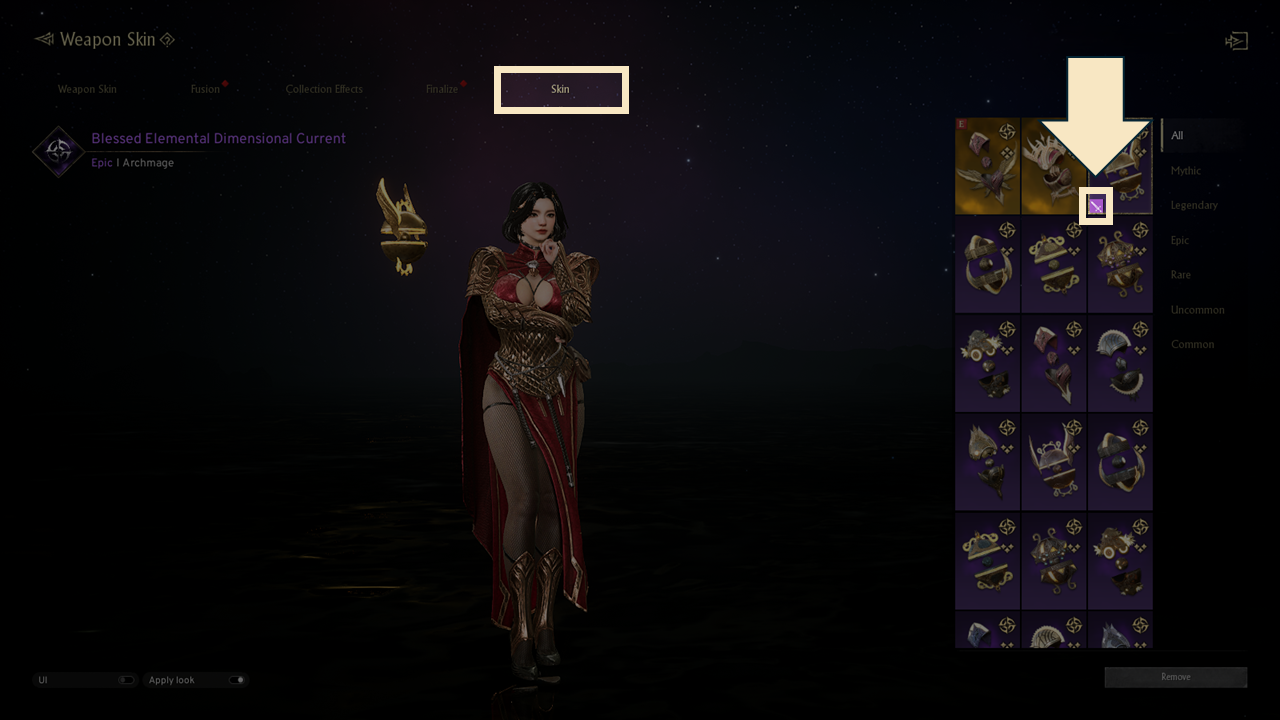
- You can change the appearance of your Weapon Skin by pressing the 'Apply' button of a Weapon Skin that is available for your currently equipped weapon from the list of Weapon Skins on the right side of the 'Skin' tab.
- A purple icon will be displayed at the bottom-left area of the Skin that is equipped.
◈ Skin Remove
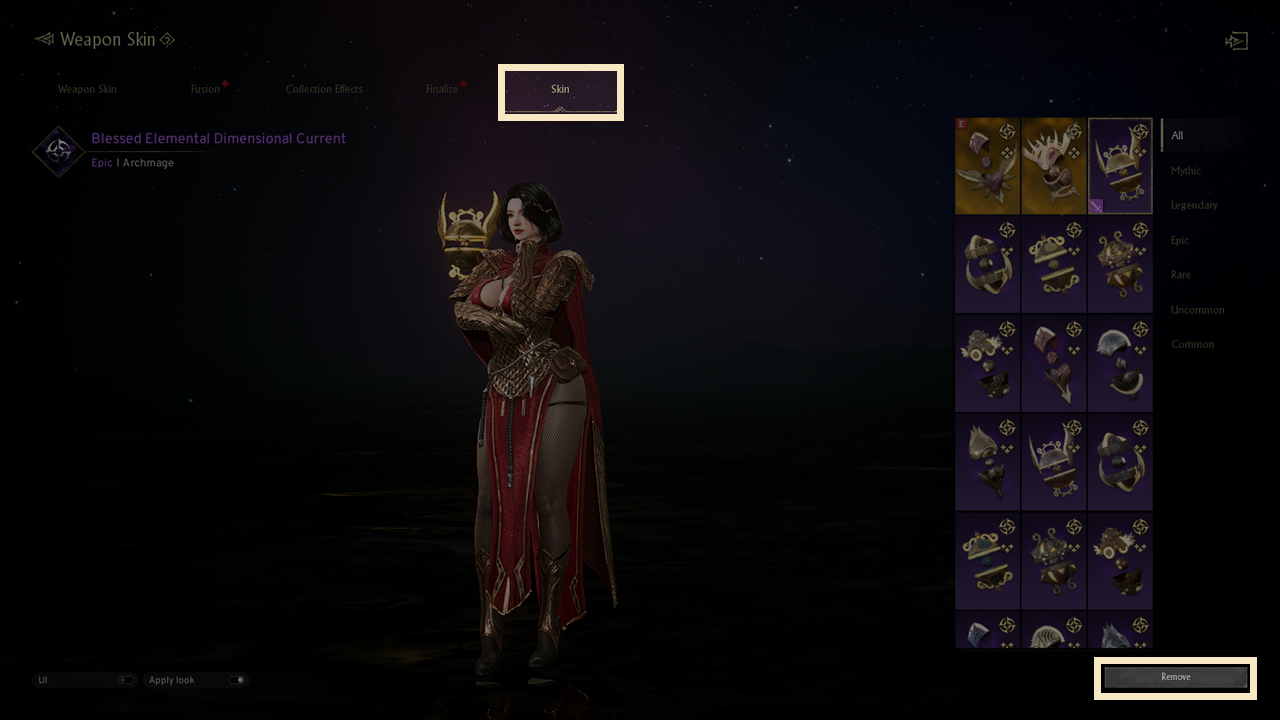
- You can remove the applied Skin by selecting the applied Skin and pressing the 'Remove' button at the bottom-right area of the Skin screen.
- The Weapon Skin of the equipped weapon will be applied when a Skin is removed.
◈ Skin Disable
- You can disable the Skin system by setting the view option to [off] in the bottom-left area of the Skin tab
- Even if a Weapon Skin is equipped, or a Skin is applied, when the view option is set to [off], the appearance of the weapon equipped in your Bag/Character Details will be applied.