
Items obtained from monster hunting, dungeons, and other activities
can be added to the collection menu to gain extra stats.
Let's take a look at how to add items in the collection menu and the benefits it offers.
■ Contents
1. Add Items to Items
2. Brokkr Universal Key
3. Filter settings
4. Hiding Items
1. Add Items to Collections
◈ How to add
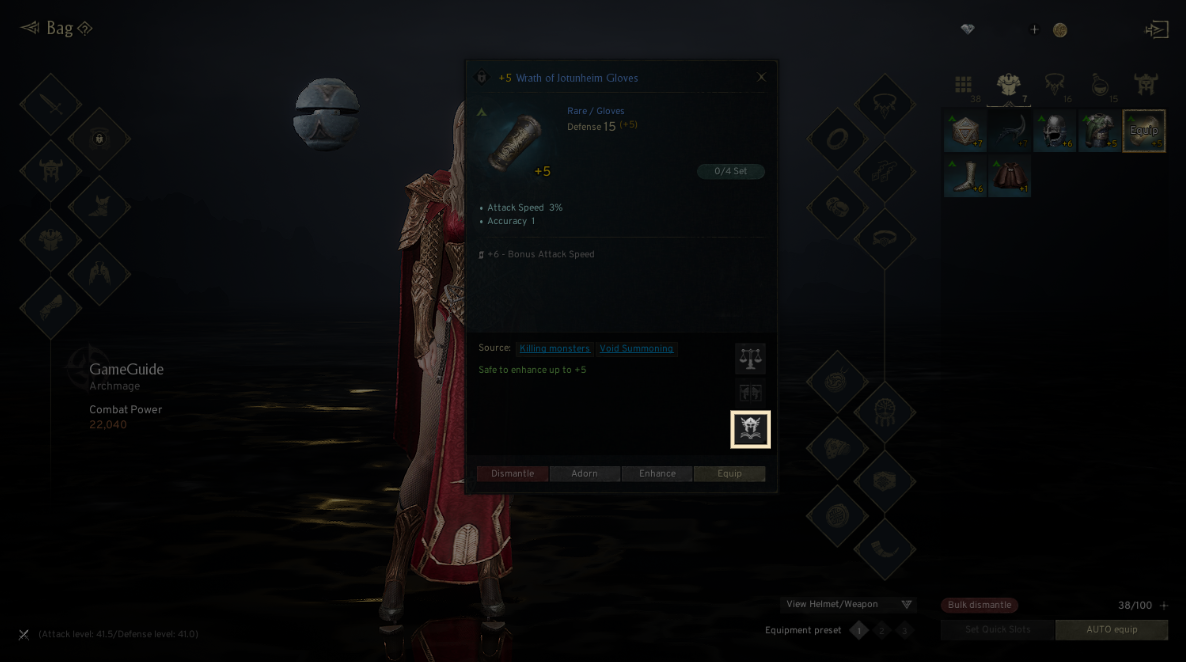
- Tap the menu (☰) in the top-right and select 'Item Collection' to access the tab.
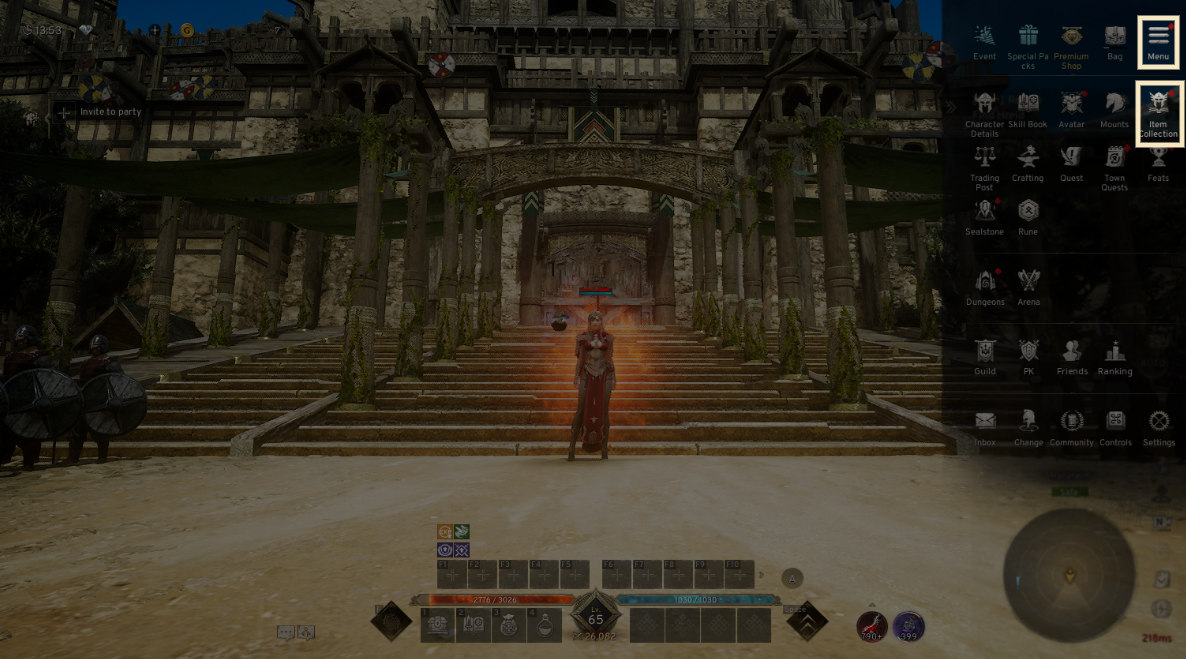
- Items that can be added are marked with a red dot (notification) and appear highlighted.
- Choose the item and click 'Add' in the tooltip to add it to the collection.
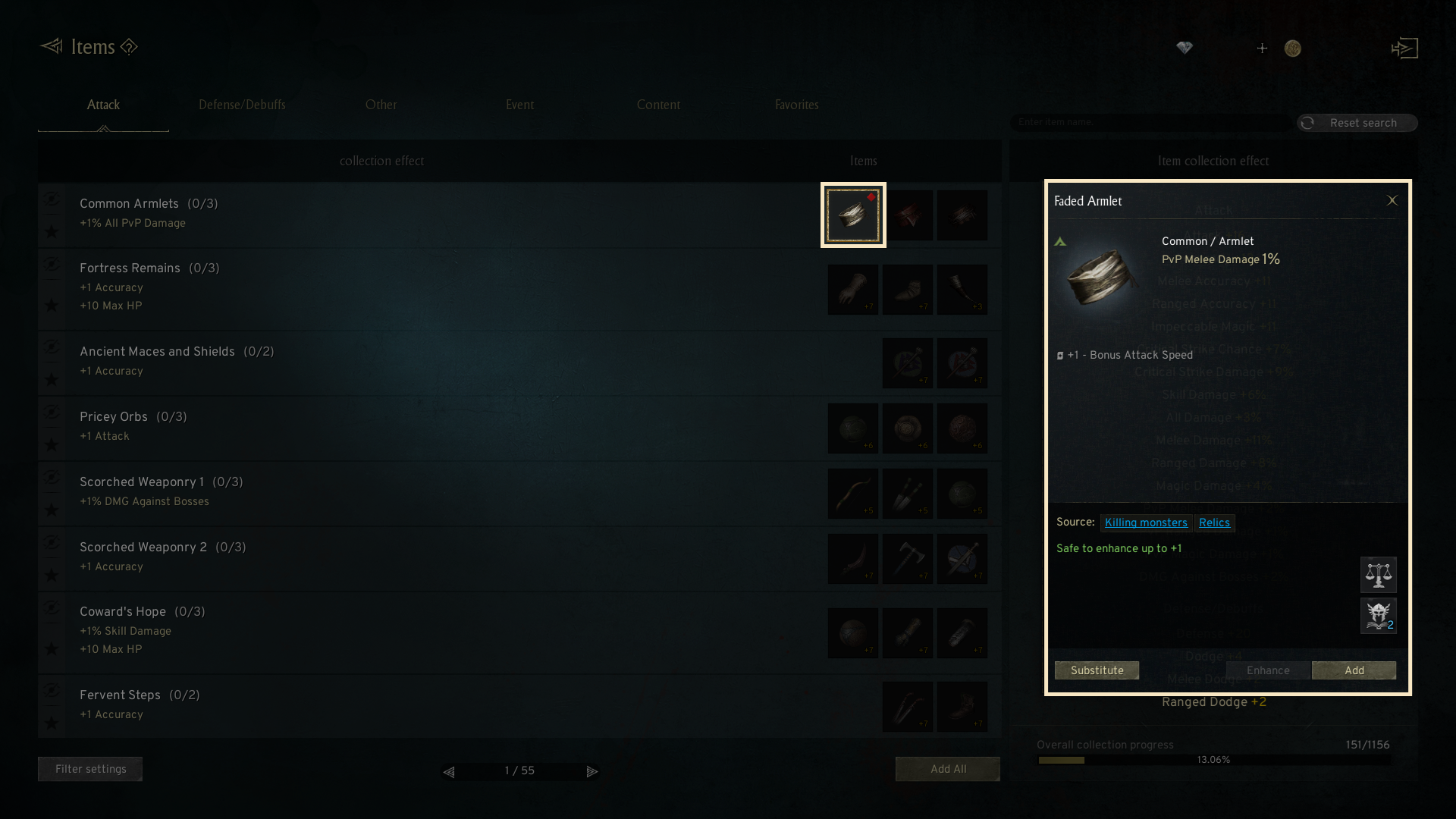
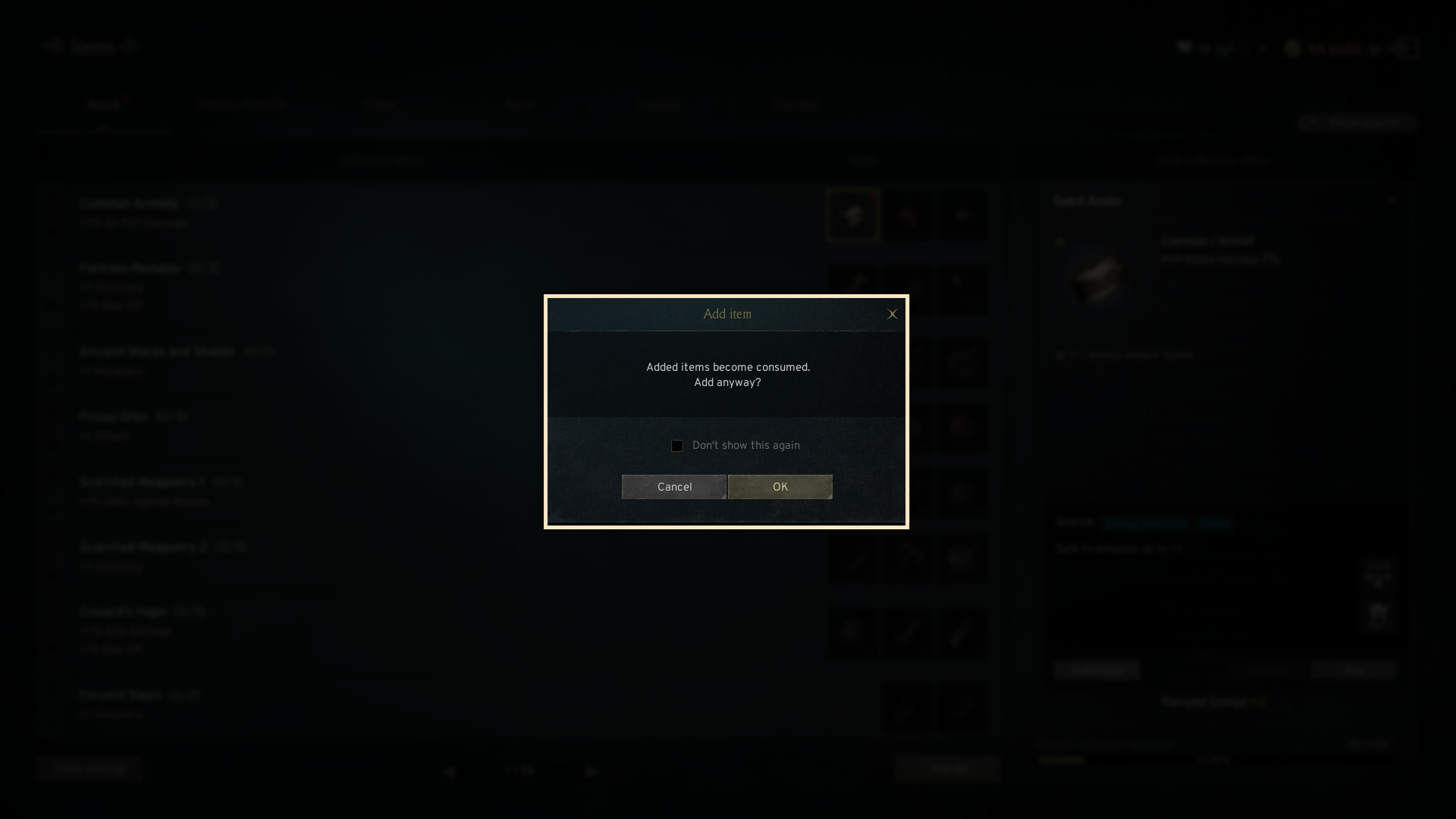
- Click 'Add' and 'OK' confirm in the pop-up and the item is added.
! Effects activate only after adding all required materials.
◈ Add All Feature
- By clicking 'Add All' button in the mid-bottom of the Items screen, the 'Add All' option will be displayed.
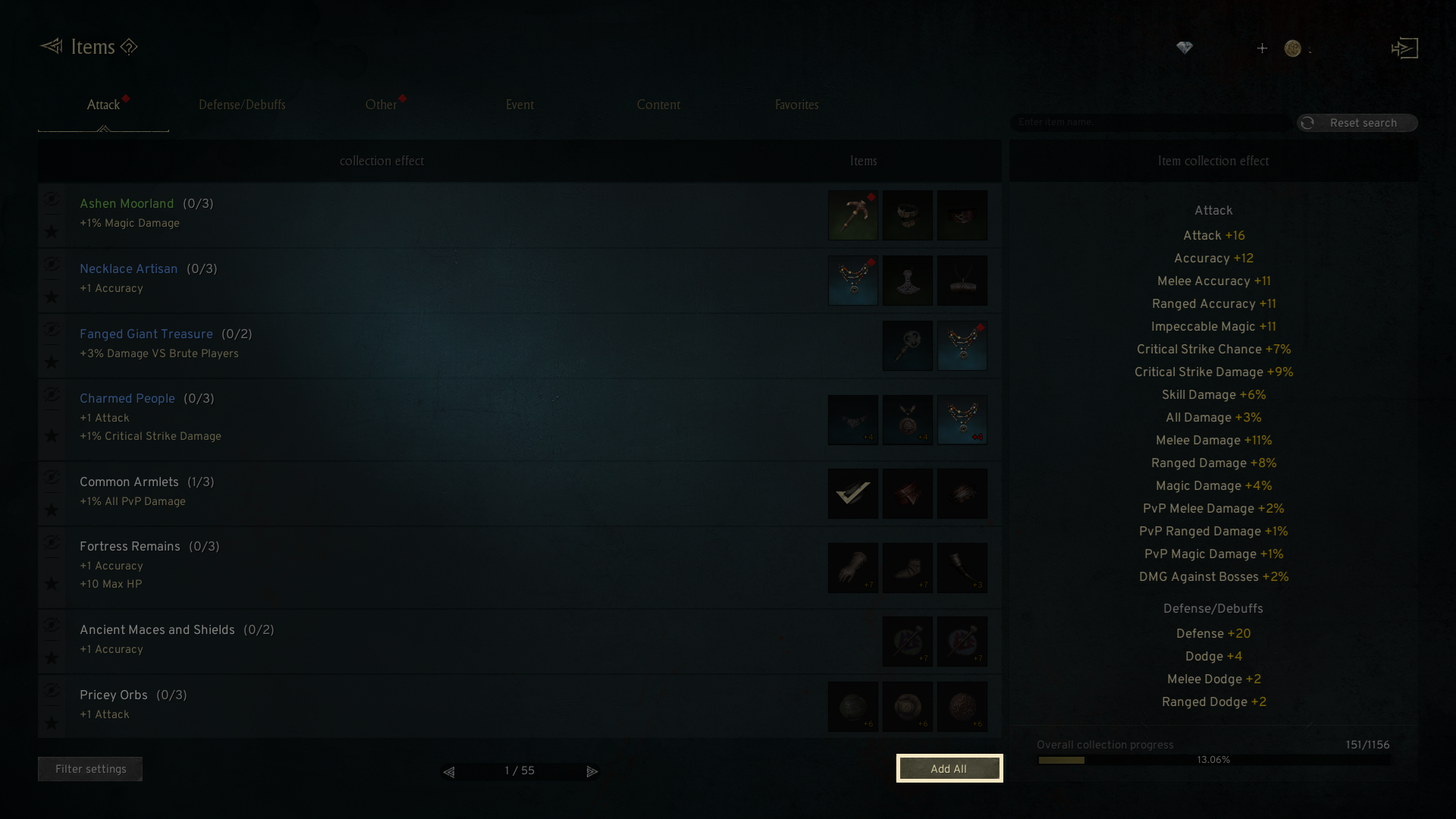
- When the grade, and types of the items that you want to add are set in the Add All filter, the items that meet the filter condition will be automatically selected.
- You can select or deselect the add-able item by touching it in the Add All screen.
- When you click the 'Add' button in the Add All option, all of the items that you have selected will be added to the collection.
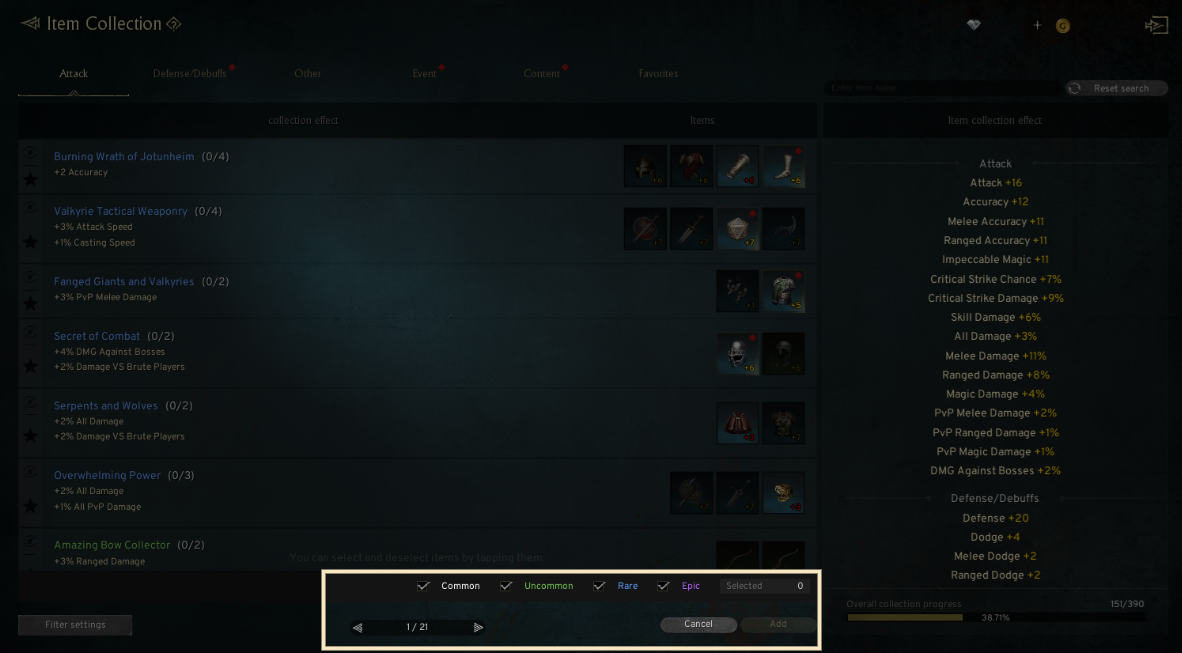
! Add All feature is chosen for each tab, e.g., Attack, Defense / Debuff.
! A yellow square-shaped outline will be displayed on the chosen item.
! If you have items less than the addable items, the items will be primarily selected in ascending, and left-to-right order of collection.
! The locked items will not be selected in the Add All feature.
◈ Search Item
- Type the item name in the search bar to view it.
- Each category shows the required collection list, but some items may not be addable.
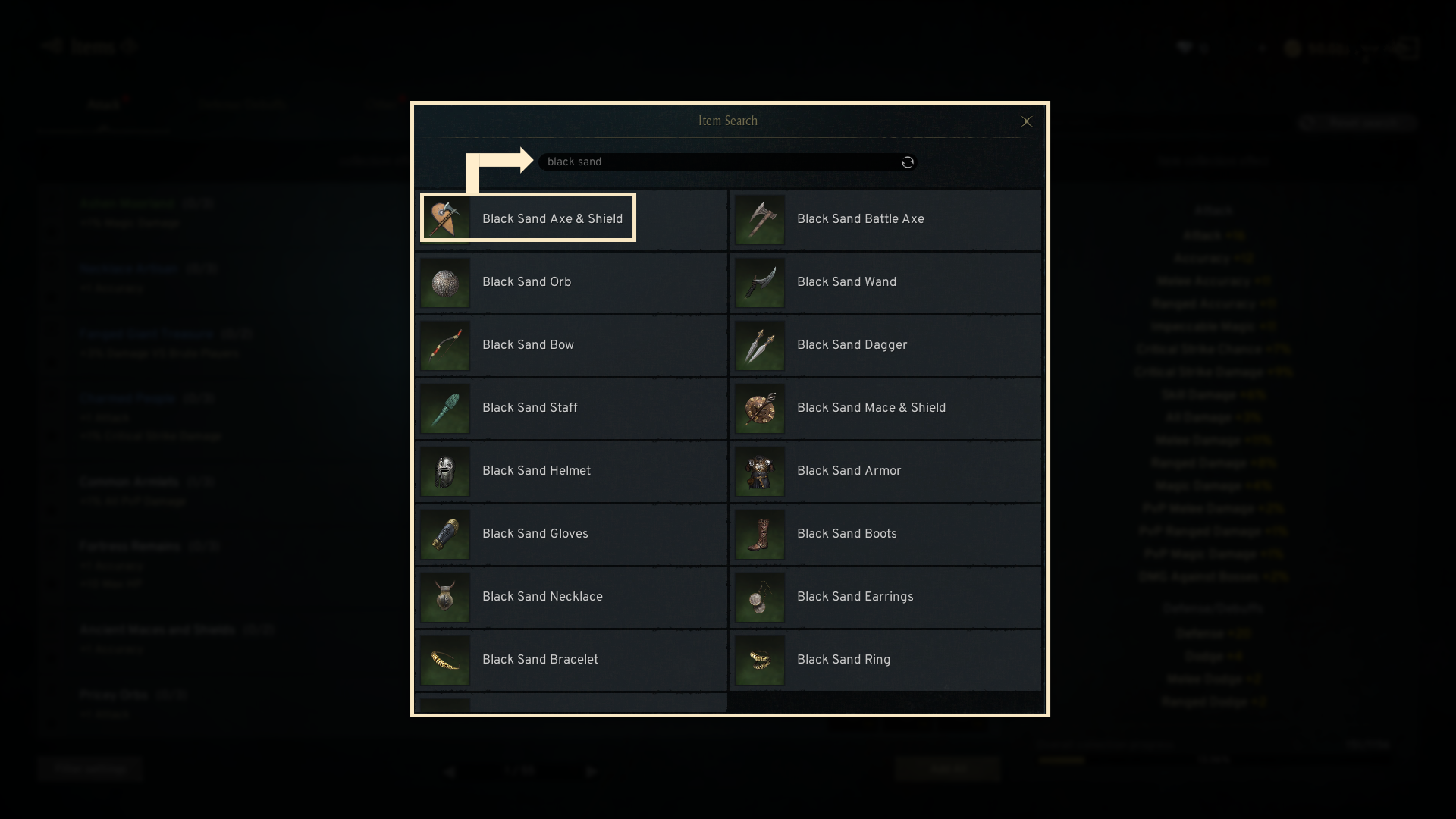
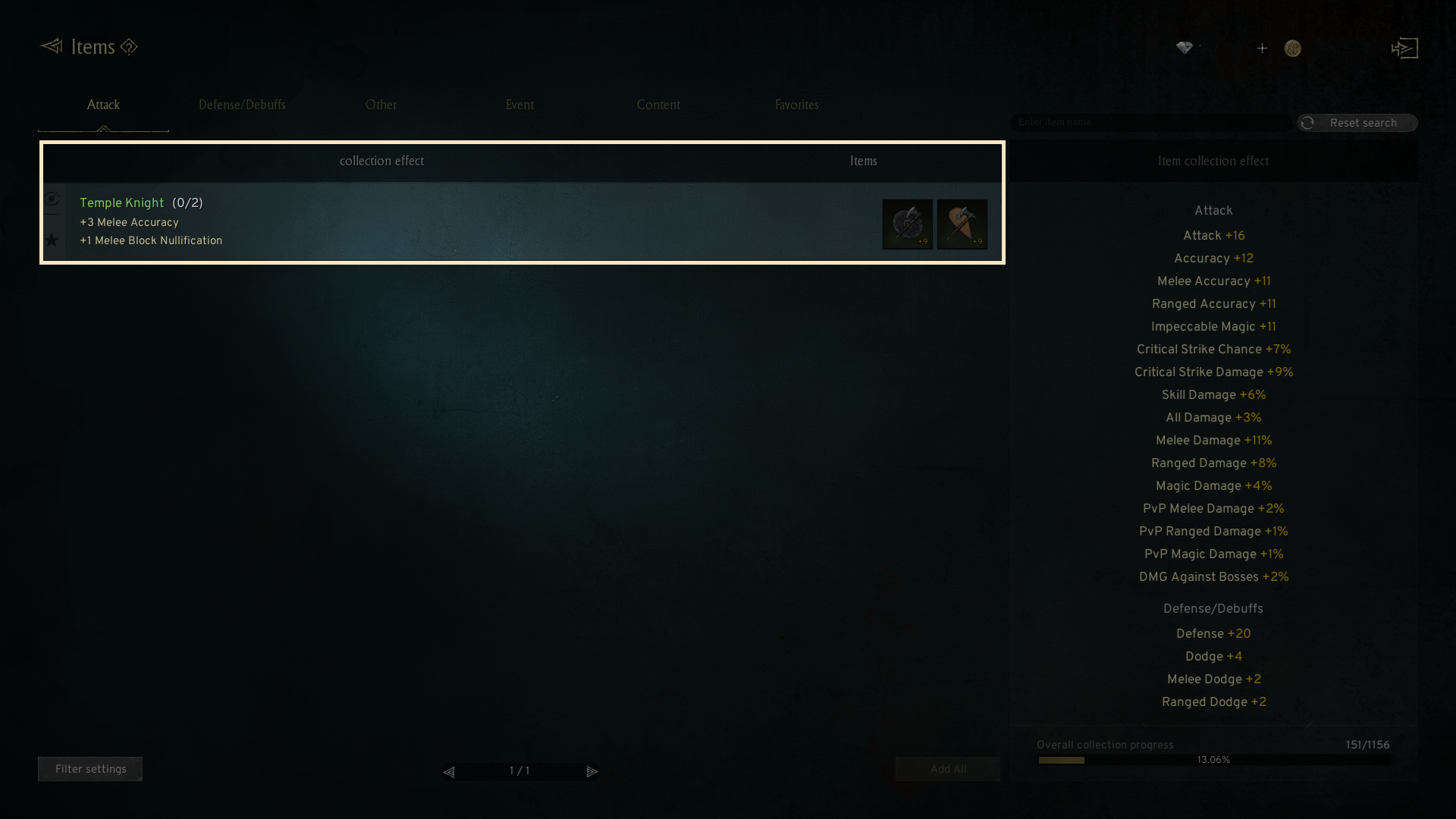
- Selecting an item in the search will display only collection items that use it as a material.
- Clicking the reset button in the top-right corner will reset the search and display all collection items.
! Click the star icon '★' next to a collection item to add it to the 'Favorites' tab.
2. Brokkr Universal Key
◈ Details
- The Brokkr Universal Key is an item that can be added as a substitute for equipment items you have not yet acquired.
! Substitution is only possible if the Brokkr Universal Key's grade matches the equipment item's grade.
! The required quantity of Brokkr Universal Keys for substitution may vary according to the equipment item's type and enhancement level.
◈ How to substitute
- To add a substitution, click the [Substitute] button found in the tooltip when selecting a material for an incomplete collection item.
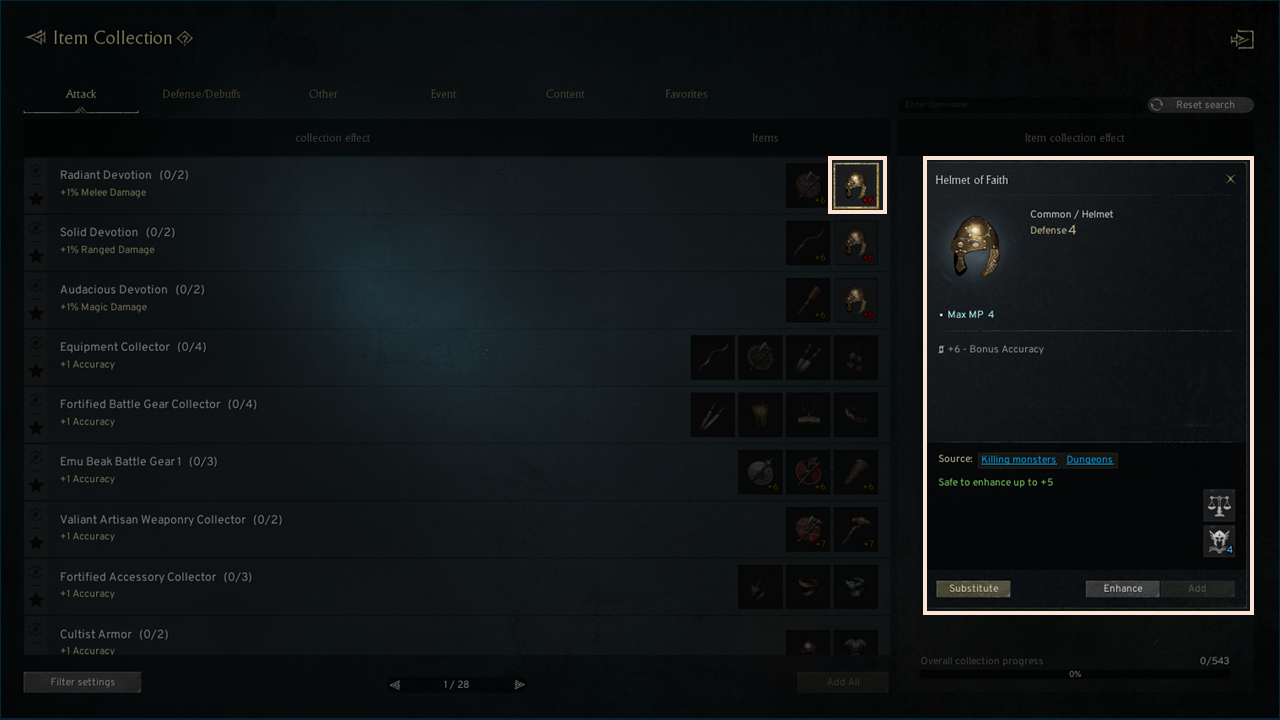
! You may only use the substitute feature for Weapon and Armor items (max +7) and Cloak and Accessory items (max +3). Other collectible items, including Relics and Event items, are not eligible for substitution.
- When you click the [Substitute] button, the necessary material for substitution will be converted into the Brokkr Universal Key.
- The substitution process is finalized by clicking the [Add] button, and saved the Brokkr Universal Key as the collection material.
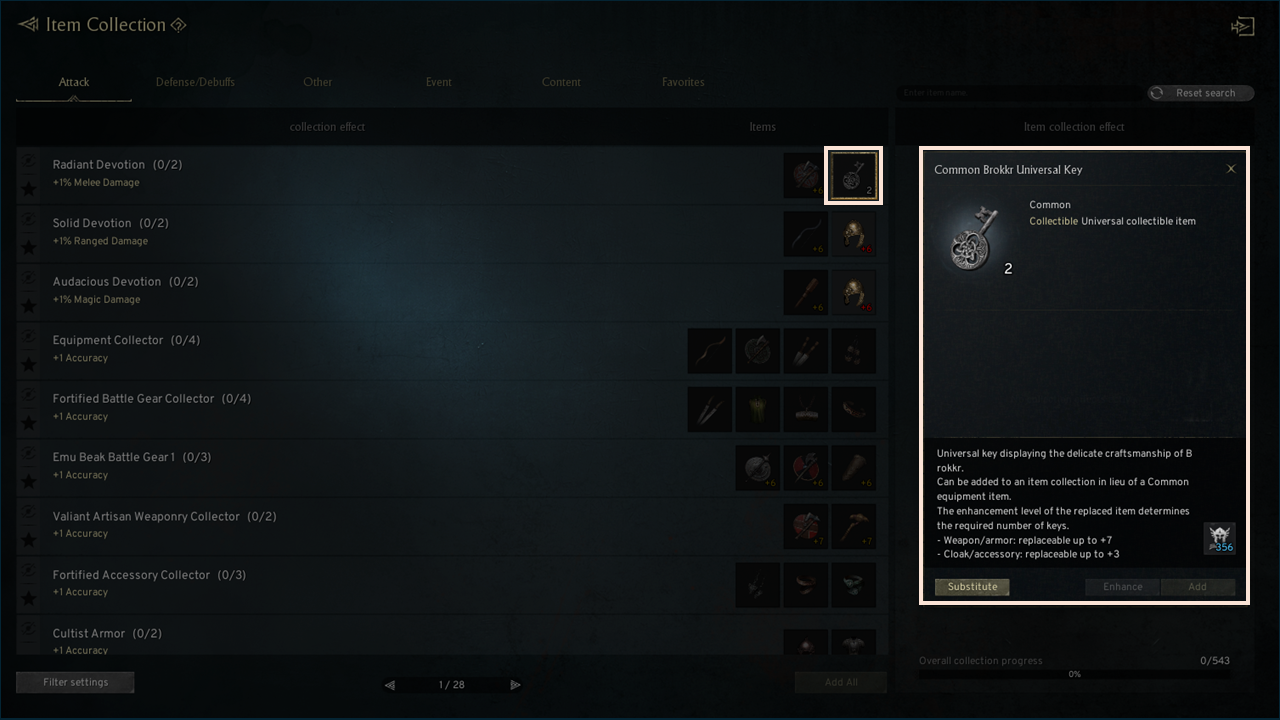
! The [Add] button will be deactivated if you do not possess a Universal Collection Item that can be used for substitution.
! If you press the [Substitute] button again after the required material has already been changed to the Brokkr Universal Key, it will revert back to the original material item.
3. Filter settings
◈ How to set
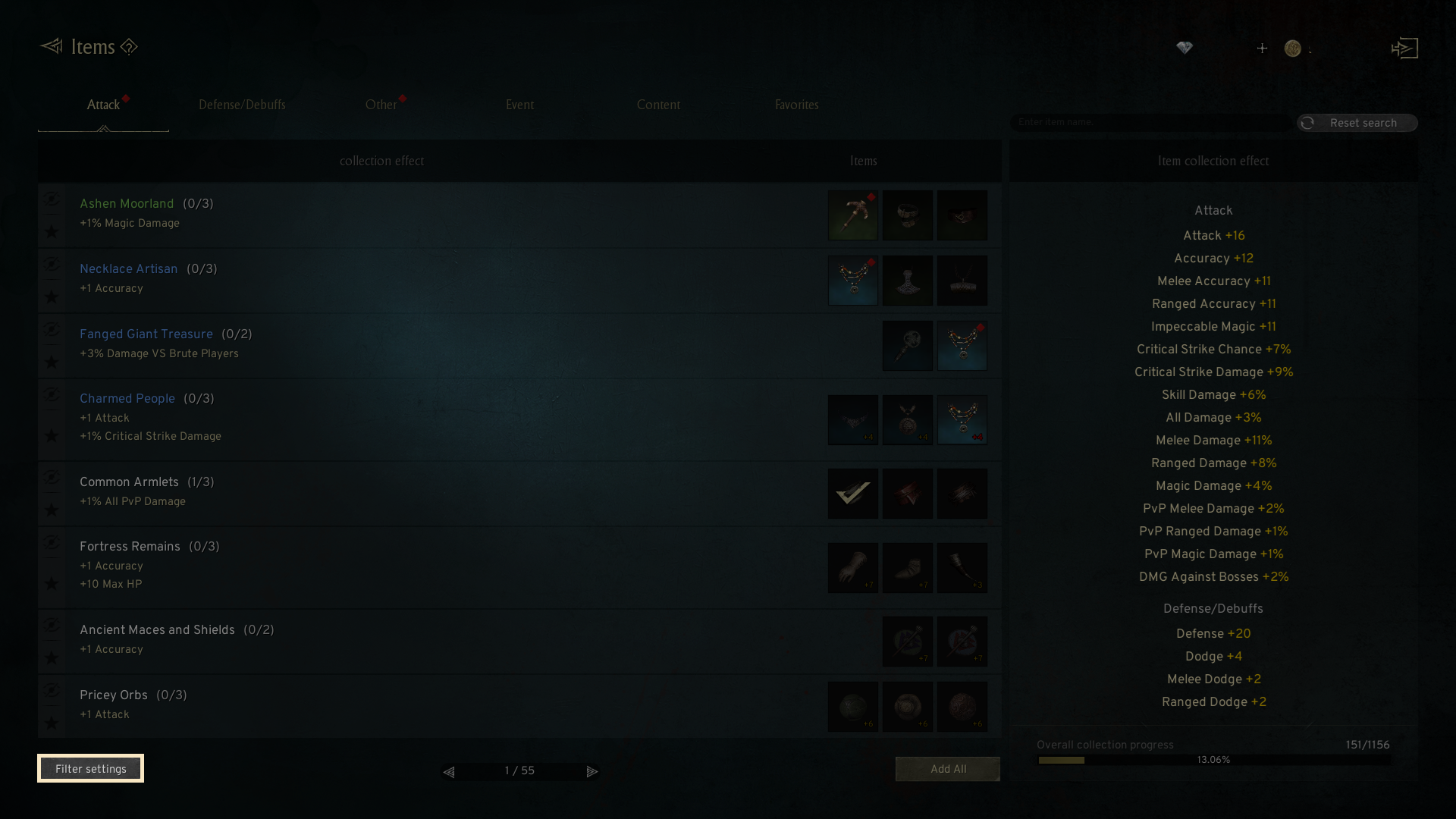
- By clicking the 'Filter Settings' button at the bottom left of the item collection tab, you can view the collection list based on your preferred conditions.
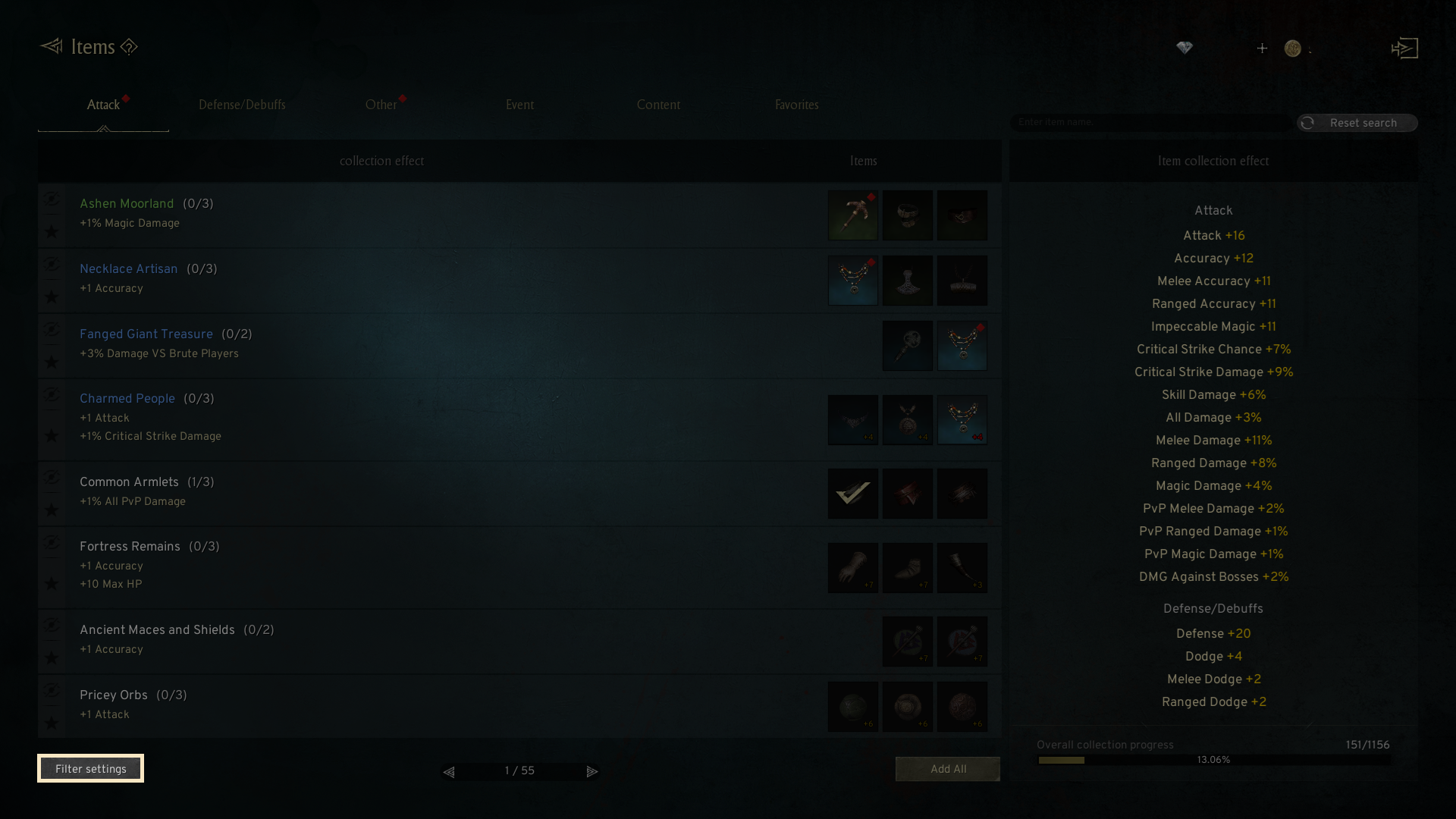
- The filter settings popup allows you to adjust the status, type, grade, and options for item collections. Once you set your preferences and click OK button, the item collection list matching the conditions will be displayed.
- Filters are applied individually for each collection category, and you can reset them using the 'Reset Search' button in the top-right corner.
- If you select [Status] - [Hide] in the filter popup, you can include hidden items in the list of item collections that match the set conditions.
4. Hiding Items
◈ Details
- When you touch the Hide icon, the category will be minimized.
- There will be no pop-up even if you acquired the collectable item.
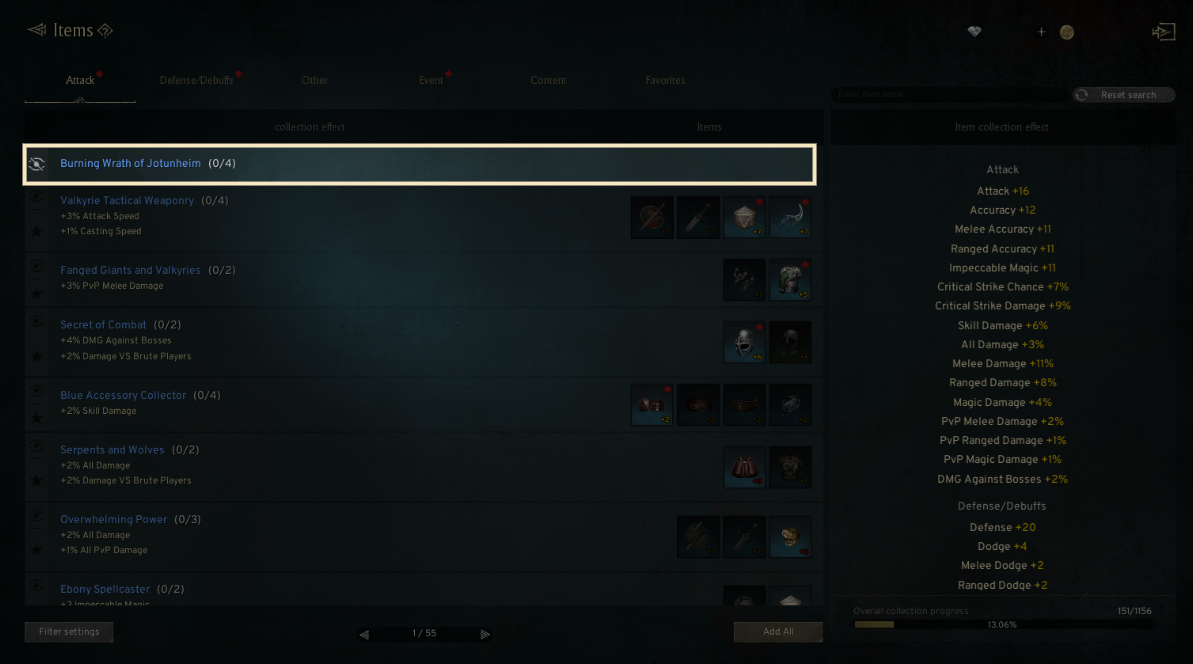
- The hidden items are not included in the collectible numbers in the tooltip of Bag UI.
If you need additional assistance, don't hesitate to contact our customer center through the button below.