
Alliance chat provides a chat feature where friendly guilds or allied guilds
within the same server can come together and interact.
Through guild-level communication,
you can enhance the enjoyment and intensity of various content.
■ Contents
1. Create Alliance Chat
2. Invite and Accept
3. Leave or Remove Alliance Chat
4. Delegating Authority
5. Notes
1. Create Alliance Chat
◈ Details
- Alliance chat can only be created by Guild leaders, who will also serve as the room host upon creation.
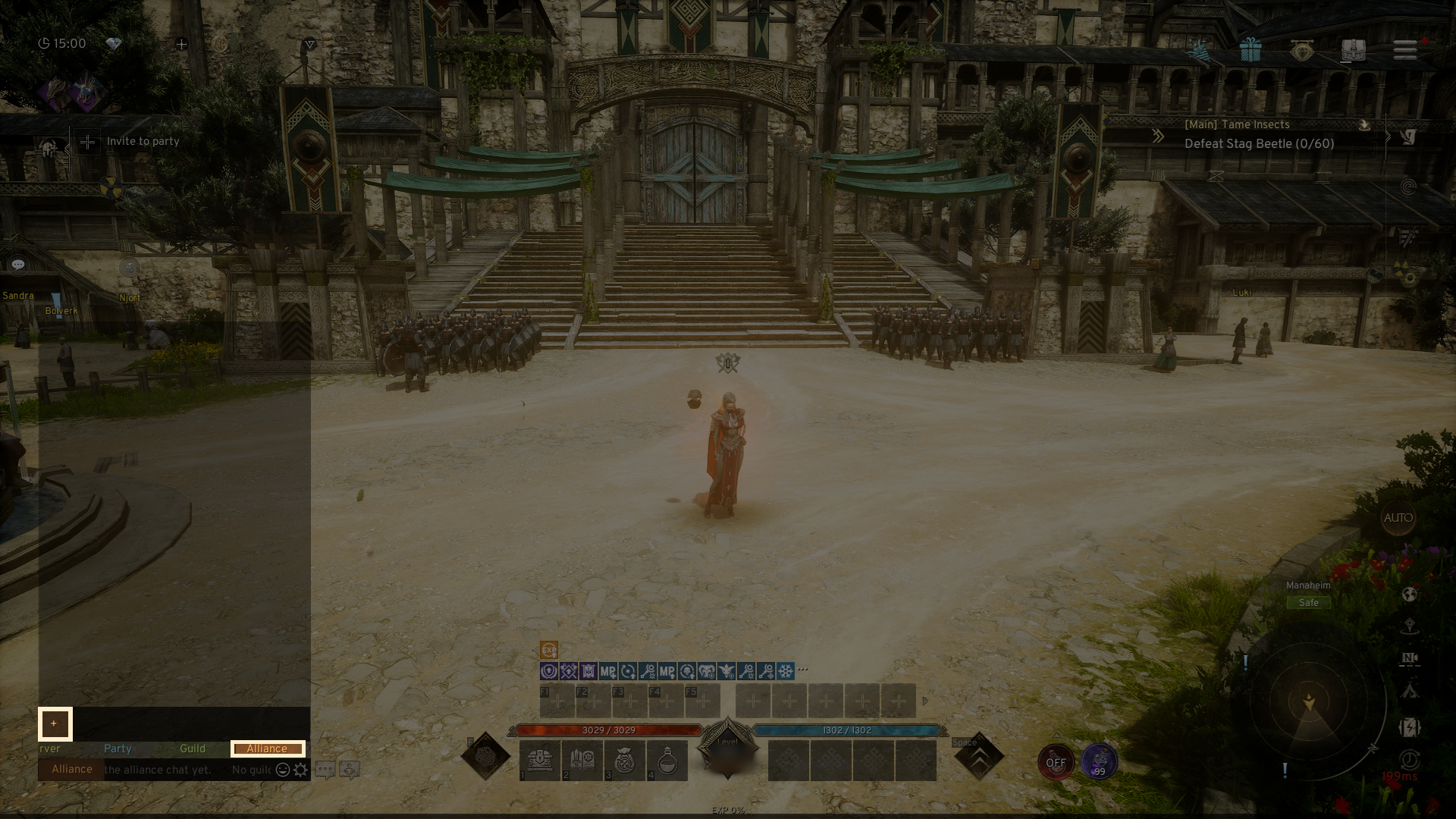
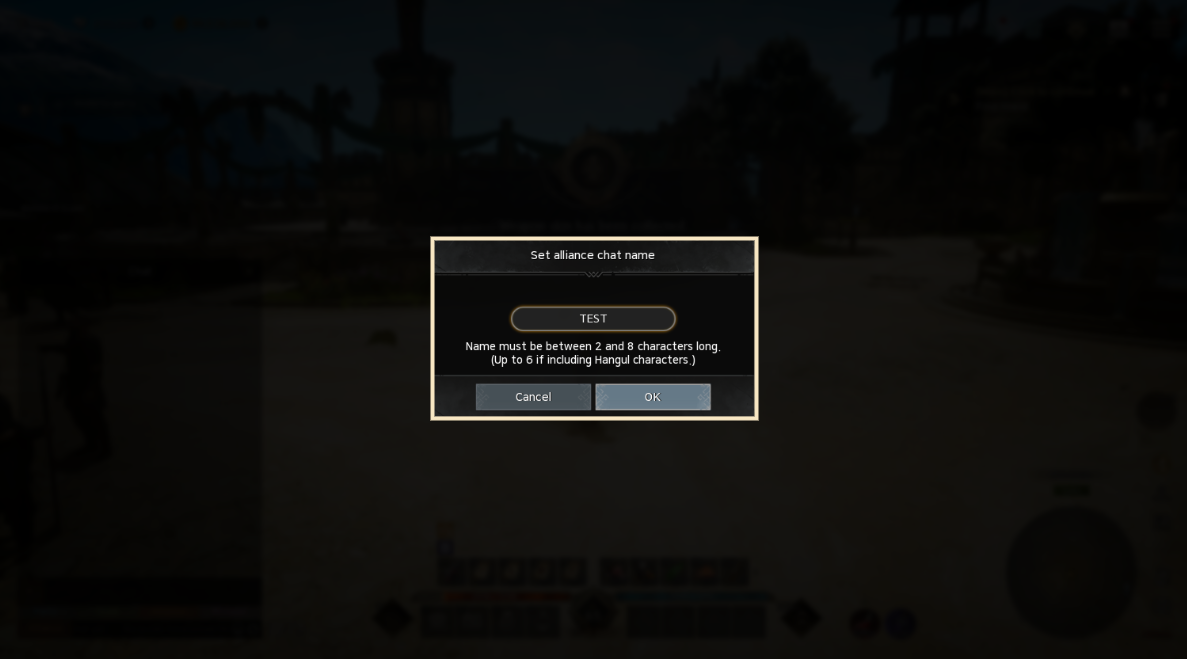
- To set up the chat name, go to the 'Alliance' click on the far right of the chat window and click the (+) button.
- The Alliance chatname must contain between 2 and 8 characters.
2. Invite and Accept
◈ Details
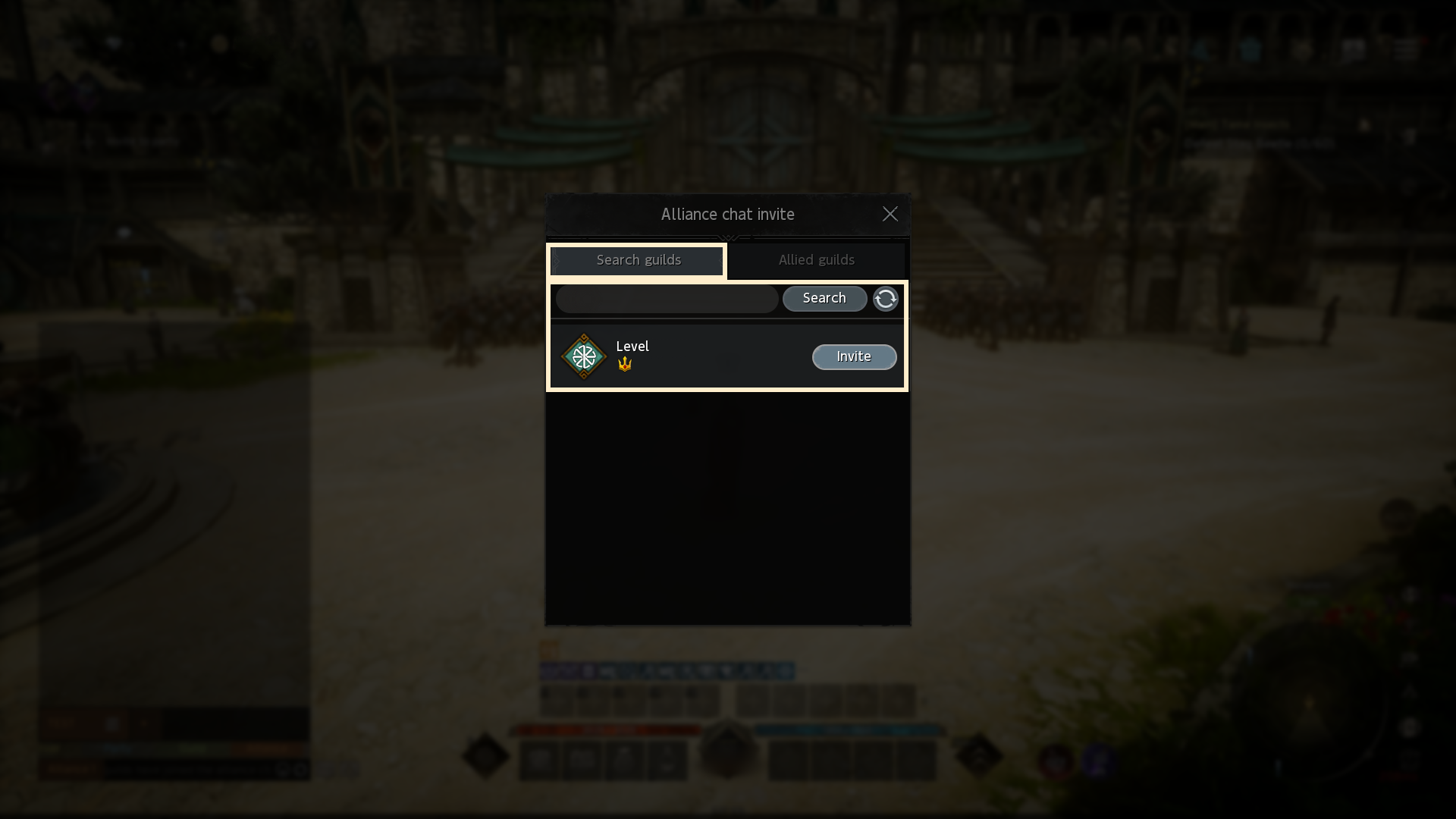
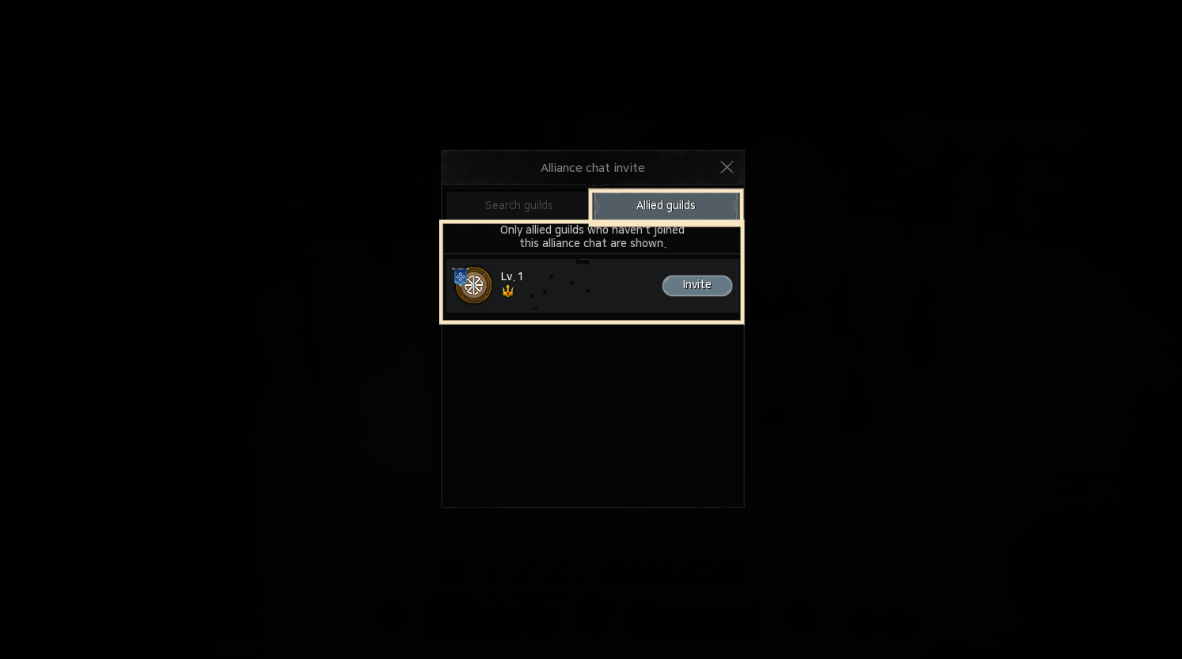
- Once the Alliance chat name is entered and click 'OK', invitation screen will pop up Guilds can be invited by searching their names or directly inviting allied guilds.
- Only allied guilds that are not part of the Alliance chat will appear in the Allied Guilds tab.
· When the invited guild has not yet responded, the status will show as 'Invitation Pending'.
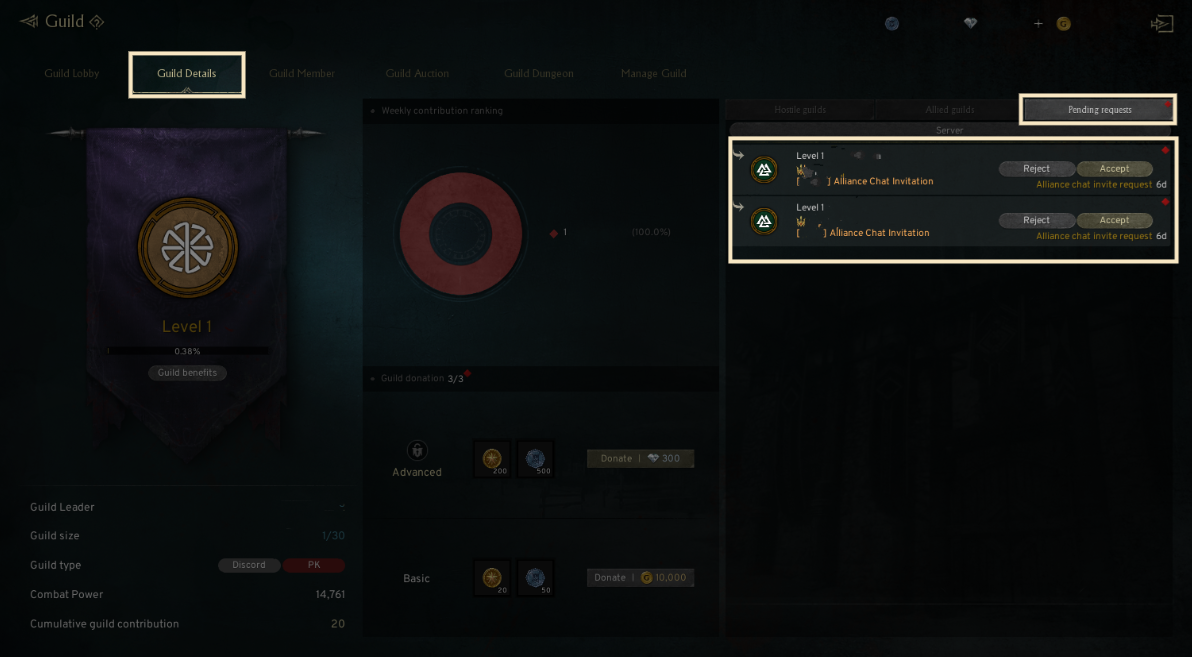
- You can check Alliance chat invitations in the [Guild Details] - [Pending Requests] tab and cancel them by selecting 'Cancel Request.'
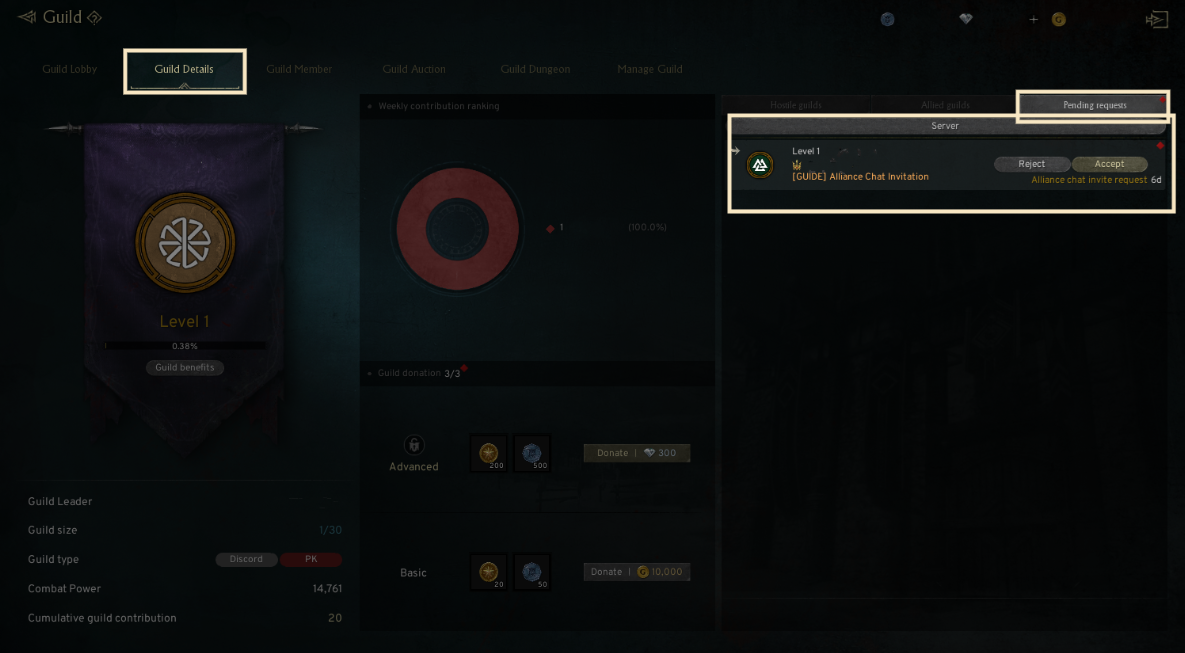
- Invitation statuses for Alliance chats are also available in the [Guild Details] - [Pending Requests] tab, where you can accept or decline invitations.
· Alliance chat invitations expire after 7 days.
· You can join up to 3 Alliance chat channels simultaneously.
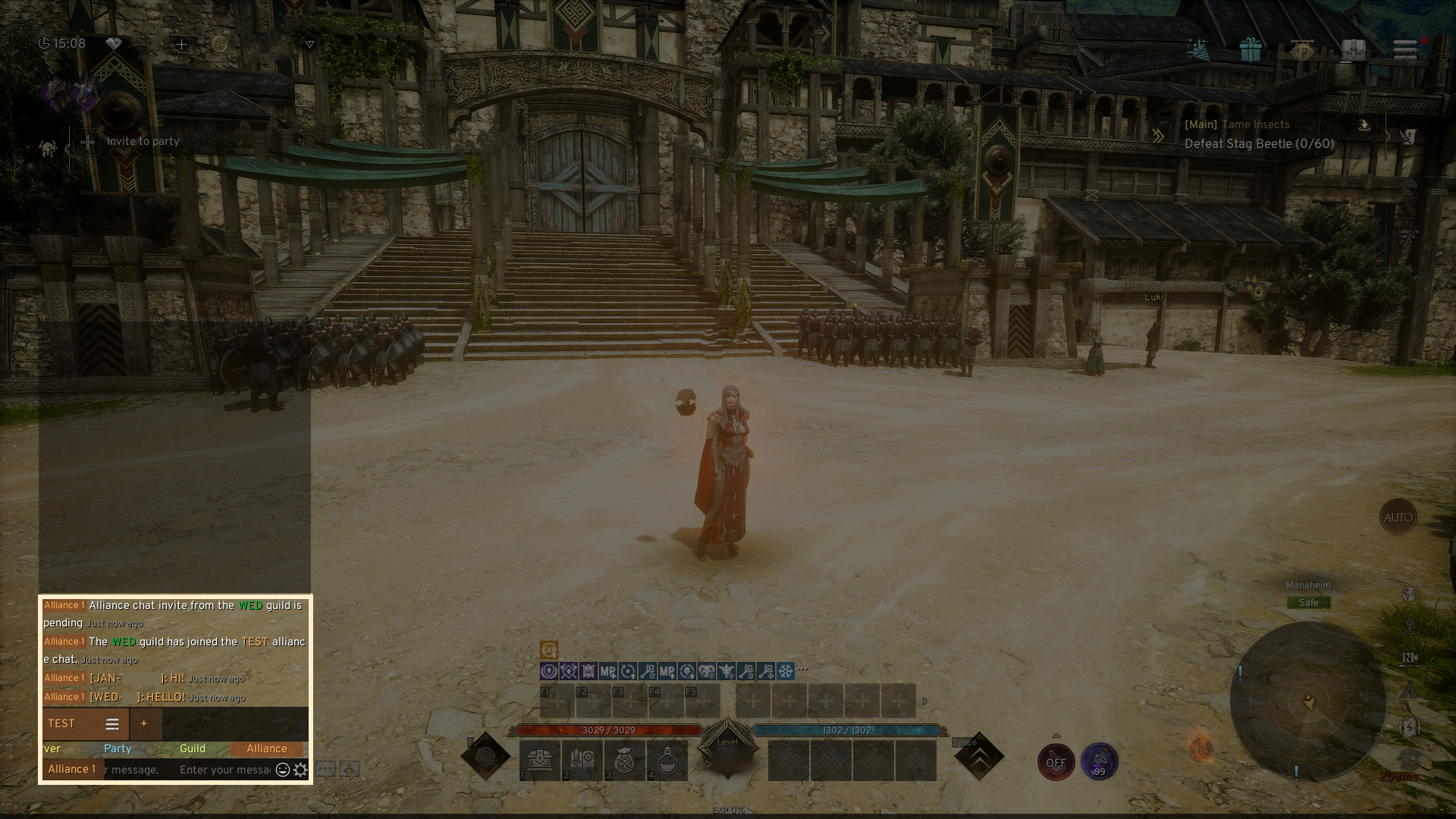
- Once the invited Guild leader selects the accept button, message appears confirming entry to the Alliance chat, enabling chat.
- The chat feature is available only if at least one guild has accepted the invitation in the Alliance chat.
- If all invitations are pending, the chat stays in a temporary state, and chatting is not possible.
· Up to 10 guilds can join a single Alliance chat.
3. Leave or Remove Alliance Chat
◈ Details
- The Guild leader can exit the chat by clicking the [Menu (三)] button in the Alliance chat channel and selecting 'Leave chat'.
- When the Guild leader leaves an Alliance chat, all guild members are automatically removed as well.
- If no guilds remain in the Alliance chat, the chat is instantly deleted.
- Chat without activity for 14 days will be automatically deleted at 04:00 daily.
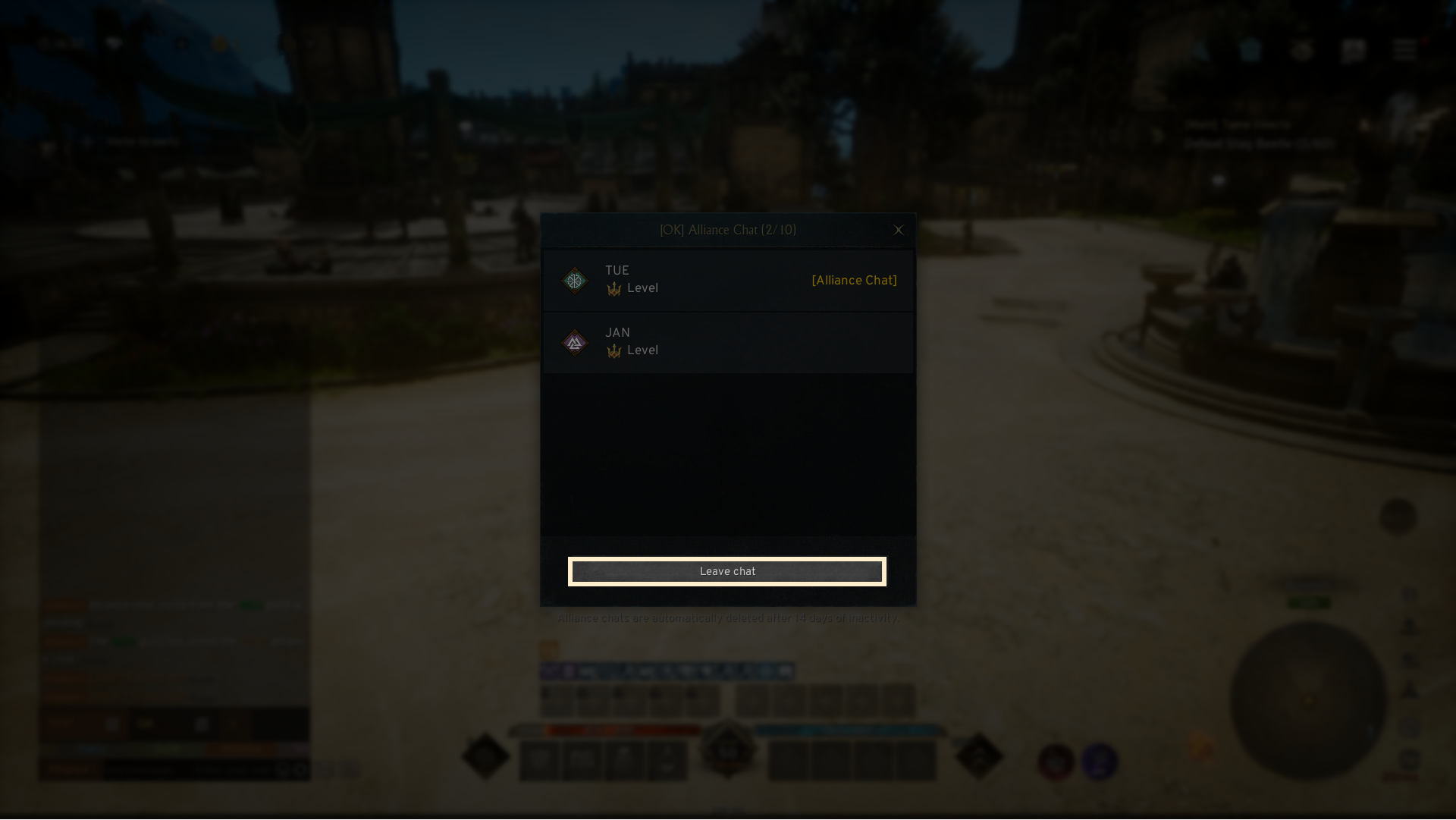
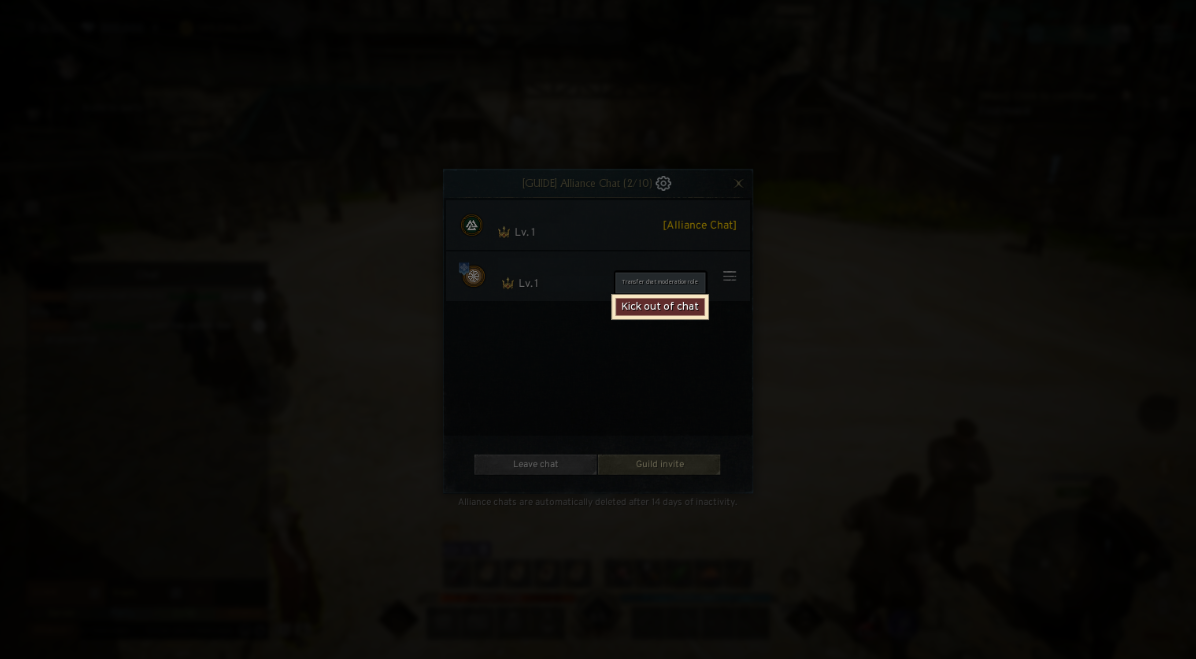
- The Alliance chat host has the authority to remove any guild from the chat.
- If a certain guild is removed, all its members will be expelled from the Alliance chat.
4. Delegating Authority
◈ Details
- If the Guild leader who leaves was the host, leadership will automatically be transferred to the leader of another participating guild.
[Delegation Priority]
· 1st Priority: If the leader is online, the leader of the guild that joined the chat first will be assigned.
· 2nd Priority: If the leader is offline, the leader of the guild that joined the chat first will be assigned.
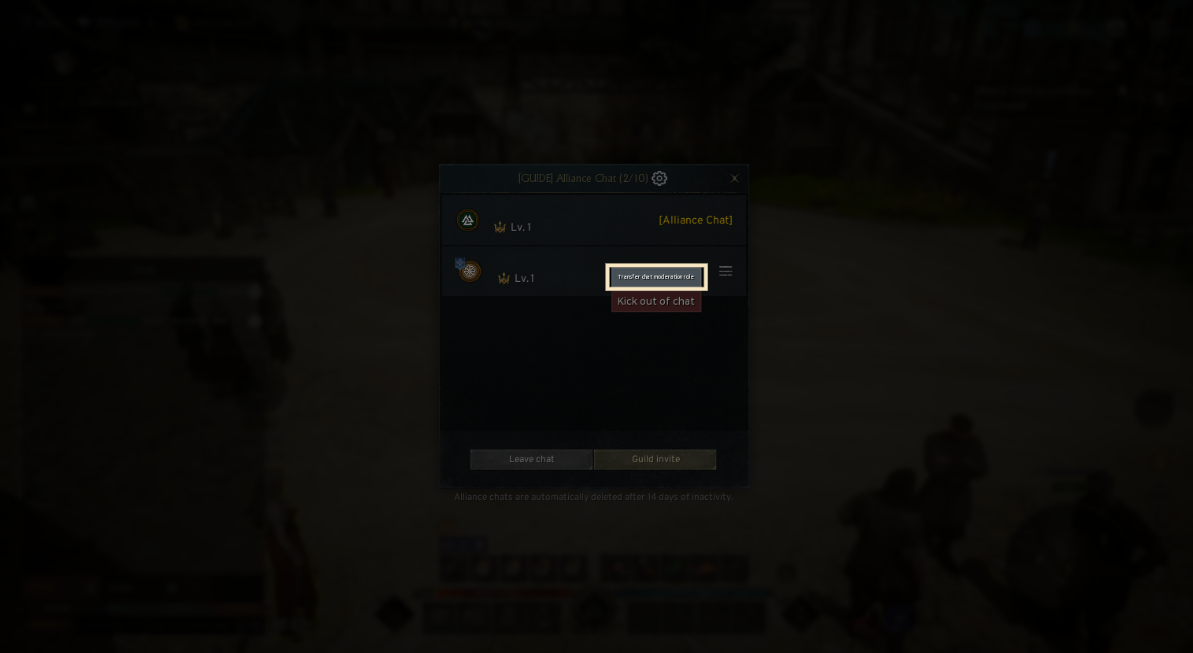
- The current host can delegate leadership through the Alliance chat channel menu.
- The leadership will be transferred to the leader of the selected guild.
5. Notes
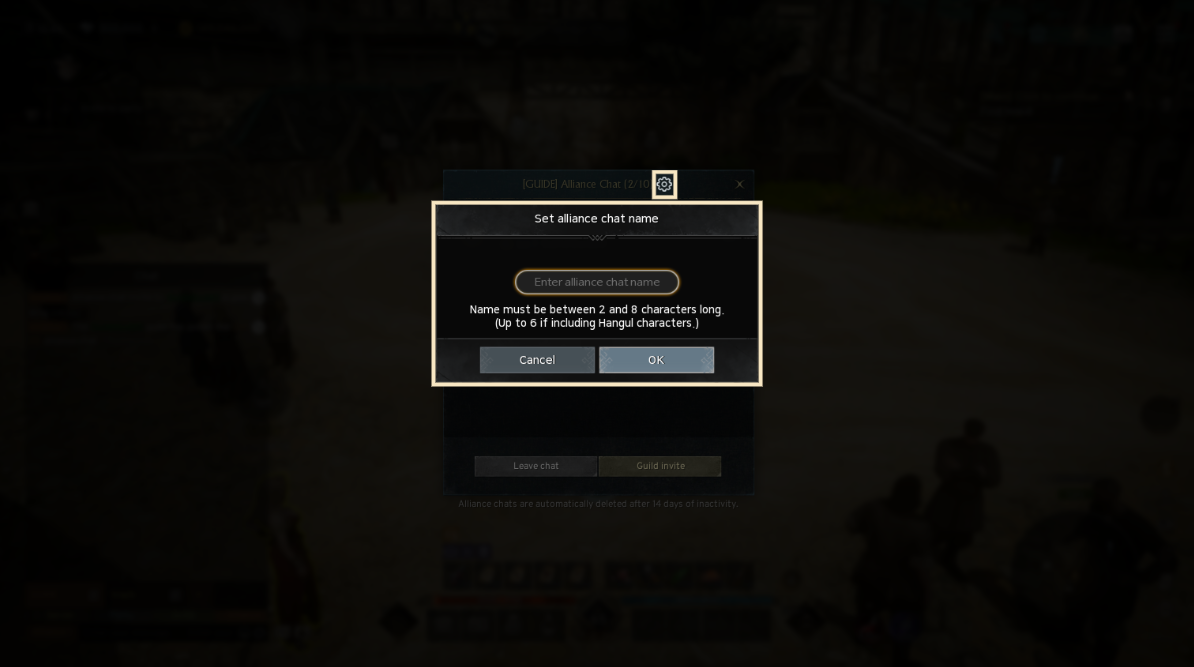
- The host can change the chat name anytime through the Alliance chat settings.
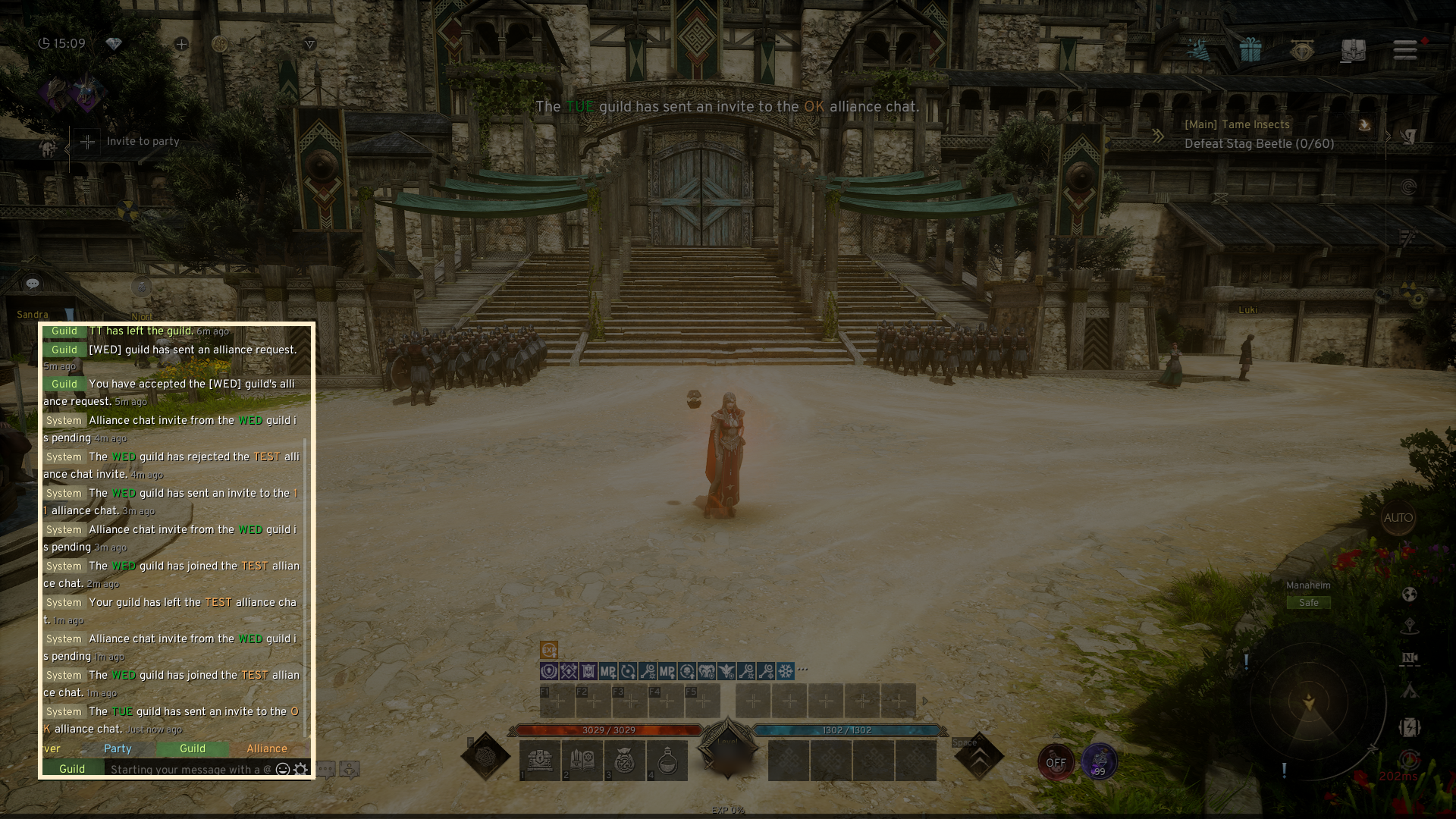
- The invite/accept and the entry/exit status of the Alliance chat can also be checked in the Guild chat.
If you need additional assistance, don't hesitate to contact our customer center through the button below.