
Raid Party enables guild members to team up for boss raids
and distribute the acquired items among themselves.
The items earned by the Raid Party are listed on the Guild Auction,
and the auction revenue is shared with the raid members,
allowing them to enjoy the sense of accomplishment from the raid together.
■ Contents
1. Create Raid Party
2. Invite and Remove from Raid Party
3. Join and Leave Raid Party
4. Disband Raid Party
1. Create Raid Party
◈ Details
- Raid Party creation is available starting from guild Level 1, and only the Guild Leader has the permission to create a Raid Party.
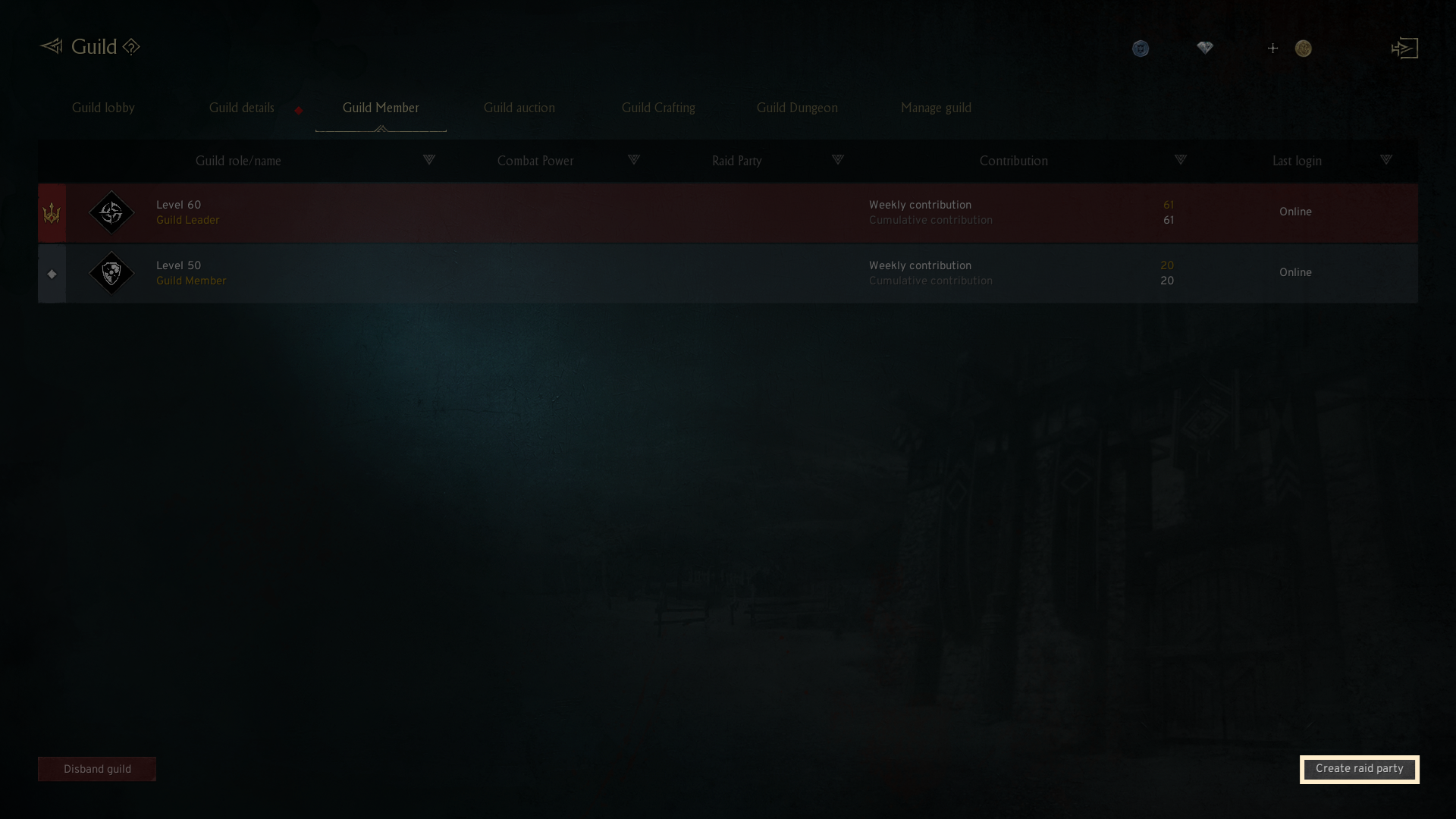
- To create a Raid Party, click the [Create raid party] button on the bottom right of the 'Guild member' tab in the Guild menu.
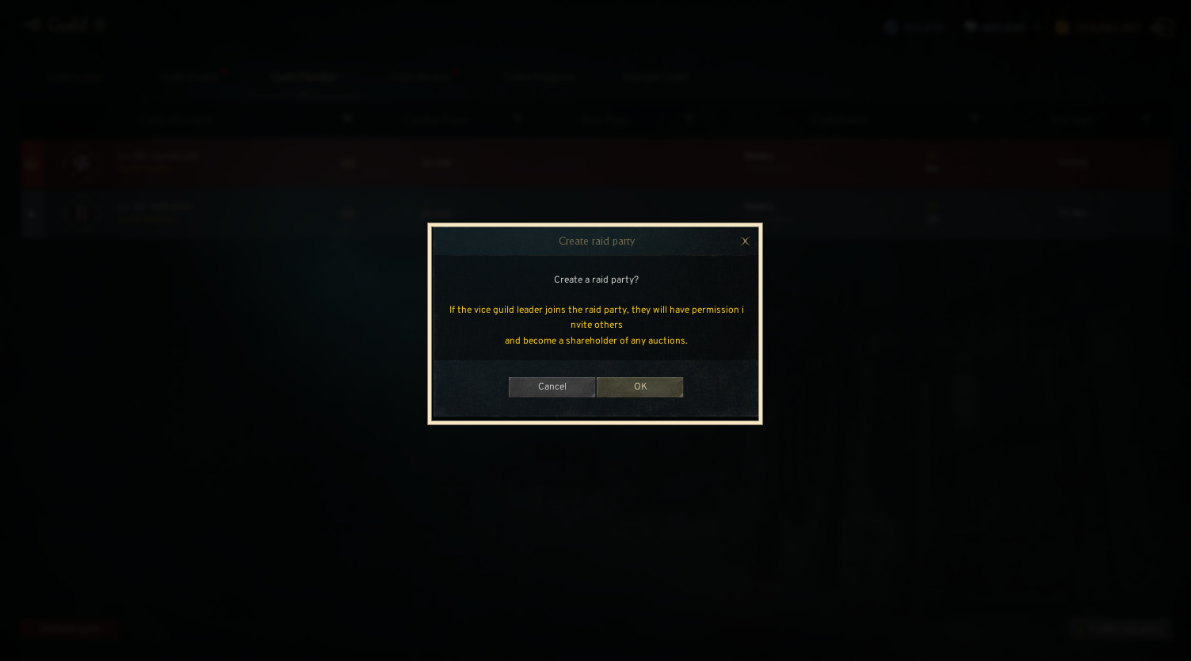
- A pop-up window will appear to confirm your decision to create a Raid Party. Click 'OK' to finalize the creation.
2. Invite and Remove from Raid Party
◈ Details
- Guild Leader has the authority to invite Guild members to the Raid Party.
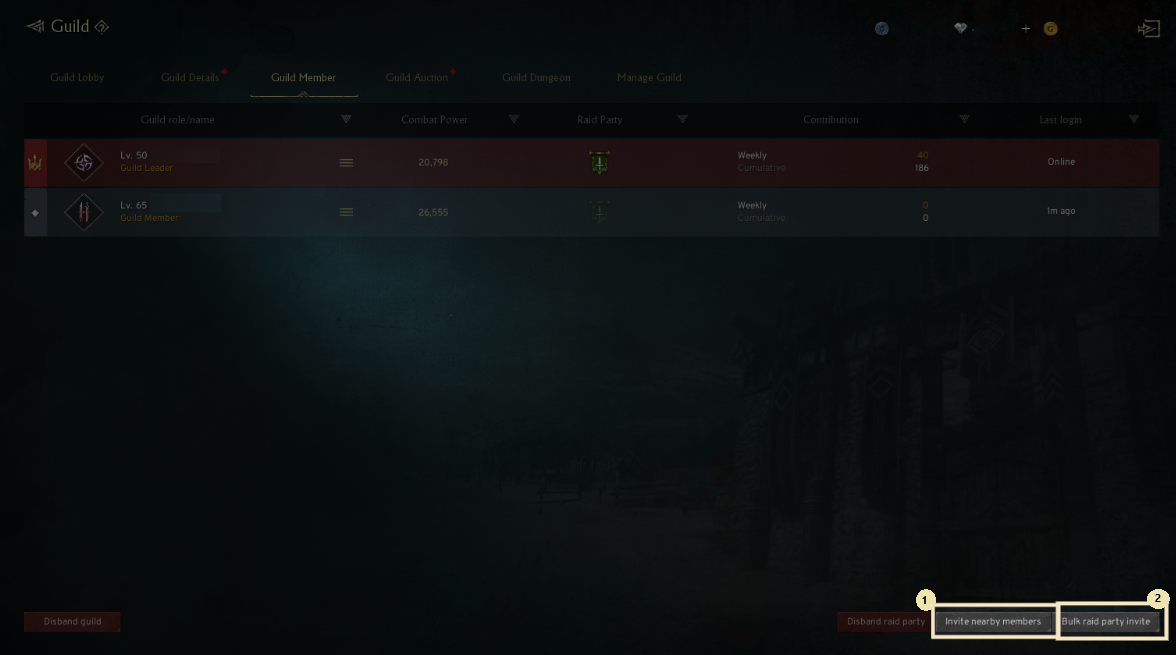
① Invite nearby members to raid party: You can invite nearby Guild members to join the Raid Party.
② Bulk raid party invite: You can invite all Guild members to the Raid Party at once.
! Vice Guild Leaders can only use the [Raid party invite] and [Remove from Raid Party] feature if they are currently part of a Raid Party.
3. Join and Leave Raid Party
◈ Details
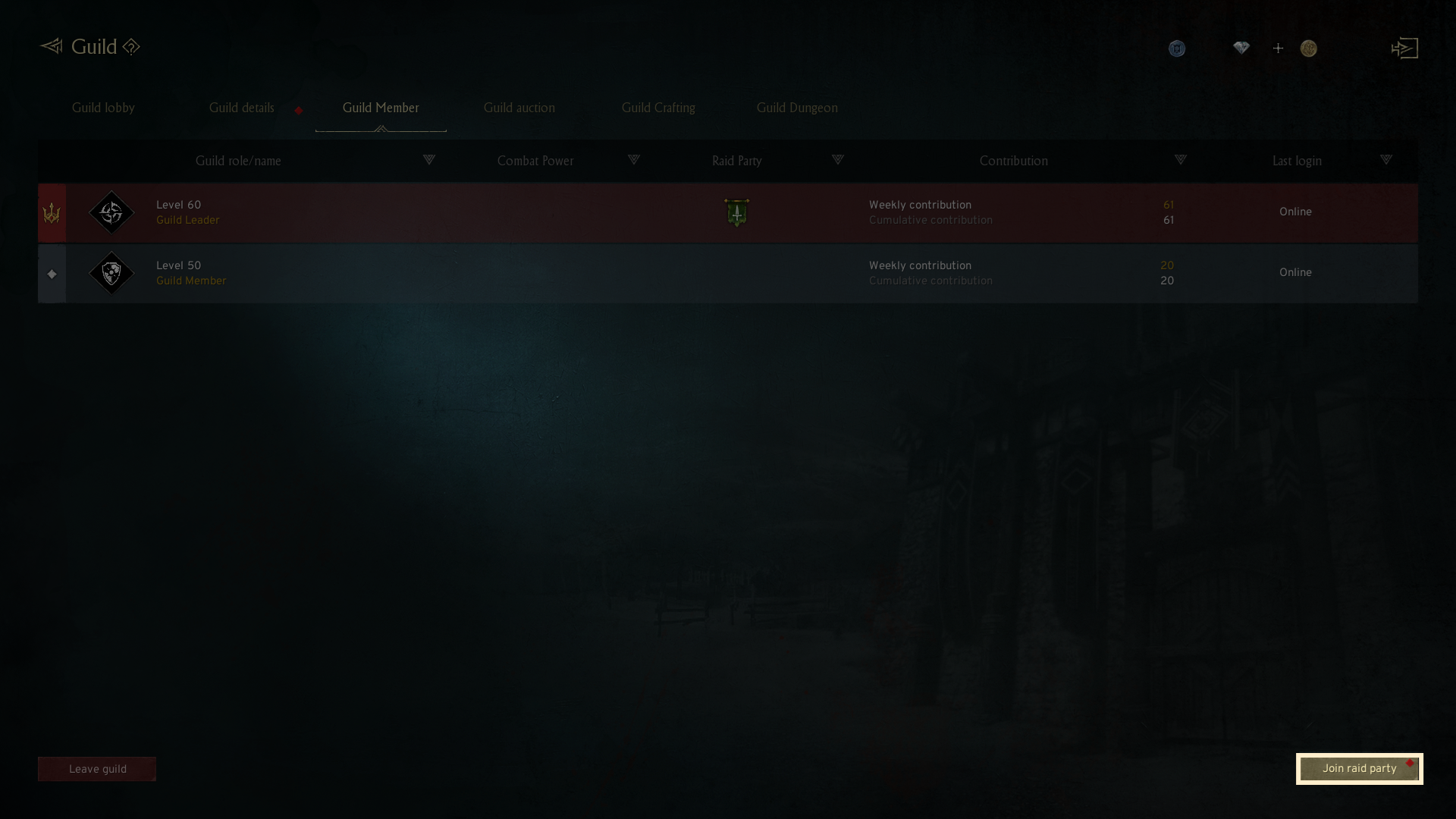
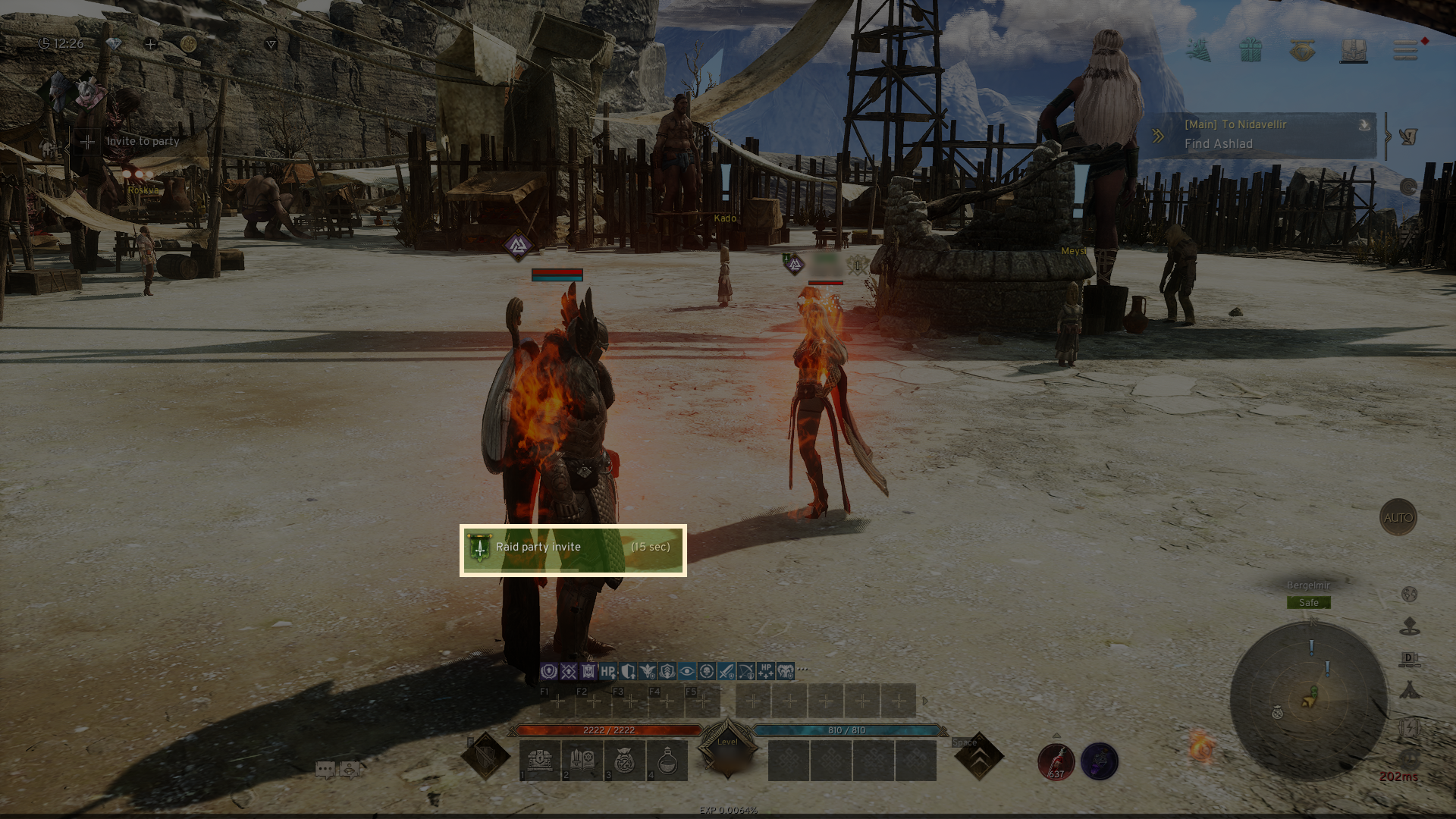
- When a Guild member receives a Raid Party invitation from the Guild Leader, the 'Join raid party' button will appear at the bottom right.
- Clicking on the 'Join raid party' button will bring up confirmation pop-up. By clicking the 'OK' button, the member will join the Raid Party.
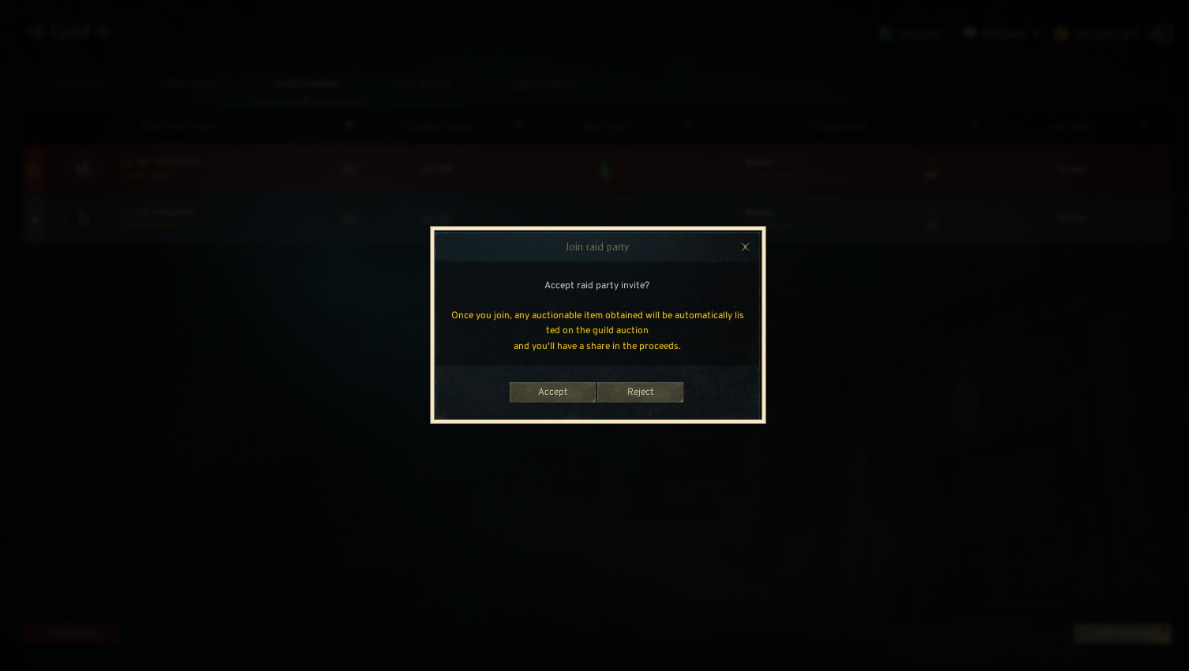
- If the Guild Leader or Vice Guild Leader invites nearby members to the Raid Party, the invited Guild members will see a pop-up window asking for confirmation to accept the invitation.
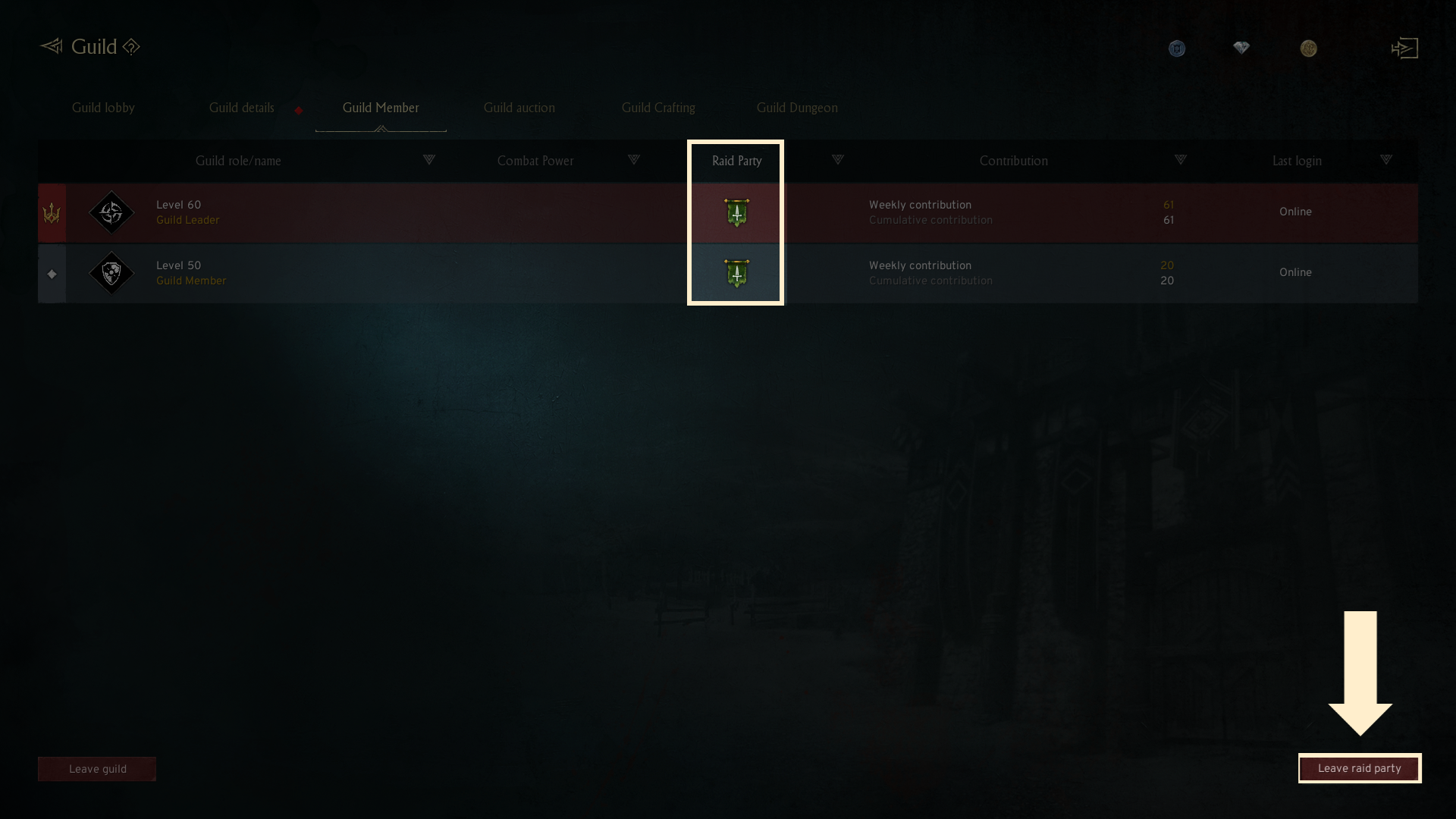
- Guild members who successfully join the Raid Party will see a green badge icon in the list.
- To leave the Raid Party, click the 'Leave raid party' button located at the bottom right.
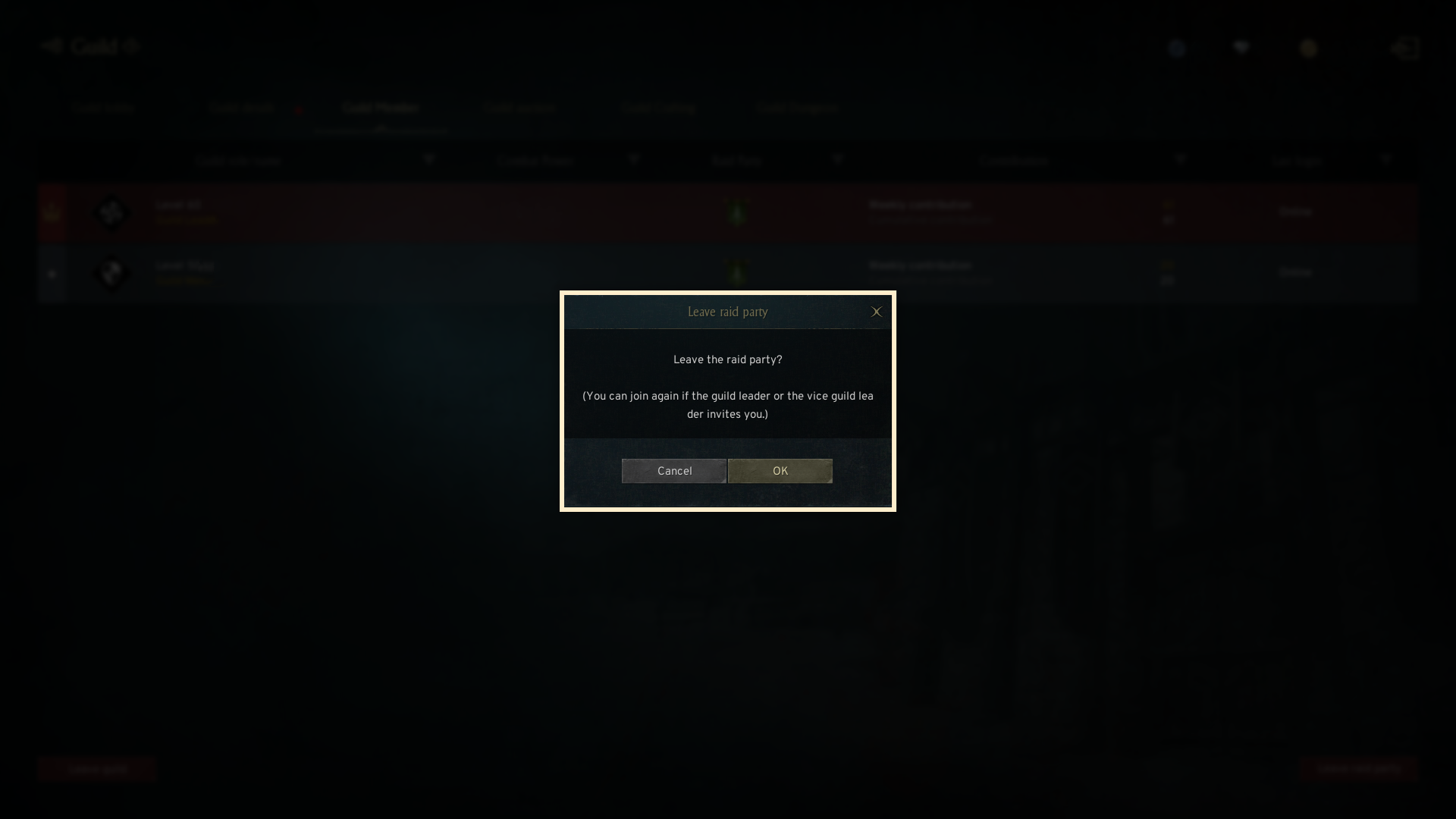
- Upon clicking 'Leave raid party,' a pop-up will ask for confirmation to leave. Click 'OK' to leave from the Raid Party.
- Even if you leave the Raid Party, you can rejoin by accepting invitation from the Guild Leader or Vice Guild Leader.
4. Disband Raid Party
◈ Details
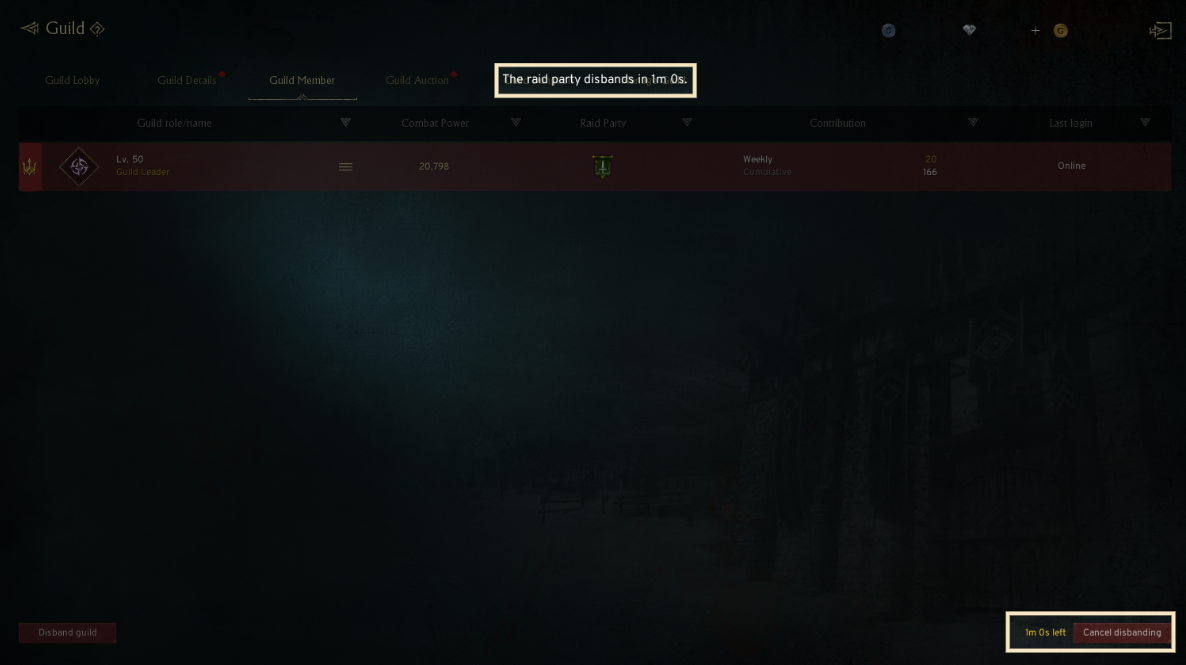
- The Guild Leader can disband the Raid Party. There will be a 1-minute grace period before the disbanding takes effect.
- To disband the Raid Party, click the 'Disband raid party' button located at the bottom right of the Guild member list.
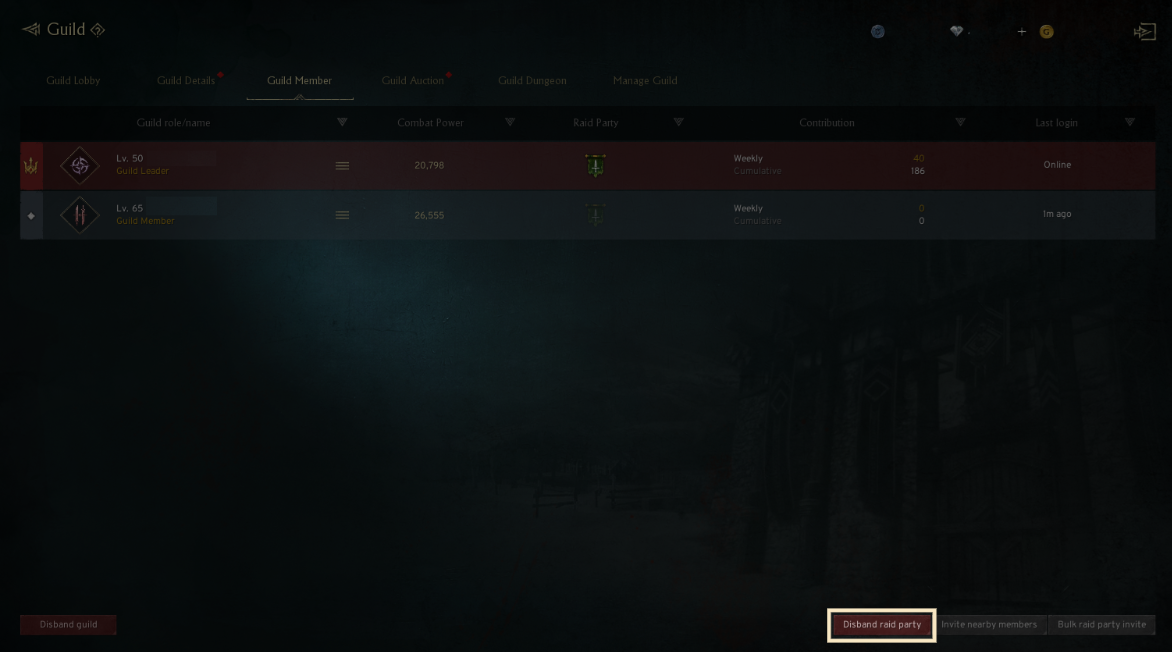
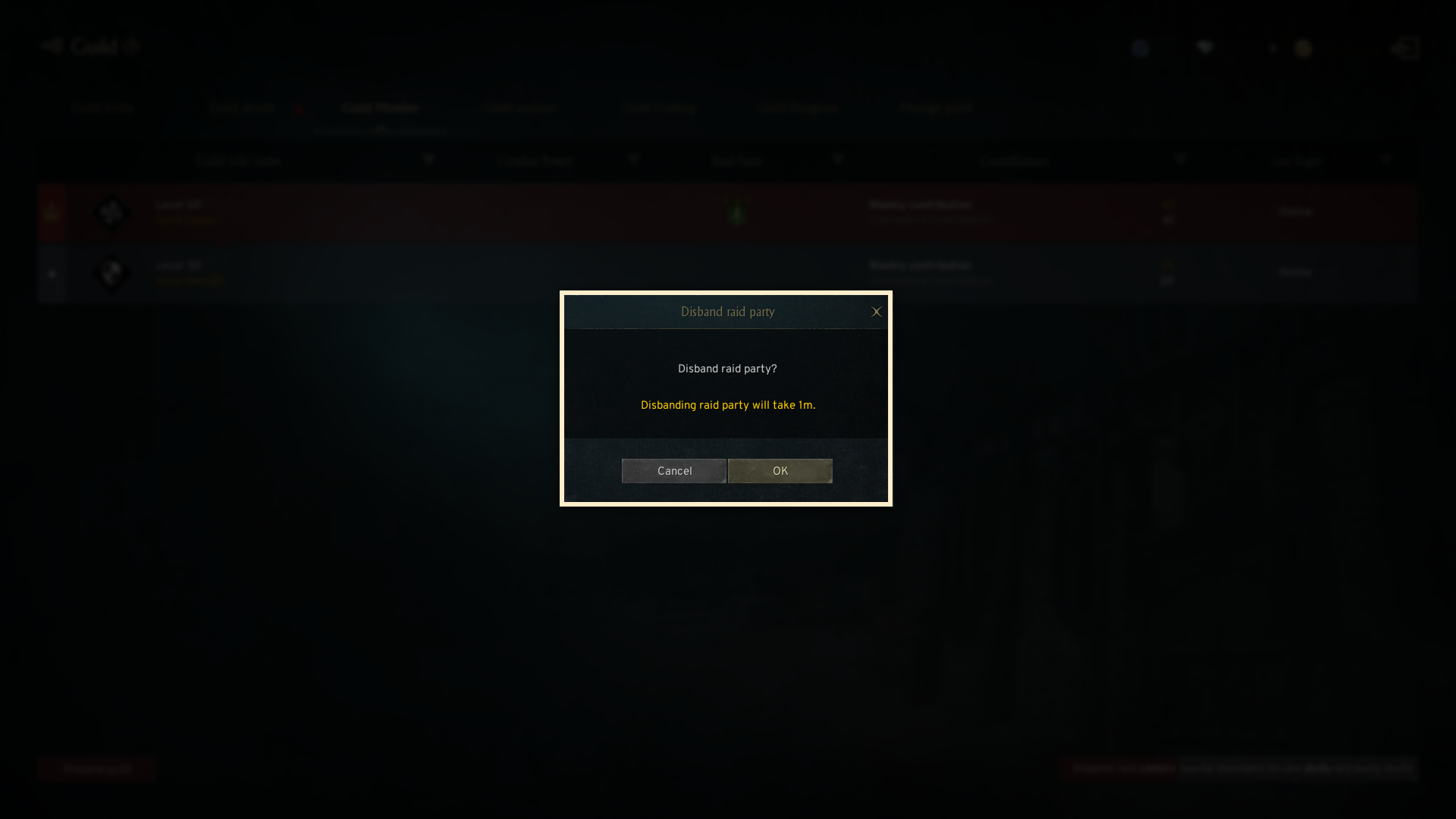
- Upon clicking 'Disband raid party', confirmation pop-up will appear. Click the 'OK' button to initiate the disbandment of the Raid Party.
! The disbanding will take 1 minute to complete.
- To cancel the disbandment process, click the 'Cancel raid party disband' button within 1 minute.
If you need additional assistance, don't hesitate to contact our customer center through the button below.