
Guilds are formed to unite Heroes with common objectives.
Collaborating with fellow guild members ensures smoother progression in adventures and battles,
and guild chat helps build strong connections among members.
Becoming a guild member provides multiple perks like increased XP and enhanced stats,
offering a more engaging and convenient gameplay experience.
◆Contents
1.Create & Disband Guild
2.Join & Leave Guild
3.Guild Lobby
4.Guild Details
5.Guild Member
6.Manage Guild
7.Hostile Guilds & Allied Guilds
1.Create & Disband Guild
◈ Details
- Tap the menu (☰) in the top-right and select 'Guild' to access the tab.
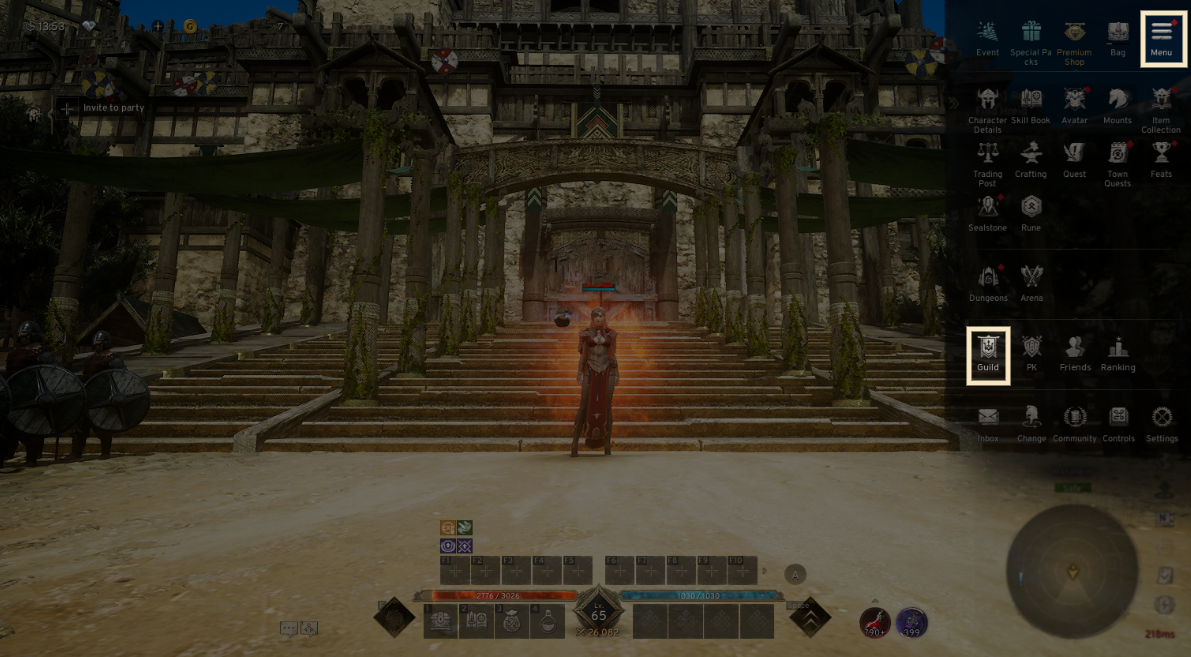
- Guild creation is available to everyone and costs a set amount of gold.
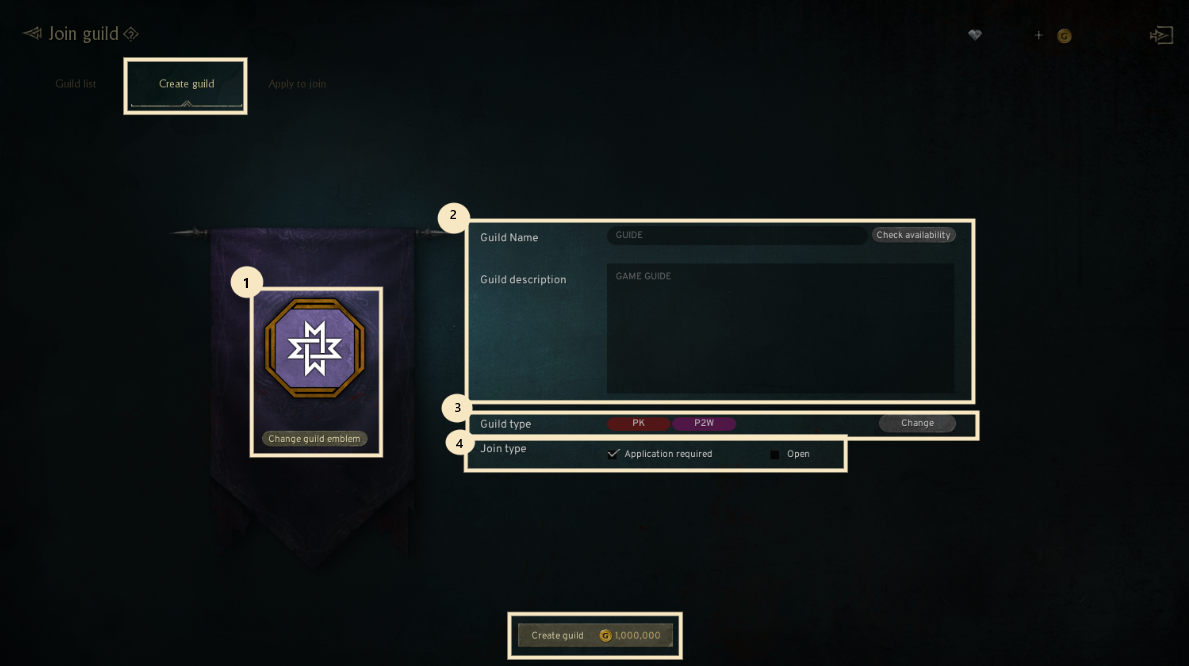
- Upon creation, you can customize the guild's emblem, description, joining method, and its characteristic.
① Guild emblem : Customize the guild’s emblem, frame, and frame color.
② Description : Provide a brief description of your guild’s mission or focus.
③ Characteristic : Select a guild orientation, such as socializing, battles, PK, casual play, conflict, tryhards, spending, ranking, group chats, meetups, or hunting.
④ Join type : Choose between 'Application Required,' requiring approval from the Guild Leader or Vice Leader, and 'Open,' allowing instant join.
! Guild names can range from 2 to 10 characters in length and must not contain spaces or special characters.
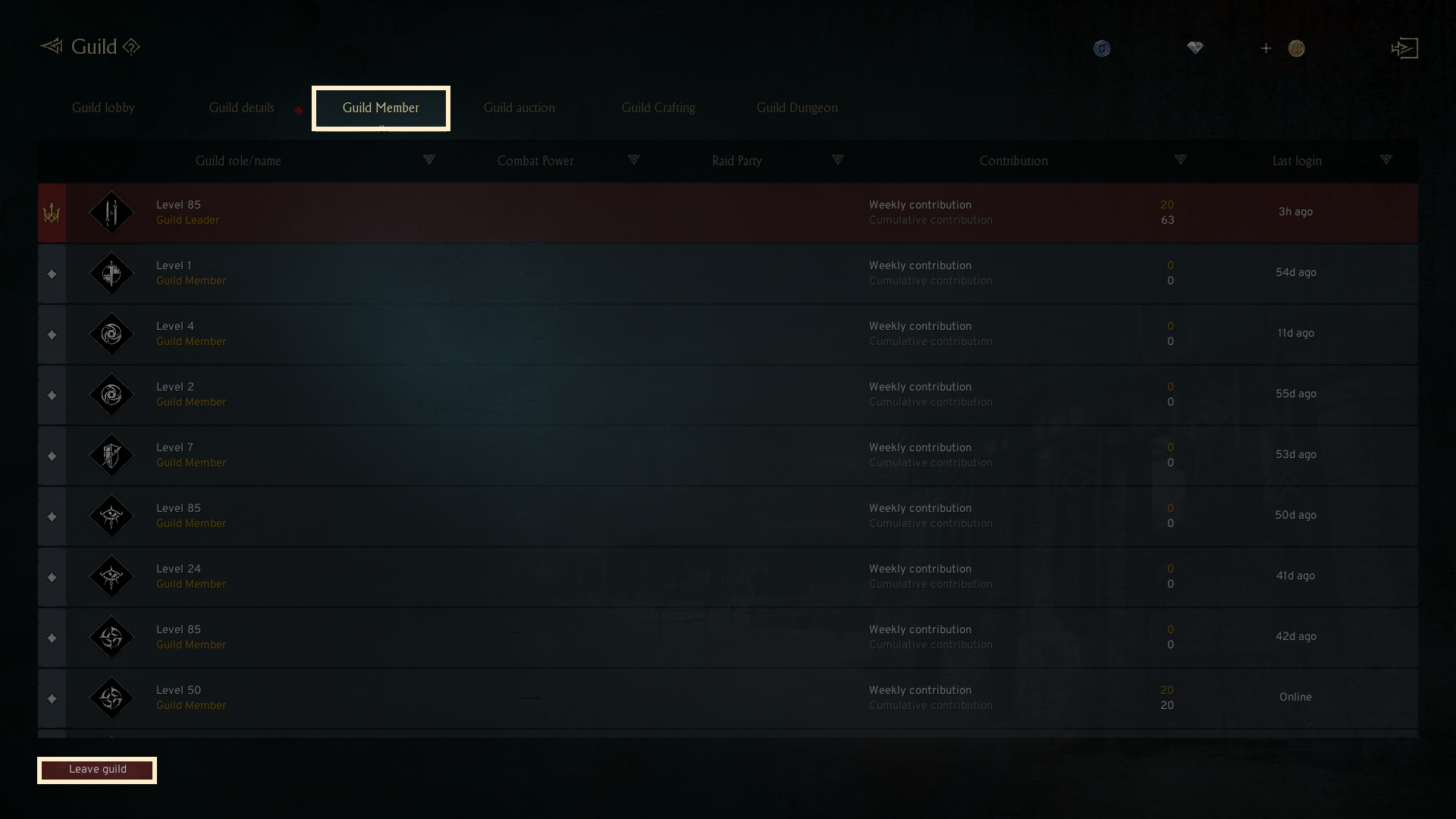
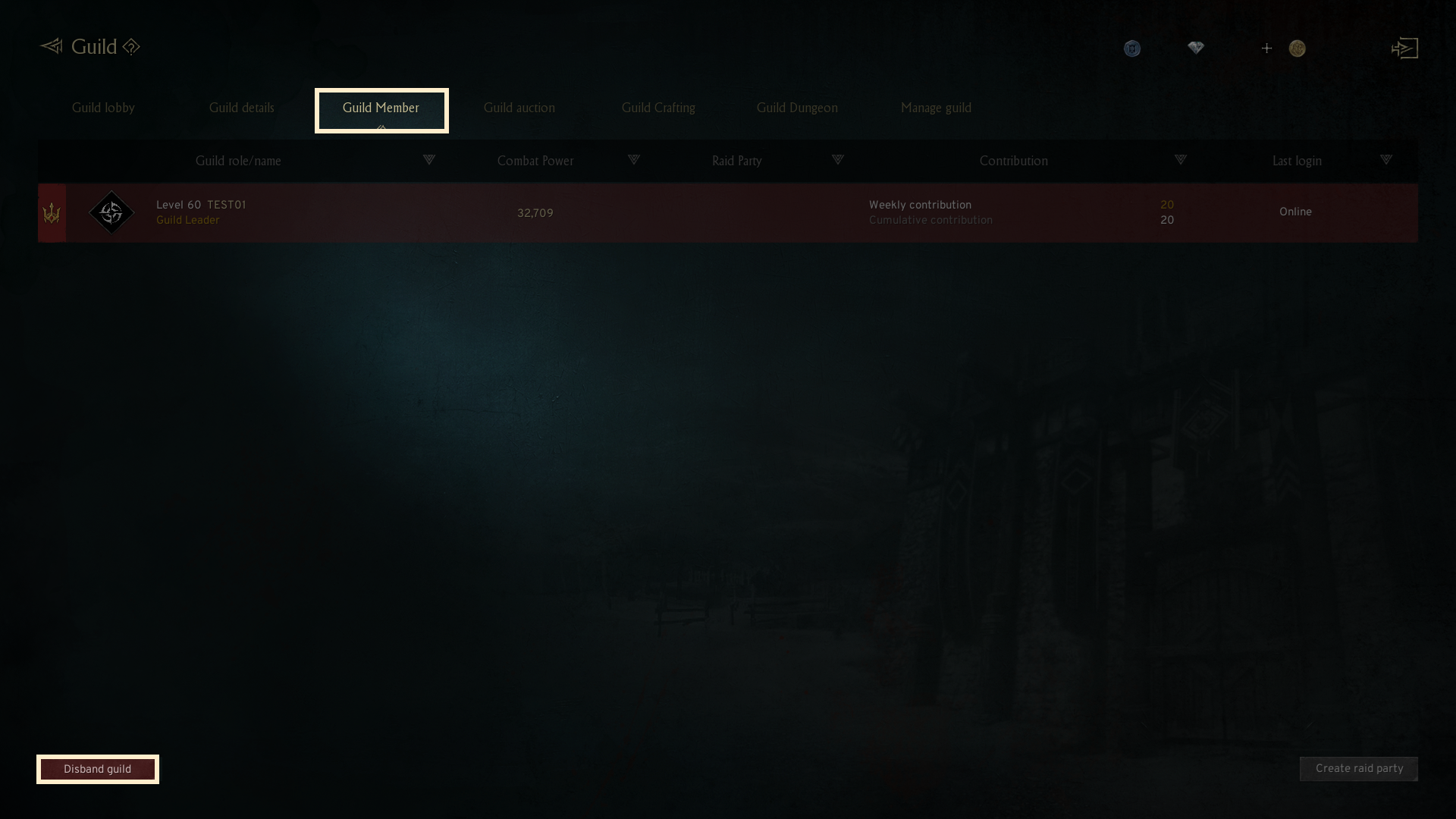
- If a guild has no members, the Guild Leader can disband it. (Disbanding the guild is only allowed by the Guild Leader.)
- To disband the guild, click the [Guild Member] tab and press the 'Disband guild' button at the bottom.
2.Join & Leave Guild
◈ Details
- Once a guild is created, you can join or leave the guild at any time.
[Join Guild]
- To join a guild, visit the [Guild list] tab and select the one you'd like to join.
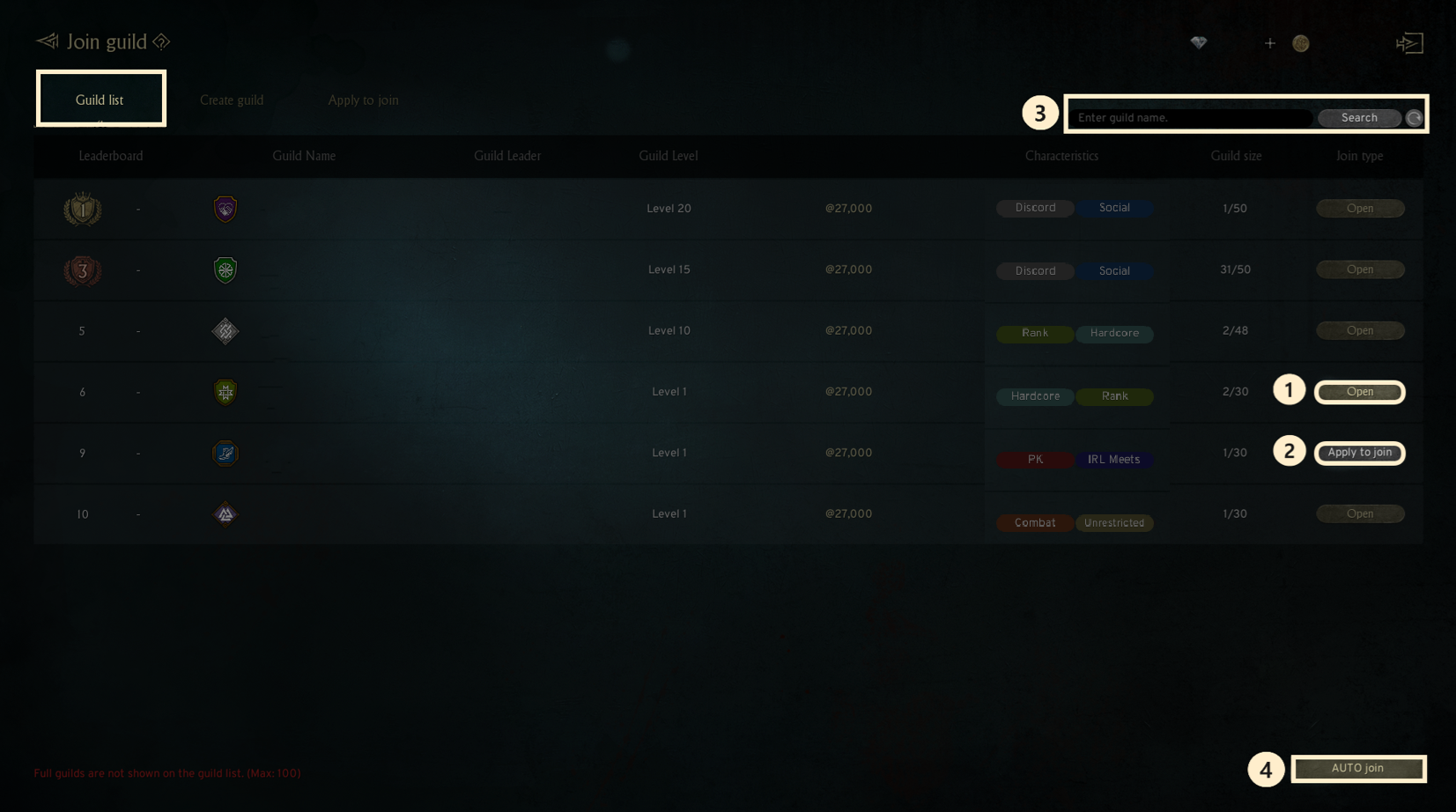
① Open : Join the guild immediately without the need for approval from the Guild Leader or Vice Guild Leader.
② Application Required : You must receive approval from the Guild Leader or Vice Guild Leader to join the guild.
③ Search guilds : You can find and join a guild by searching for its name.
④ AUTO join : Instantly join a randomly chosen guild.
[Leave Guild]
- If you wish to leave your current guild, you can do so by clicking the 'Leave guild' button at the bottom of the [Guild Member] tab.
- Once you leave a guild, you cannot join or create another guild for 24 hours.
3.Guild Lobby
◈ Details
- The Guild Lobby allows you to see the member list and interact with them.
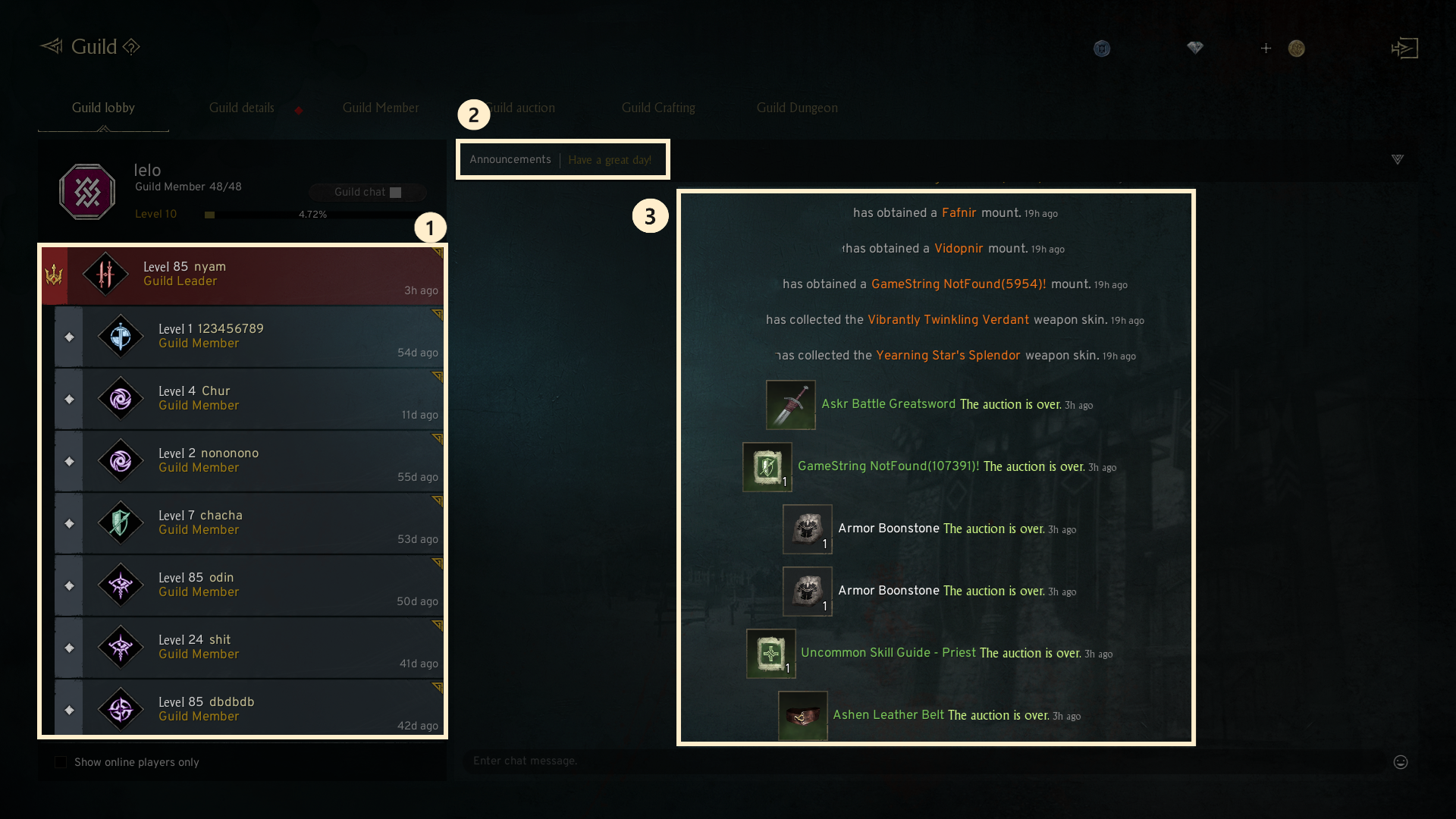
① Guild Member List: View details of the Guild Leader and fellow guild members.
When you check 'Show online players only', only the members who are currently online will be shown.
② Announcements : You can check the guild announcements.
③ Chat Window : You can check messages about guild member joining and engage in guild chat.
4.Guild Details
◈ Details
- You can check the details of your current guild.
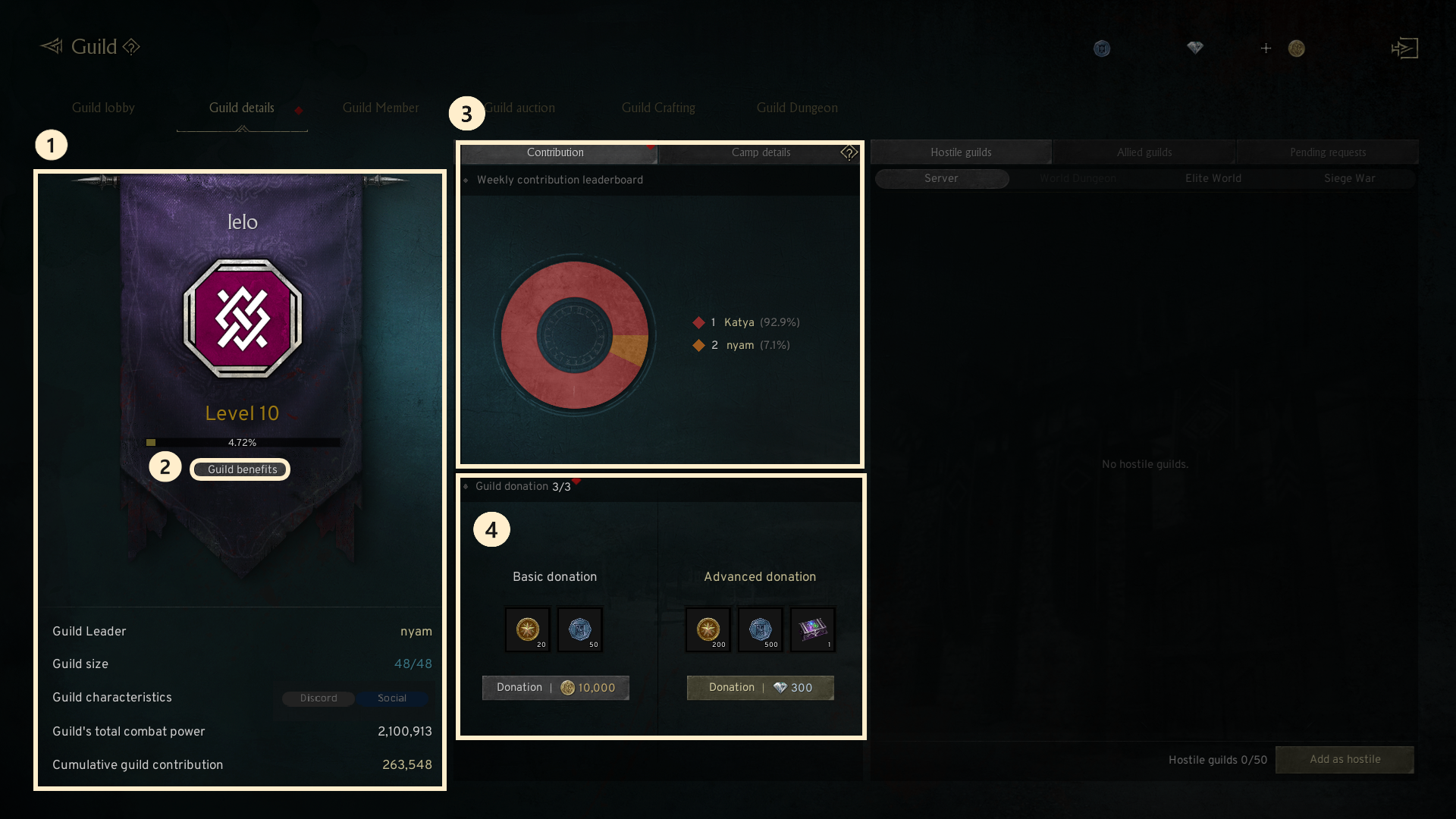
① Basic Info. : You can view the guild’s name, emblem, member count, level, combat power, and cumulative guild contribution.
② Guild benefits : Depending on the guild level, you can unlock additional guild member slots and receive guild buffs.
③ Guild contribution : Guild contributions are earned through activities such as monster hunting, guild attendance, and guild donations.
This is used for the guild ranking, and you can view the Weekly Donation Leaderboard for guild members.
④ Guild donation : There are two types of donations: Common and Uncommon.
You can donate to the guild to earn Guild Contribution and Guild Coins. You may donate up to three times per day.
5.Guild Member
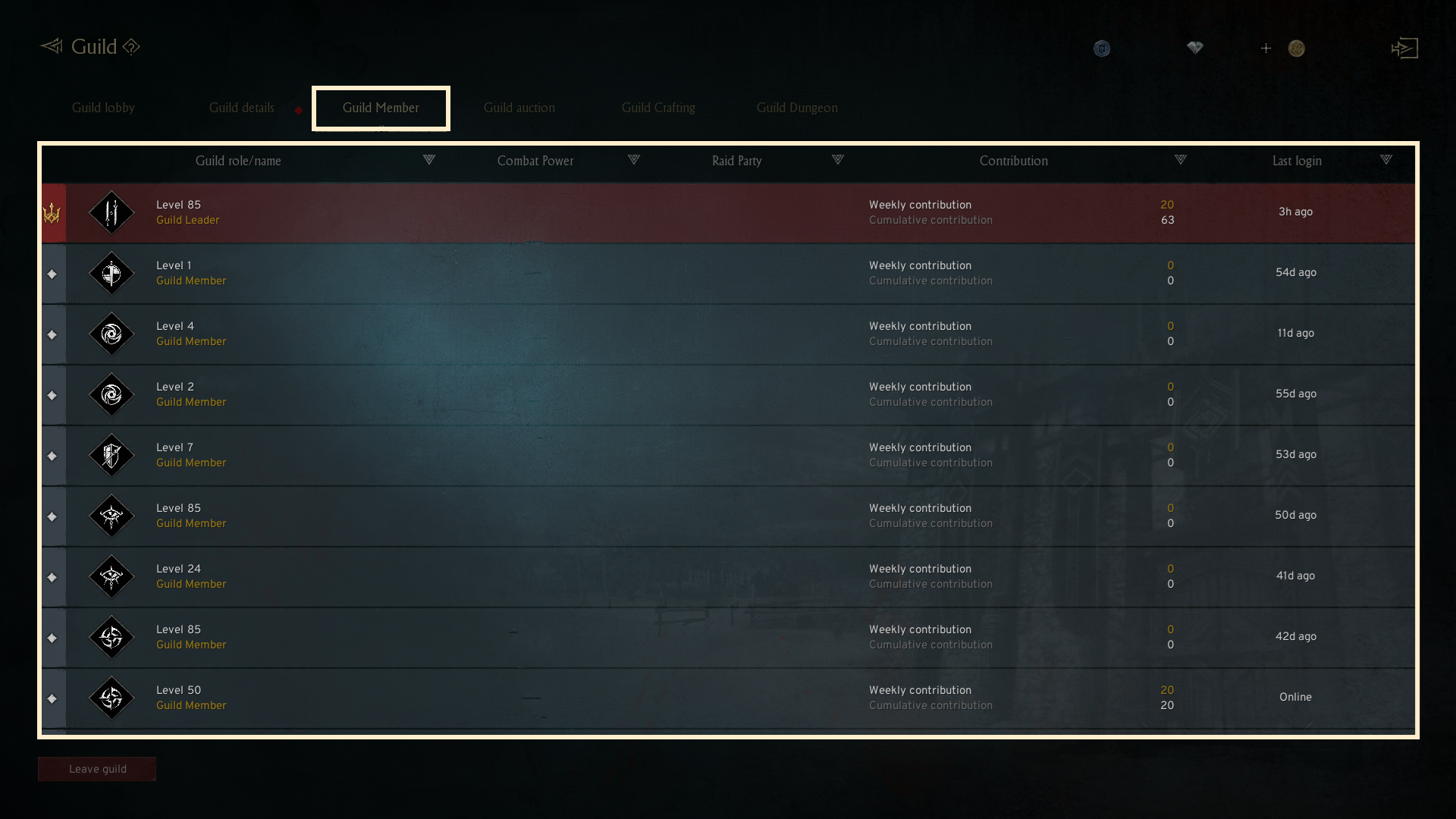
- In the [Guild member] tab, you can view the combat power, raid party status, contribution, and last login date for each guild member.
- Clicking on a guild member's name allows you to perform actions such as viewing their details, whispering them, changing their role, checking their character name history, sending a Raid party invite, or kicking them from the guild.
6.Manage Guild
◈ Details
- Only the Guild Leader or Vice Guild Leader can manage the guild, allowing them to change settings related to the guild and its members.
- The Guild Leader or Vice Guild Leader can change details like the guild emblem, description, characteristics, and joining method.
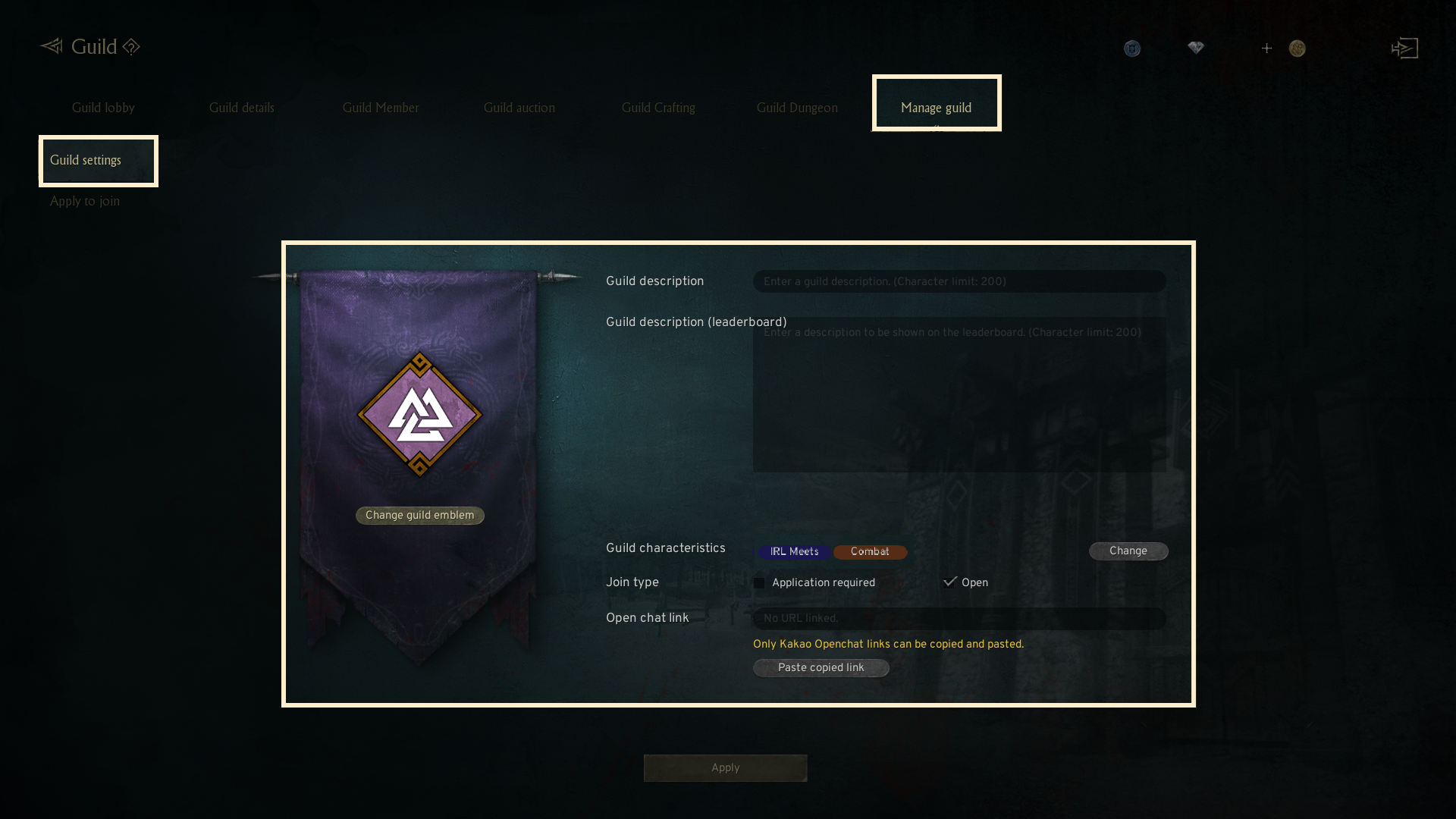
-The Guild Leader or Vice Guild Leader has the authority to approve or reject applications.
-The Guild Leader has the authority to change the roles of guild members.
7. Hostile Guilds & Allied Guilds
◈ Details
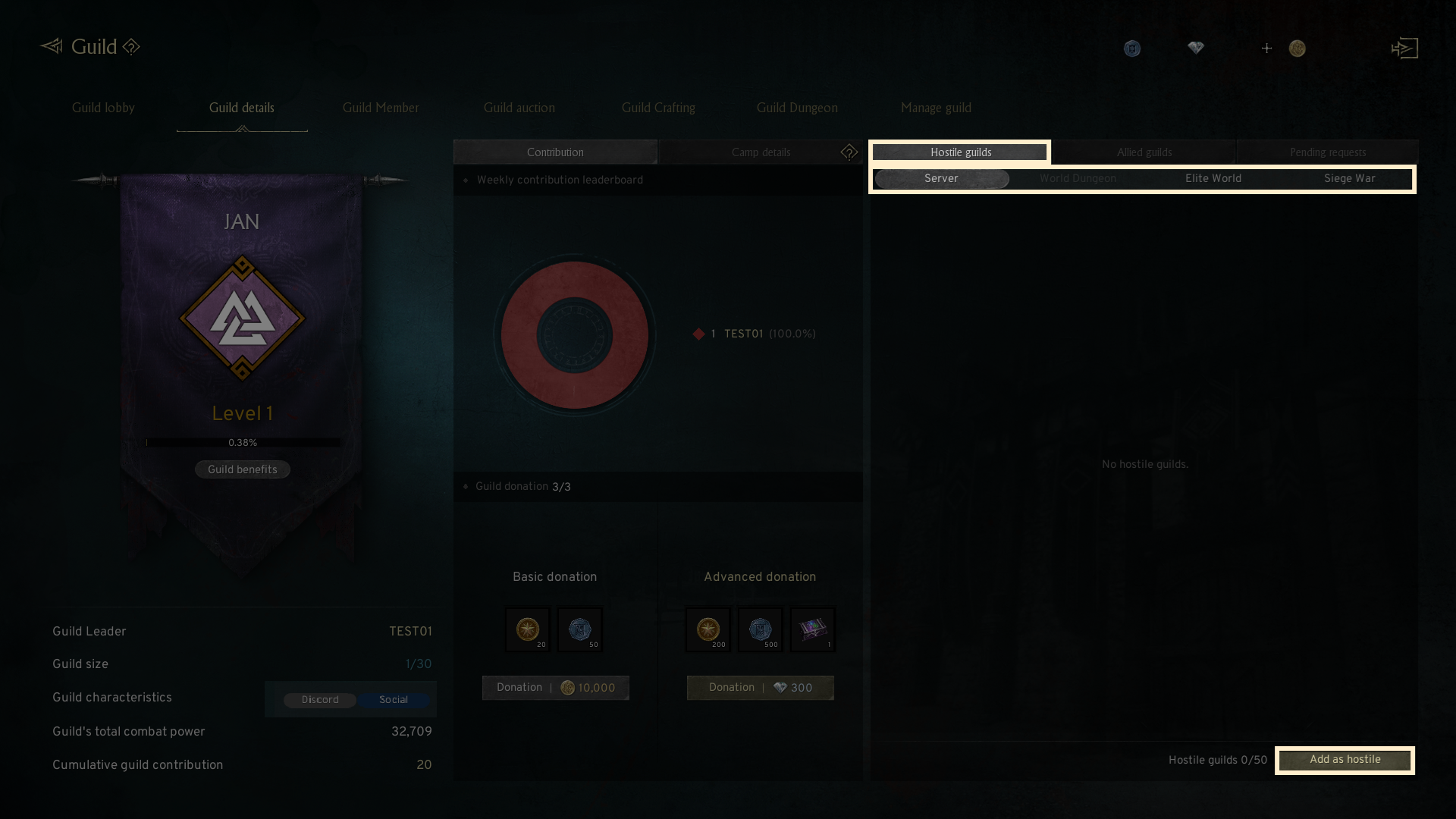
- Guild Leaders or Vice Guild Leaders can designate a specific guild as Hostile or request an Alliance with another guild.
- This feature is only available to the Guild Leader or Vice Guild Leader.
[Hostile Guilds]
- You can designate up to 50 Hostile guilds.
- These hostile guilds can be distinguished, and you can categorize them by server.
- Hostile guilds are available for PK. Once you remove the hostile designation, PK with that guild will no longer be allowed.
- Hostile guilds cannot form alliances.
To designate an alliance, the hostile status must first be removed.
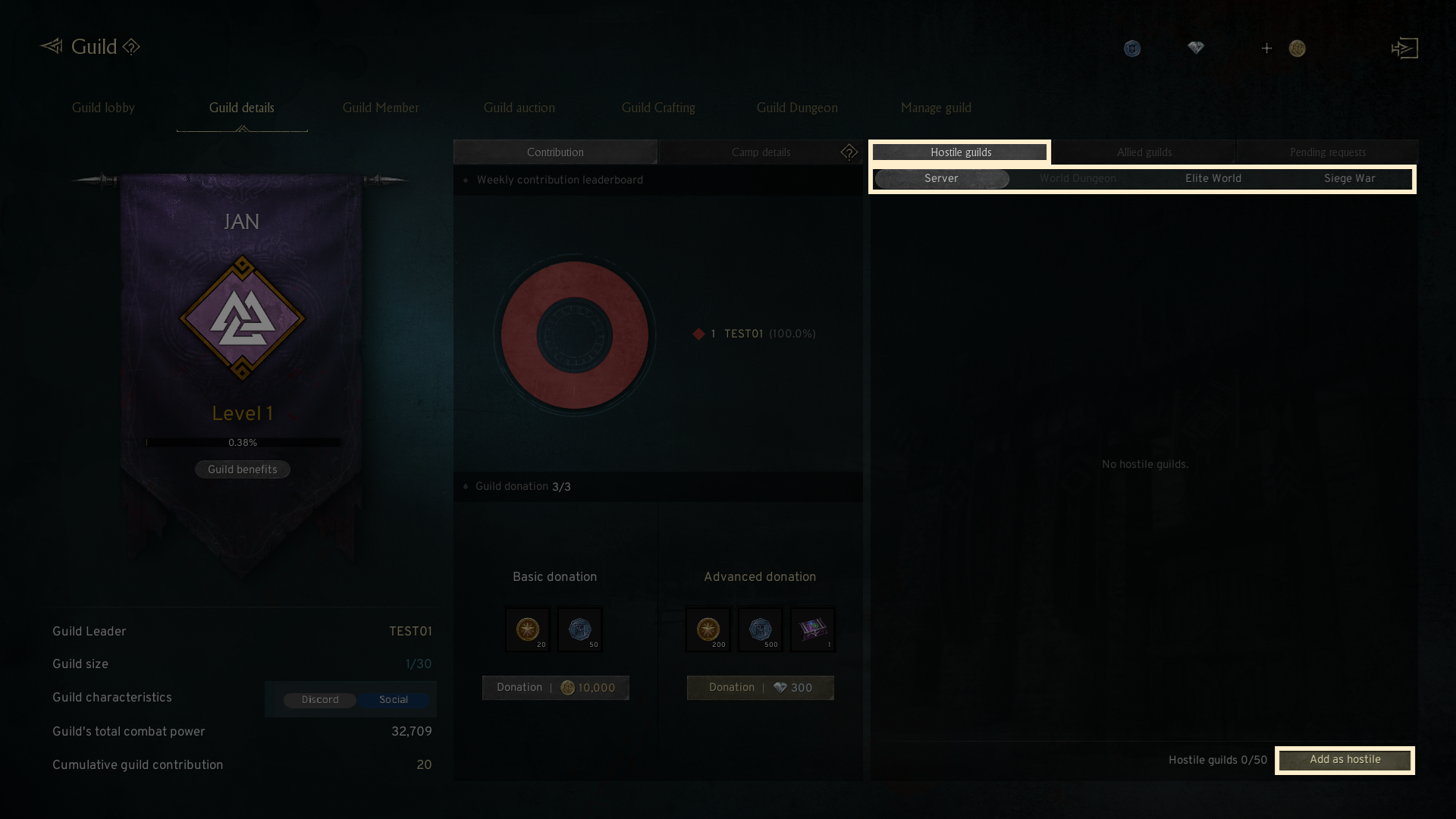
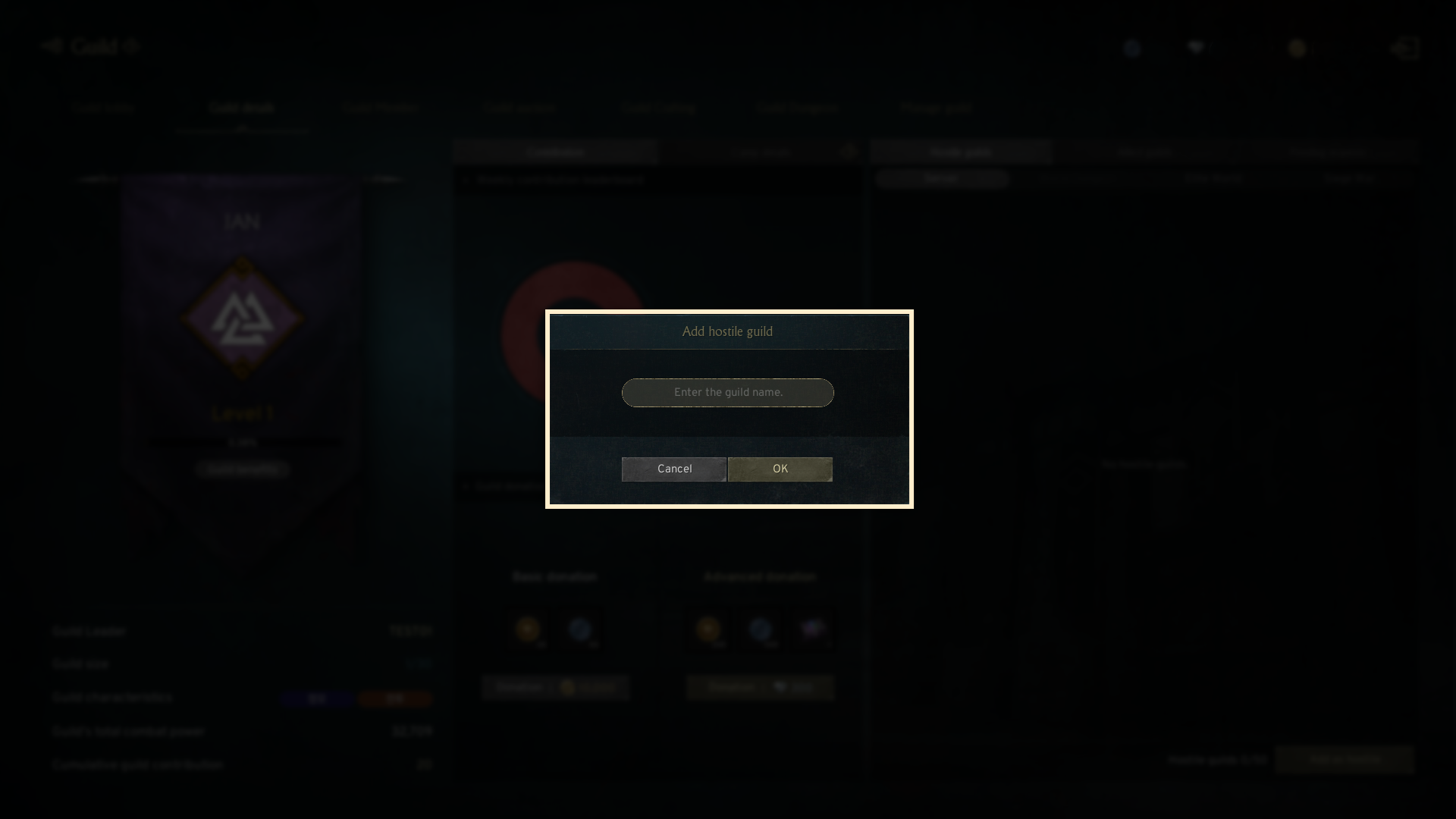
- By clicking the 'Add as hostile' button in the 'Hostile guilds' tab, a popup will appear allowing you to designate a guild as hostile.
[Allied Guilds]
- You can send an alliance request to a specific guild, and if the guild accepts the request, you can form an alliance with that guild (up to 50 alliances).
- Allied guilds can be distinguished, and you can categorize them by server.
- Allied guilds are not available for PK.
- Only the Guild Leader or Vice Guild Leader can approve the alliance request, and the alliance can be unilaterally cancelled.
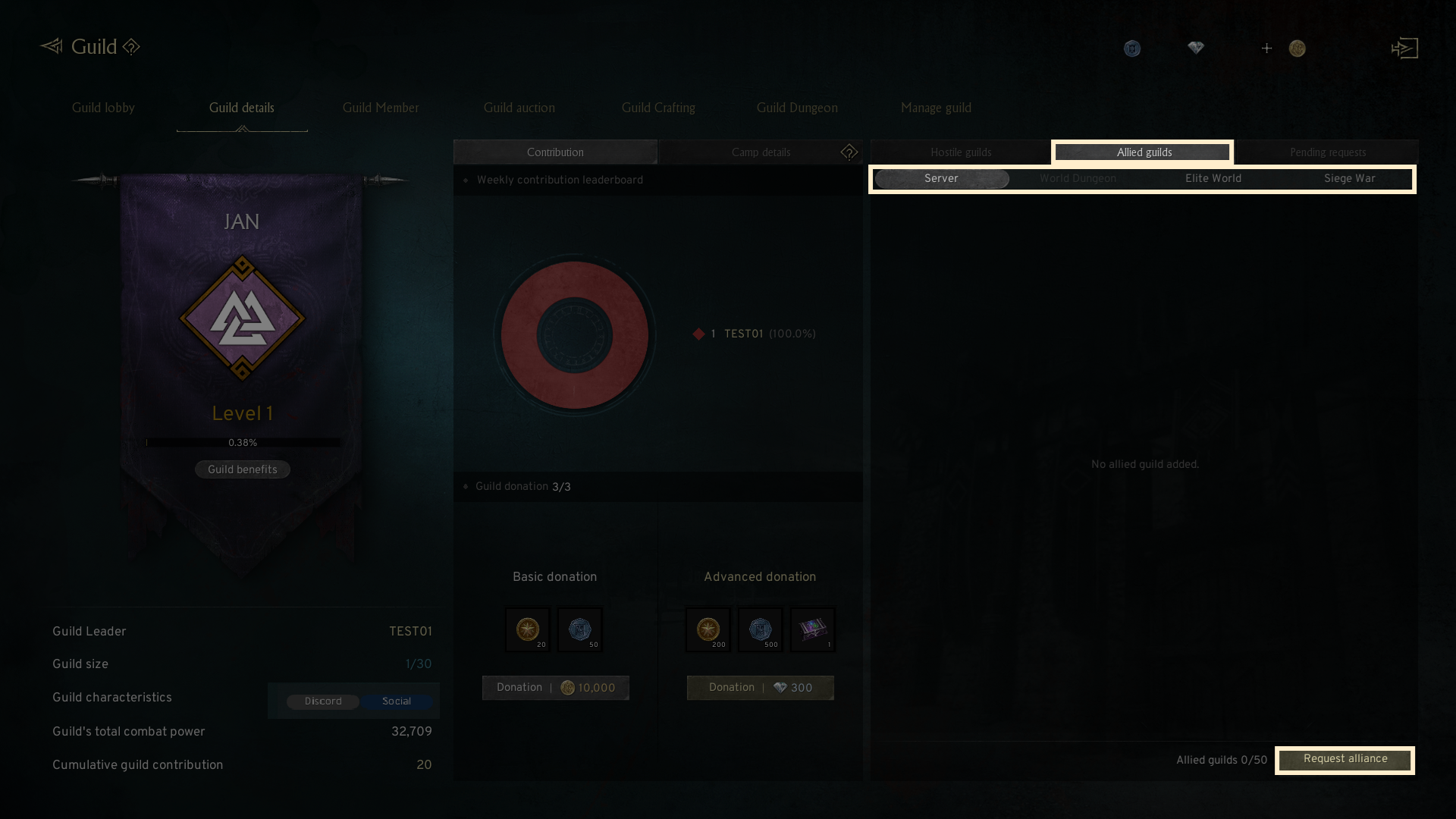
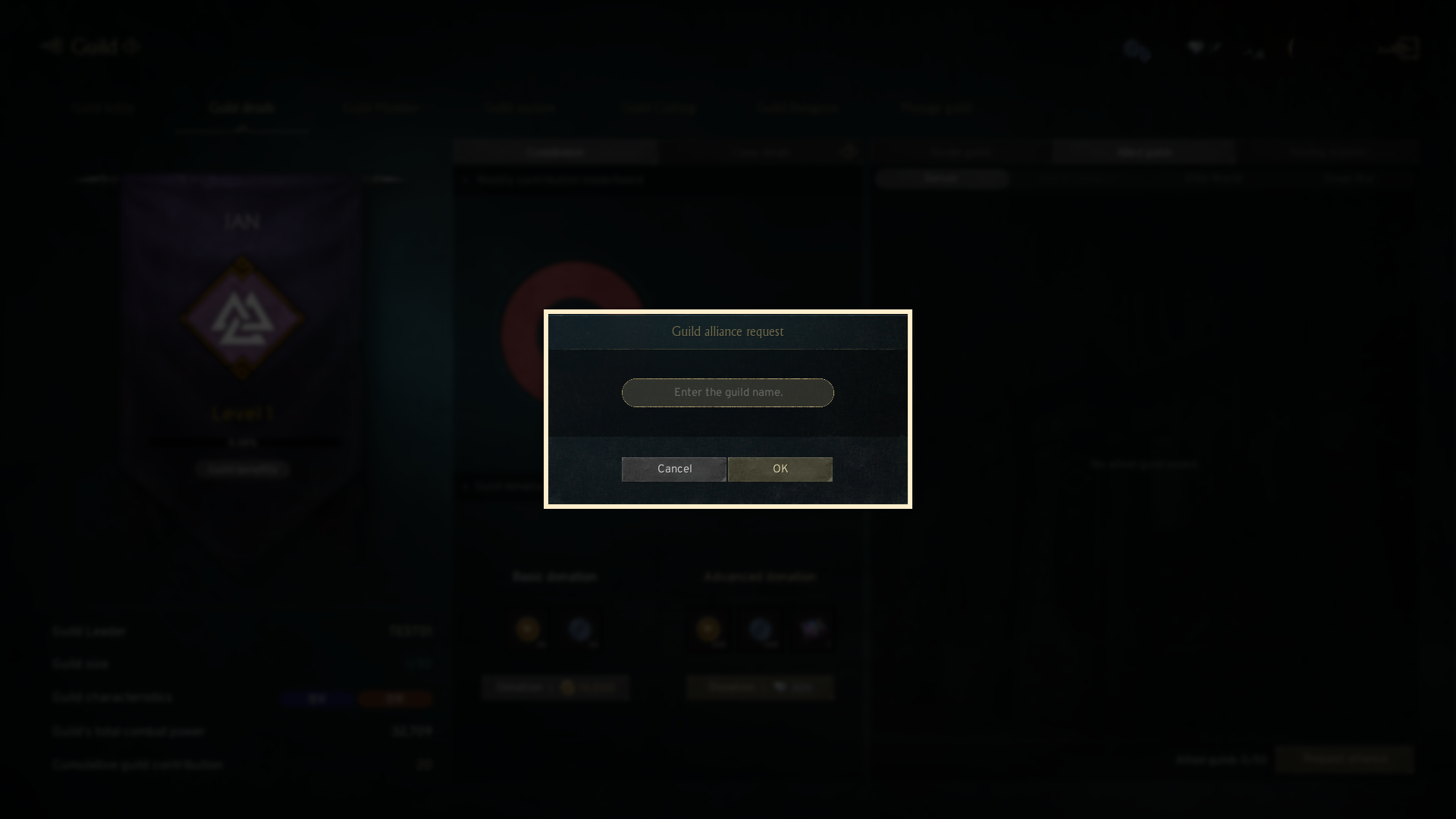
-By clicking the 'Guild alliance request' button in the 'Allied guilds' tab, a popup will appear, allowing you to send an alliance request.
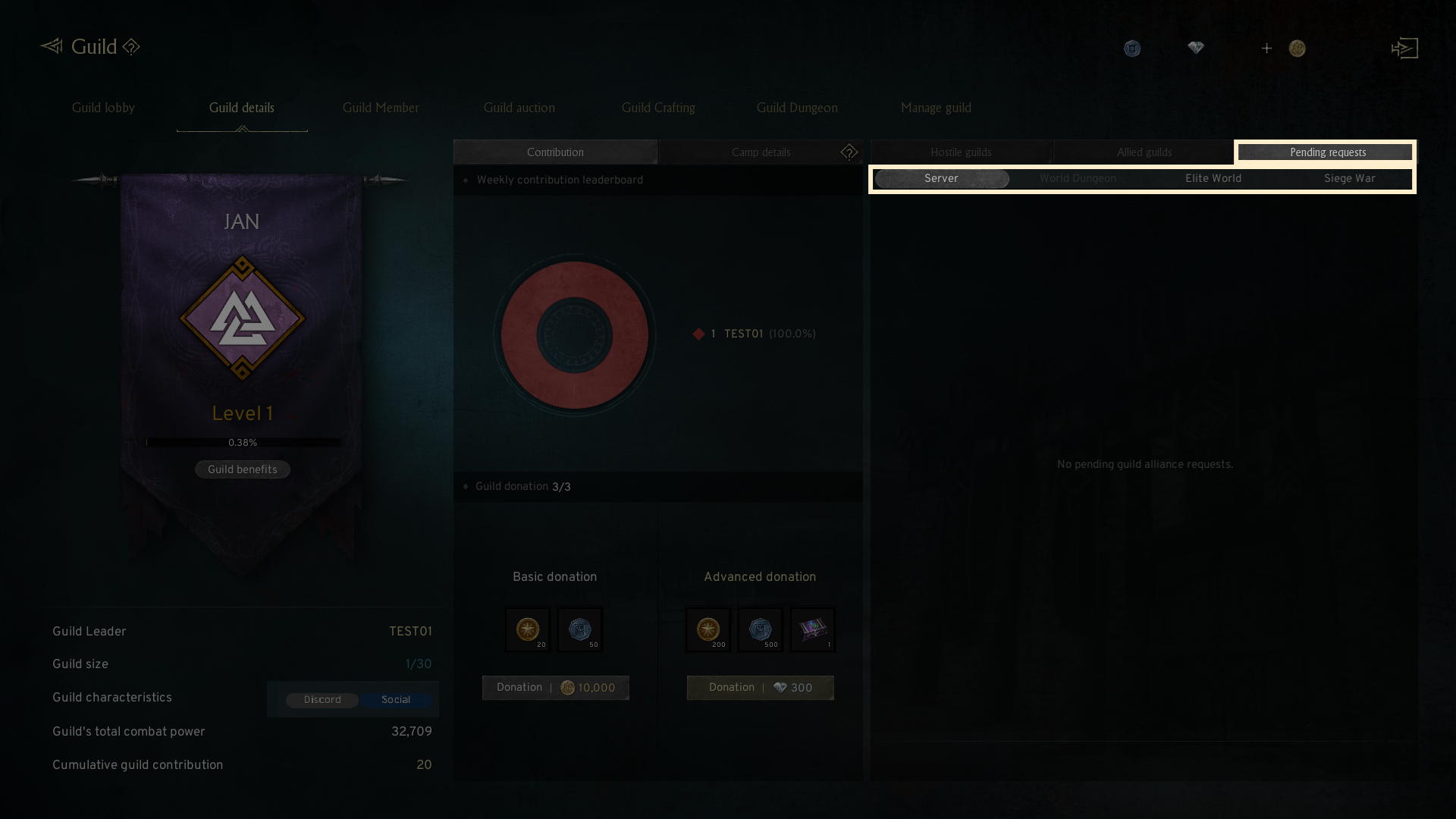
-You can monitor the progress of your guild alliance request through the 'Pending requests' tab.
If you need additional assistance, don't hesitate to contact our customer center through the button below.